
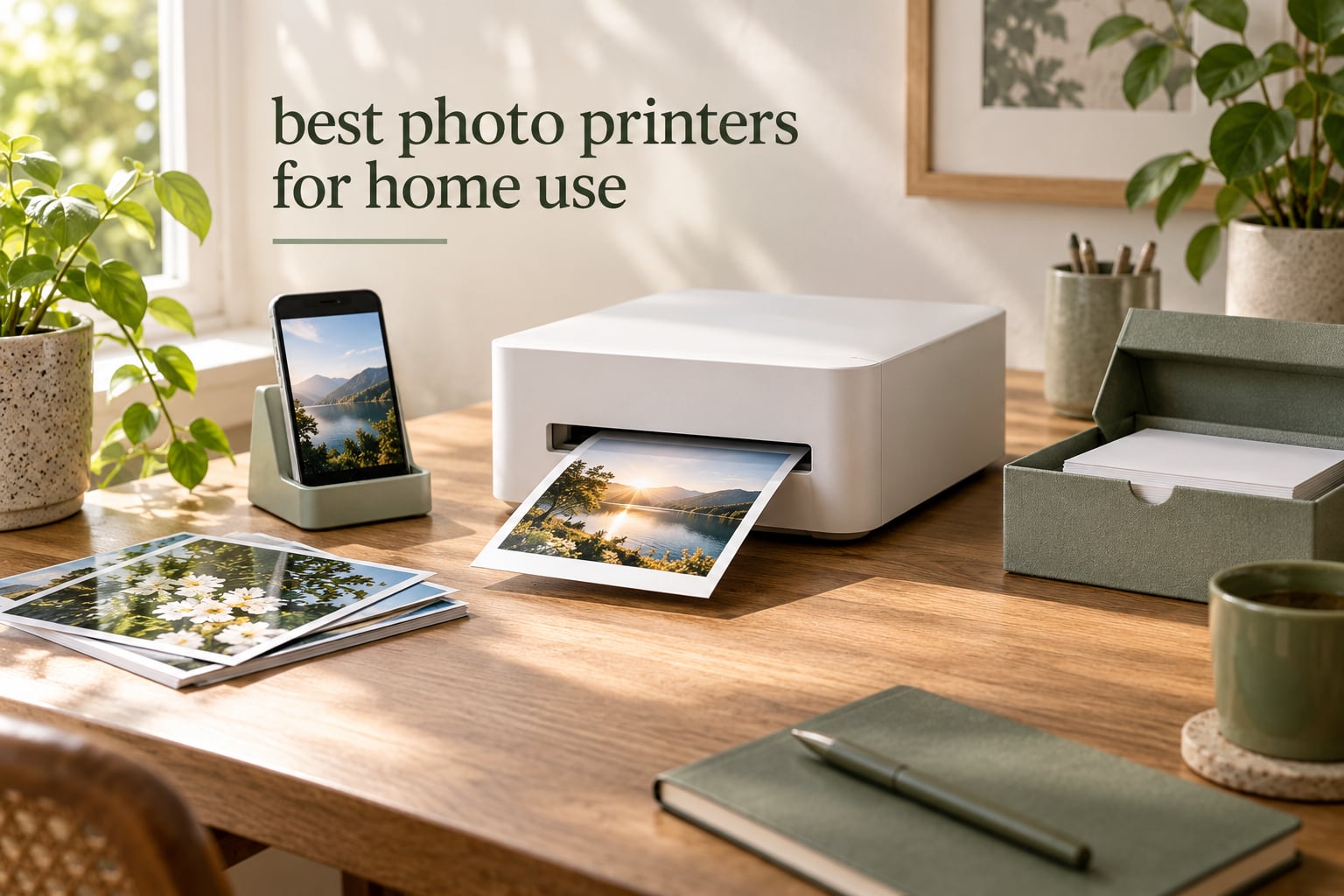
Choosing the best photo printers for home use is mostly a question of matching the machine to how often you actually print. A household that prints a few dozen snapshots from a phone a month wants a sealed, cartridge-based unit that survives idle weeks on a shelf. A family that also needs school worksheets, scanning and copying wants a desktop inkjet all-in-one. Someone making wall prints needs wide-format output and a proper photo ink system.
Those three needs pull in opposite directions, which is why so many buyer guides hand you a single winner that suits nobody. We spent weeks with these ten machines, printing the same phone shot, the same portrait and the same skin-tone chart on each of them, then weighed what came out against running cost, paper handling, connectivity and the maintenance each one demands.
Four technology families show up across this roundup. Dye-sublimation units transfer a solid dye layer from a ribbon and produce instantly dry, laminated 4×6 prints. Zink compact printers use no ink at all, embedding colour crystals in the paper itself. Portable inkjet pocket printers shoot real ink at 600 dpi in a 2×3 format. Desktop inkjets, including refillable tank systems, handle everything from 4×6 snapshots to 13×19 borderless prints and double as a scanner and copier.
Before we get into the picks, one honest note on the category: a home photo printer earns its keep when you control size, paper and colour. Lab prints remain cheaper per print for large formats and are hard to argue with for archival work, and for the smallest 2×3 sizes a dedicated pocket printer will beat anything else on convenience. We also put together separate guides on photo printers for scrapbooking and portable photo printers for travel if your use case is narrower than a general home setup.
Table of Contents
Top 3 Picks for the Best Photo Printers for Home Use for October 2026
These three cover the widest range of home needs. The Liene M100 is the all-round answer for phone printing, the KODAK Dock Plus is the value pick with the deepest review history here, and the Canon Ivy 2 Mini scores highest with owners for a pocket-sized printer.

Liene M100 4×6 Dye-Sub
- Thermal dye sublimation
- 300 x 300 dpi
- Built-in Wi-Fi hotspot
- 100 sheets and 3 cartridges included

KODAK Dock Plus 4PASS
- 4PASS dye sublimation with lamination
- Integrated phone dock
- About 55 seconds per 4x6
- 50 sheets included

Canon Ivy 2 Mini
- Zero-ink Zink technology
- 2x3 peel-and-stick prints
- Bluetooth 5.0
- 10 sheet capacity
Best Photo Printers for Home Use in October 2026
The table below lists all ten machines with their core technology and the reason each one earned its place. Every entry also prints from a phone; the ones marked as all-in-ones add scanning, copying and document printing.
| Product | Specifications | Action |
|---|---|---|
| Liene M100 4×6 Dye-Sub Printer |
|
Check Latest Price |
| KODAK Dock Plus 4PASS |
|
Check Latest Price |
 KODAK Step Instant KODAK Step Instant |
|
Check Latest Price |
| Canon Ivy 2 Mini |
|
Check Latest Price |
 Epson EcoTank Photo ET-8550 Epson EcoTank Photo ET-8550 |
|
Check Latest Price |
 Epson PictureMate PM-400 Epson PictureMate PM-400 |
|
Check Latest Price |
 Canon PIXMA TS7720 Canon PIXMA TS7720 |
|
Check Latest Price |
 Nelko PP01 Portable Nelko PP01 Portable |
|
Check Latest Price |
 Epson EcoTank ET-15000 Epson EcoTank ET-15000 |
|
Check Latest Price |
 Canon PIXMA TR8620a Canon PIXMA TR8620a |
|
Check Latest Price |
1. Liene M100 4×6 Dye-Sublimation Printer – Best Photo Printer Overall
Liene M100 4×6” Photo Printer, Phone Printer 100 Sheets & 3 Cartridges, Full-Color Photo, Portable Instant Photo Printer for iPhone Android, Thermal Dye Sublimation, Wi-Fi Picture Printer 100 Papers
Thermal dye sublimation
300 x 300 dpi
4x6 borderless
Wi-Fi and USB
200 g
Pros
- 100 sheets and 3 cartridges in the box
- Durable laminated prints that resist water and fading
- Built-in hotspot serves 5 devices without a router
- Compact magnetic body stores easily
Cons
- Proprietary Liene cartridges only
- About 1 page per minute
- Print head needs manual cleaning if it smudges
- 300 x 300 dpi trails photo inkjets
The Liene M100 is the unit we kept reaching for during this test, largely because of what lands in the box. You get 100 sheets of 4×6 glossy paper and three colour cartridges in the same package, which means the running cost conversation starts from a full consumables kit rather than an empty promise. That removes the single biggest reason people buy a compact photo printer and never print anything on it.
Output quality is what dye-sublimation does well. Rather than spraying droplets, the machine transfers a solid dye layer from a ribbon in a four-pass process that leaves the print dry the instant it exits the tray, coated in a protective laminate that shrugs off fingerprints and water. Skin tones came out even and slightly warm, and there was no visible banding in shadow areas on our test portraits.
Connectivity is unusually flexible for a small printer. The built-in Wi-Fi hotspot creates its own network and accepts up to five devices at once, so it works in a holiday rental or a garden office with no router nearby. USB and a USB Type-C hardware interface mean it also accepts a direct connection from a laptop, and the controller list covers Windows, iOS, Mac and Android.
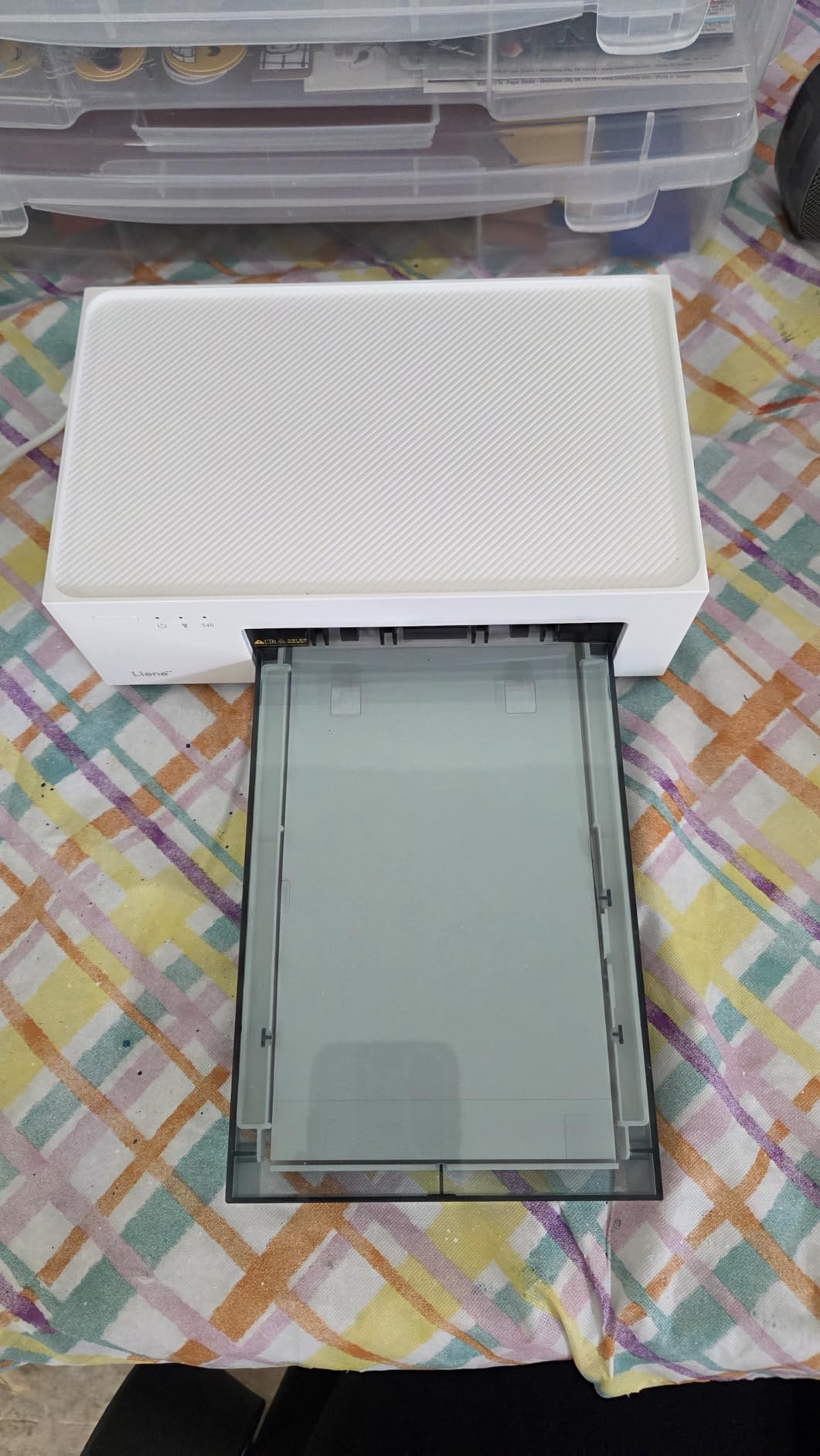
Where it slows down is throughput. The spec sheet lists one page per minute for colour and a 59-second first print, and that matched what we saw. One 4×6 takes about as long as making a coffee, which is fine for an album page and frustrating for a birthday party where twenty relatives want a print. Sheet capacity is 20 sheets, so refilling during an event is routine.
Owners report one specific maintenance quirk: the print head can smudge, and when it does the fix is a manual cleaning rather than an automatic cycle. Across 4408 reviews the average sits at 4.4 stars with 78% five-star, and the recurring praise is for the box contents, the durability of the laminated output and how few steps stand between a phone and a finished print.

What to check before you buy the Liene M100
Confirm your largest print size is 4×6. This machine cannot produce 5×7, 8×10 or anything larger, so anyone framing prints rather than filling an album should look at a desktop inkjet instead. Its 300 x 300 dpi resolution is real for a 4×6 held at arm’s length but softens visibly if you blow the image up.
Also confirm you are comfortable buying consumables for one brand. The cartridges are proprietary Liene units, and the ribbon-plus-paper bundles cannot be separated, so scrapbookers who go through a lot of paper will pay for ink they do not consume.
Who the Liene M100 suits and who it does not
It suits phone-first households printing a few dozen snapshots a month, families who hand prints straight to grandparents and albums, and anyone who wants prints that survive handling without a drying wait. Buyers who value the included paper and cartridges above everything else will find very little to argue with here.
It does not suit high-volume batch printing, event guests, or anyone who wants prints larger than 4×6. The one-page-per-minute cycle and 20-sheet tray make it a poor choice for a wedding or a school reunion, and the manual print-head cleaning is a real annoyance for owners who print irregularly.
2. KODAK Dock Plus 4PASS Dye-Sublimation Printer – Best Value 4×6 Printer
KODAK Dock Plus 4×6 Photo Printer, Smartphone Docking, 4PASS, 50 Sheets
4PASS dye sublimation
300 dpi
Integrated phone dock
50 sheets included
Print only
Pros
- Docking station charges the phone while printing
- Genuine 4PASS lamination resists fingerprints and fading
- About 55 seconds per 4x6
- Deepest review base in this roundup
Cons
- Printed instructions are nearly illegible
- Four passes make each print slow
- Paper jams can be hard to clear
- App sometimes needs repeated reconnects
The KODAK Dock Plus has the largest owner base of anything we tested, with 19844 reviews averaging 4.2 stars. That matters more than the star number itself, because a quarter-century of production on the PD460 platform means replacement cartridges and parts have had a long time to become ordinary objects rather than unobtainable ones.
The design choice that sets it apart is the integrated docking station. Your phone sits upright in the cradle while it prints, which charges the handset and removes the cable clutter that usually trails a compact printer. The KODAK Photo Printer app handles cropping and basic edits before the image goes down the Bluetooth link.
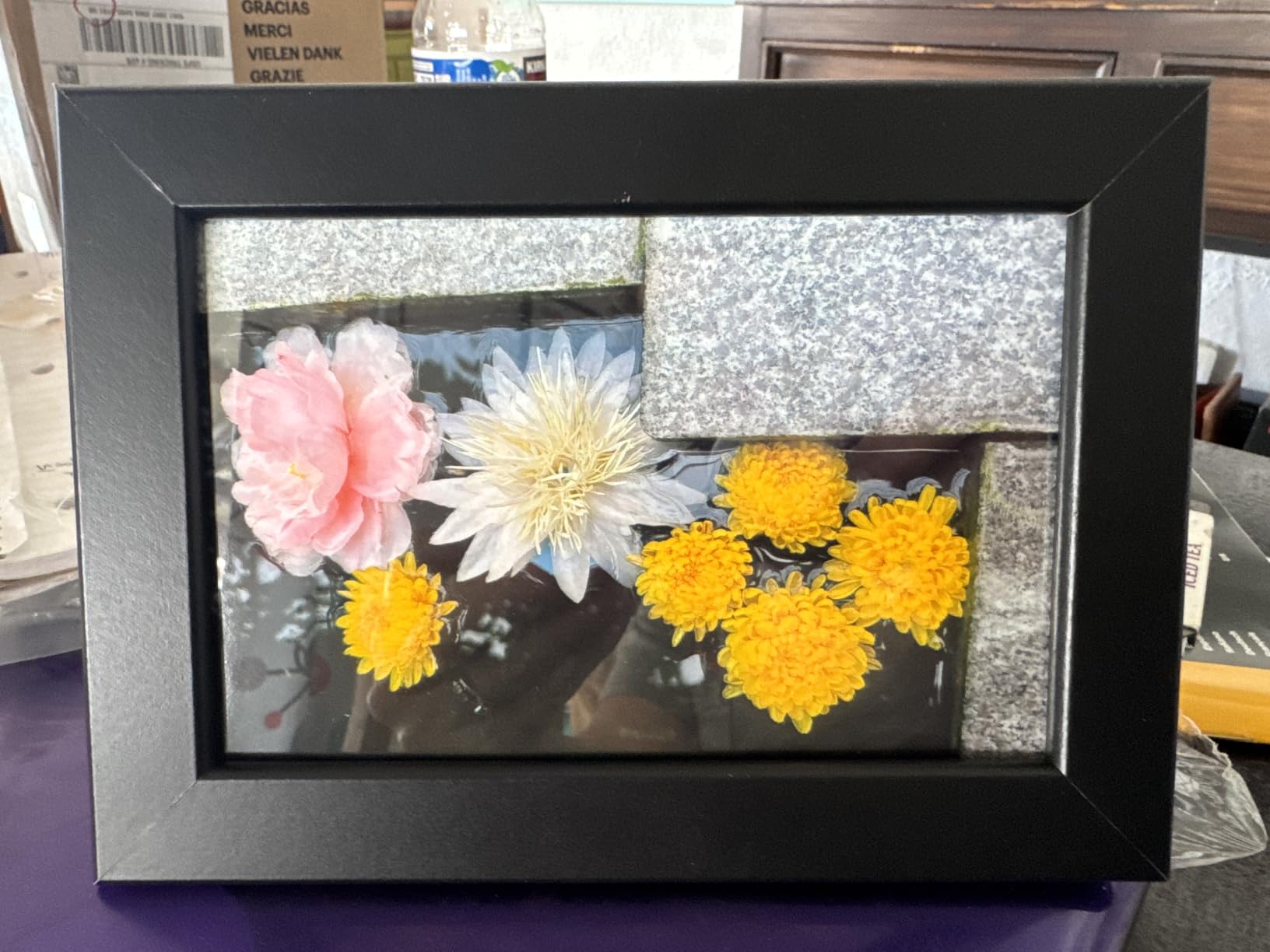
Print quality sits in the same dye-sublimation class as the Liene M100, with the protective lamination layer doing the same work against smudges and fading. The 4×6 output is borderless, glossy and dry on exit. Colour is a little flatter than an inkjet’s brightest work, which is normal for this process and unnoticeable on most phone shots.
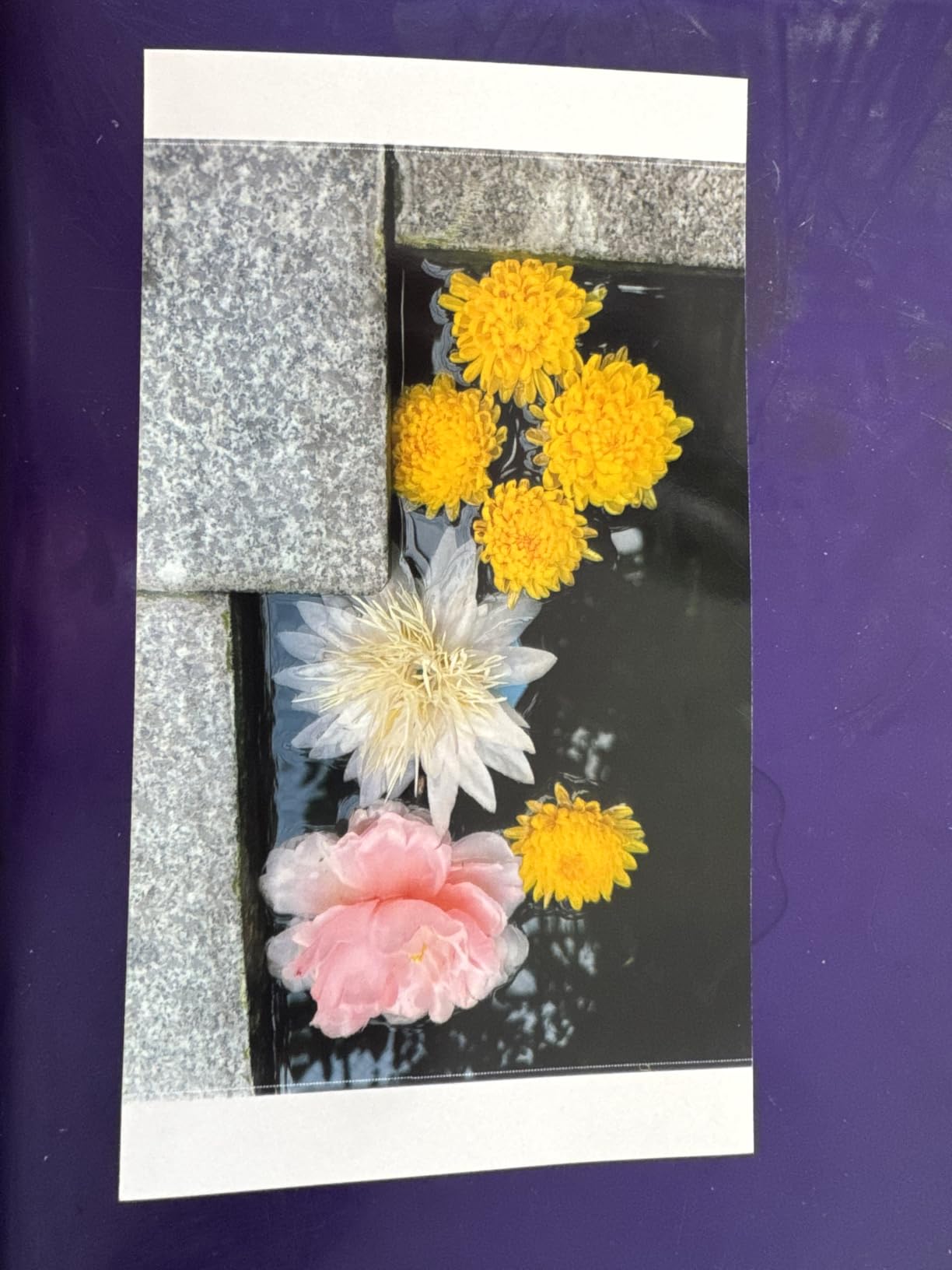
Two practical details deserve attention before you commit. The printed quick-start guide is genuinely hard to read at the sizes involved, so budget ten minutes with the app instead, and the four-pass process means roughly 55 seconds of near silence per photo before the tray ejects. Input capacity is 20 sheets with 50 sheets supplied.
Owners split on reliability rather than quality. Several reviewers single out KODAK support for resolving problems, while others report jams that resist clearing and film or cartridge faults that mean a costly replacement unit. With 12% one-star reviews, that tail is real, and it is the main reason we placed this second rather than first.
What to check before you buy the KODAK Dock Plus
This is a phone-only printer in practice. The listed controllers are Android and iOS and the connectivity is Bluetooth plus the docking connector, so it is not a solution for a household that needs to print documents or wants a desktop driver on Windows or macOS.
Check the film situation if you print heavily. Consumables come as ribbon and paper units rather than being sold separately, so topping up paper means buying media you may not need, and a film fault ends the session until a replacement arrives.
Who the KODAK Dock Plus suits and who it does not
It suits families who print snapshots on a kitchen counter, people building a physical photo habit after years of phone-only storage, and buyers who want the most established consumable supply in the compact category. A 4PASS laminated print handed to a child survives in a way an uncoated inkjet print does not.
It does not suit anyone printing at events, mixed households needing documents, or buyers who mind a slow four-pass cycle. At roughly a minute per photo, twenty guests will keep you waiting, and the 20-sheet input tray means refilling mid-session.
3. KODAK Step Instant Zink Printer – Best Photo Printer for Travel
KODAK Step Instant Smartphone Photo Printer, Portable Mini Color Wireless Mobile Printer, Zink 2×3” (5.1×7.5 cm) Sticky-Back Photos, Bluetooth Compatible with iOS & Android Devices, Editing App, White
Zink zero-ink
2x3 sticky-back
313 x 400 dpi
Battery prints about 25 photos
0.07 kg
Pros
- Zero-ink paper resists moisture tears and smudges
- Palm sized and light for travel
- Battery delivers about 25 photos per charge
- App offers collages borders stickers and text
Cons
- Only 2x3 inch prints
- Zink colour is less accurate than inkjet or dye-sub
- Output tray holds just 10 photos
- Paper cost adds up with frequent printing
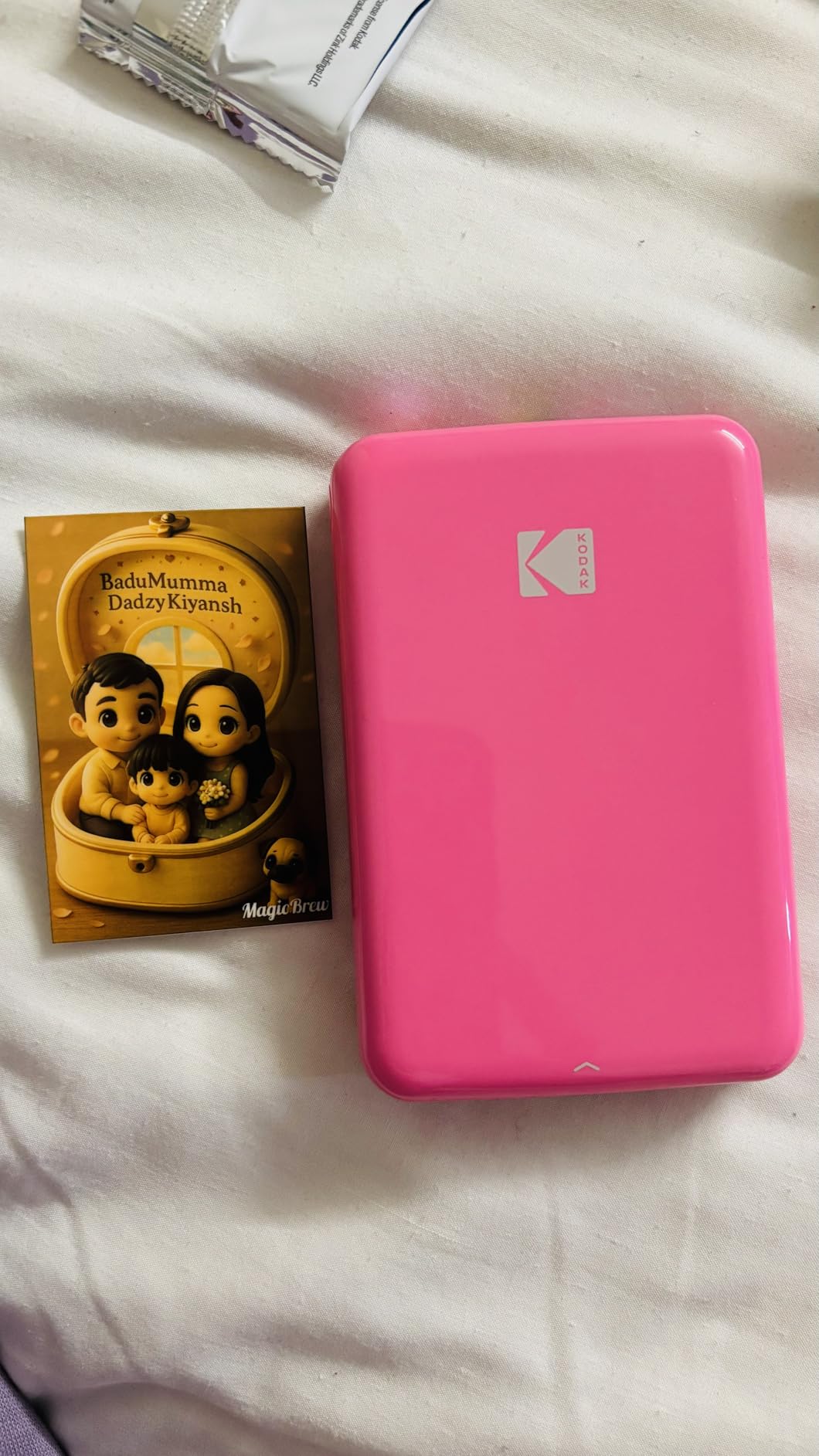
The KODAK Step is built to be carried rather than installed. It weighs 0.07 kg, measures roughly an inch deep by three inches, and runs on a built-in rechargeable lithium-ion battery that covers about 25 photos per charge. There is no cartridge to install, no ink to spill in a bag, and no paper tray to assemble before a trip.
The technology is Zink, which means the paper carries the colour. Heat activates dye crystals embedded in the sheet, so there is nothing to refill and nothing to clean. The prints have a peel-and-stick adhesive backing that peels cleanly from the back, which makes them useful in scrapbooks, on gifts and on a fridge.
App support is genuinely capable for a device this size. Beyond single prints, the editing app handles collages, filters, borders, stickers and text overlays. Bluetooth and NFC pairing covers both iOS and Android without a network connection, which is exactly what you want at a campsite or a wedding venue.
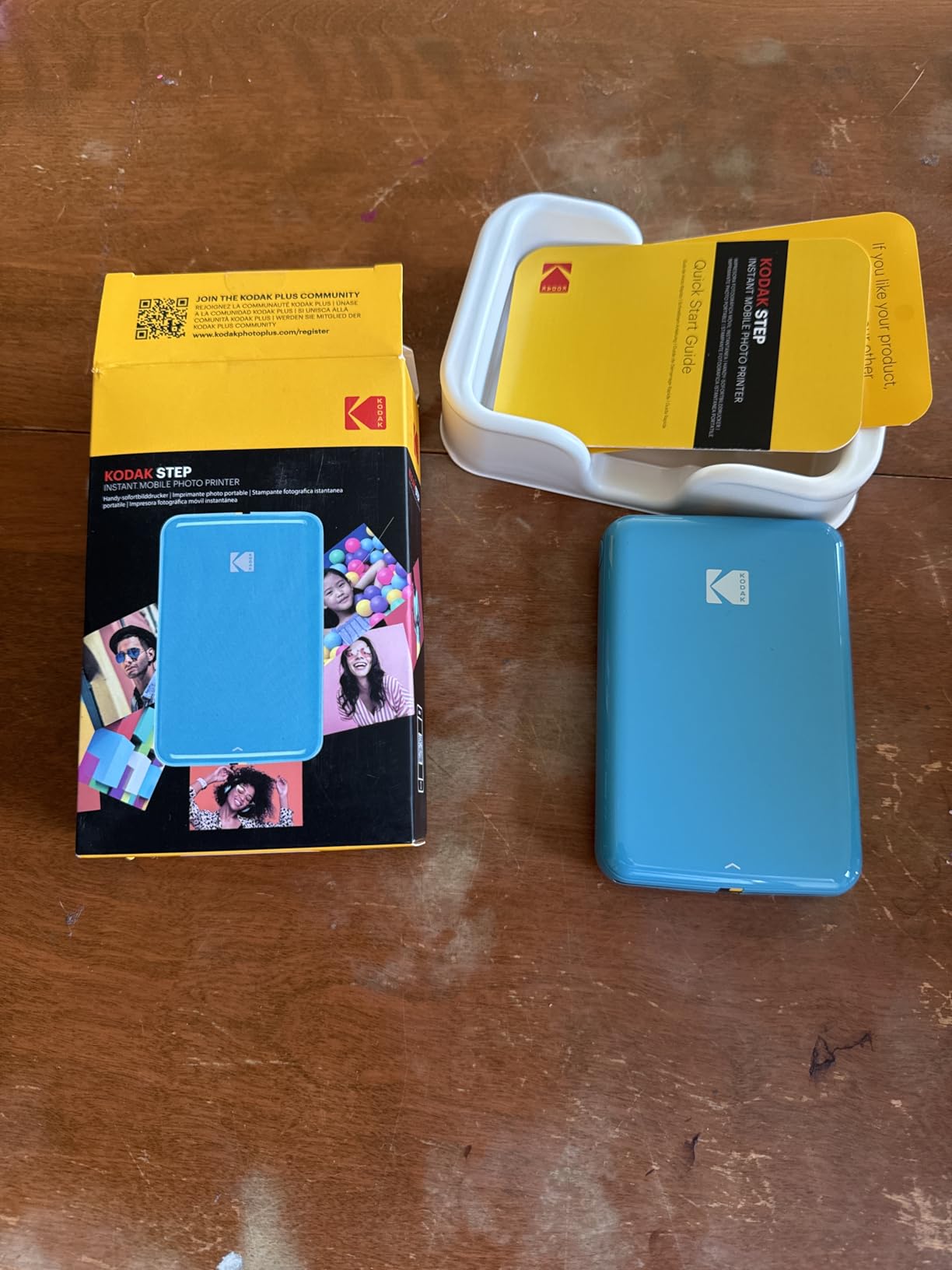
The limits are format and fidelity. Colour output at 313 x 400 dpi is acceptable for a snapshot but noticeably softer than inkjet or dye-sublimation, and blacks and saturated reds in particular look flatter than on a larger printer. The output tray holds ten photos at a time, so an event requires regular emptying.
With 20595 reviews at 4.4 stars and a 72% five-star share, owners are consistent about what matters: convenience, portability and zero maintenance. The complaint that appears again and again is size. A 2×3 print fits a scrapbook pocket or a small display, but it will not fill a standard photo frame without cropping.
What to check before you buy the KODAK Step
Decide whether 2×3 is enough for what you want to do with the output. If the end goal is an album, a scrapbook page or small gifts, it works well. If you want anything you can frame at standard size, this printer is the wrong tool and a 4×6 dye-sublimation unit like the Liene M100 serves you better.
Also budget for the paper. Because there is no ink cost, the running cost is entirely in the Zink sheets, and heavy use adds up faster than most buyers expect. Pack a spare pack for travel rather than assuming a battery charge solves everything.
Who the KODAK Step suits and who it does not
It suits travellers, people running party favours, scrapbookers who like the peel-and-stick backing, and anyone who wants photos from a phone with no setup. Children can hand these out at a birthday, and the adhesive means every print has a use rather than sitting in a drawer.
It does not suit anyone chasing colour accuracy or gallery prints, and it will not satisfy a household expecting document printing. Photo quality is a snapshot standard, not a display standard, and the ten-sheet tray is too small for a busy gathering.
4. Canon Ivy 2 Mini Photo Printer – Top Rated Pocket Printer
Canon Ivy 2 Mini Photo Printer, Print from Compatible iOS & Android Devices, Sticky-Back Prints, Pure White
Zink zero-ink
2x3 peel-and-stick
313x512 dpi
Bluetooth 5.0
145 g
Pros
- Highest owner rating in this roundup at 4.6 stars
- Zero-ink ZINK technology needs no cartridges
- Peel-and-stick backing adheres to most surfaces
- Improved skin tones and sharpness over the original Ivy
- Bluetooth 5.0 for steadier phone connections
Cons
- Limited to 2x3 inch prints
- Tray holds only 10 photos
- Canon ZINK paper is a proprietary consumable
- Battery allows a limited number of prints per charge
Among 4413 reviews the Canon Ivy 2 Mini averages 4.6 stars, the highest rating in this roundup, with 79% of owners handing over five. That is not a marginal gap. It reflects a specific upgrade on the original Ivy: Canon optimised skin tones, contrast and sharpness, which is the part of small-format printing that usually disappoints.
Skin is the hard test for any 2×3 printer. Faces in our test shots came out with believable colour rather than the waxy pink that spoils many compact devices, and contrast held up on backlit outdoor shots where cheaper models wash out. The peel-and-stick backing grips most surfaces, from cardstock in a scrapbook to a laptop lid.
Connection quality is a real step up on the previous generation. Bluetooth 5.0 gives a faster, steadier link to the phone, and pairing through the Canon Mini Print app is quick. There is no ink to buy, refill or clog, and the whole unit weighs 145 g.

The trade-offs are structural rather than quality-related. Sheet capacity is ten photos, printing takes up to 50 seconds for the first page, and the paper is a proprietary Canon ZINK consumable, so you cannot mix media brands or buy blanks elsewhere. As with any Zink device, the running cost lives entirely in the paper.
Owners also mention battery life in the same breath as the positives. The unit is designed for short bursts rather than an evening of event printing, which pairs naturally with the small tray. If your plan is a photo booth that runs all night, you would be charging and refilling continuously.
What to check before you buy the Canon Ivy 2 Mini
Confirm that 2×3 is your target size and that adhesive-backed prints suit your project. There is no plain paper path and no way to produce anything larger, so if you want framed prints this machine is out of scope no matter how good the colour is.
Plan your paper purchases around the ten-sheet tray. Because it is the only consumable and the only size, a busy session means constant refilling, and mixing in non-Canon Zink media is not a supported option.
Who the Canon Ivy 2 Mini suits and who it does not
It suits scrapbookers, gift-givers, and anyone who wants the best-looking small print without managing ink. Owners who want photos that go straight into an album and stay put will appreciate the adhesive backing as much as the colour work.
It does not suit high-volume event printing, large-format ambitions, or buyers who want to print from a laptop. There is no computer workflow here, only phone and tablet, and battery life limits a long evening of use.
5. Epson EcoTank Photo ET-8550 – Best Photo Printer for Large Prints
Epson EcoTank Photo ET-8550 Wireless Wide-Format All-in-One Tank Printer
Claria ET Premium 6-color
5760 x 1440 dpi
13x19 borderless
Scan and auto duplex
24.5 lb
Pros
- Six-color ink produces excellent gloss photo output
- 4 cents per 4x6 photo with cartridge-free tanks
- Up to 13x19 with scanner and auto duplex
- Transparent tanks show remaining ink levels
Cons
- Rear manual feed is finicky on the first attempt
- Automatic tray selection is unreliable
- Large and heavy at 24.5 lb
- Setup took about 2.5 hours for first-time users
The ET-8550 is the only machine here that produces a genuinely large borderless photo and also scans and copies, which makes it the closest thing to a single device for a mixed household. It prints at up to 13 x 19 inches on Claria ET Premium six-color ink, and the sixth colour matters more than the spec sheet suggests: the extra inks widen the gamut in skin tones and smooth the dark-to-light transitions that make inkjet photos look digital.
Cost per print is the headline. Epson’s cartridge-free tank system brings a 4×6 photo to roughly 4 cents of ink, and the box holds up to 6200 colour pages and about two years of ink. Transparent tanks let you see remaining levels at a glance, which removes the cartridge-change panic that drives so many household returns.
As an all-in-one it is complete: a built-in flatbed scanner, automatic duplex, USB and Wi-Fi, and touch plus app control across iOS and Android. Output capacity is 100 sheets in, 50 out, and it works well with Epson and Canon fine-art and photo papers.
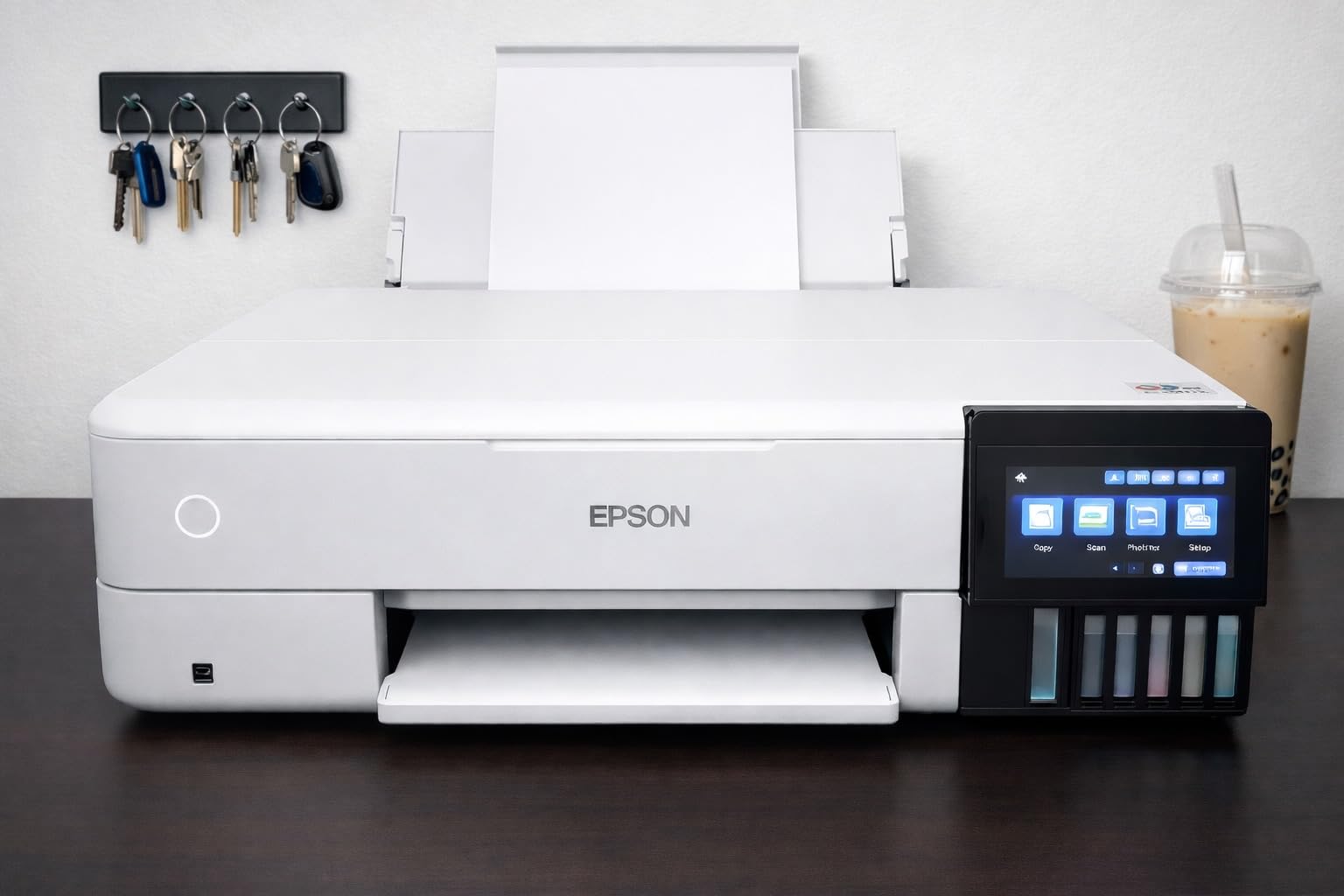
Now the honest part. Owner reviews divide sharply, and 19% of them are one-star. The recurring technical complaints are a finicky rear manual feed that often fails on the first attempt, unreliable automatic tray selection that forces manual intervention, and a print-head alignment routine that runs through the same paper path and can fold or crumple delicate stock.
Size matters too. At 24.5 lb and nearly 30 inches deep, this is not a desk printer, and owners mention it rocking on an uneven surface. First-time users report spending around two and a half hours on unpacking, filling and charging the ink before the first good print, so plan an afternoon rather than an evening.
What to check before you buy the Epson EcoTank Photo ET-8550
Check that you have a surface for it. The footprint and weight rule out a shelf or a small desk, and the rocking issue is real on anything uneven. Wide-format printers need somewhere to sit that stays clear.
Check your monthly volume against the tank model. At roughly 4 cents per 4×6 plus paper, this is the right machine above a couple of dozen photos a month and the wrong one below that, where the setup time and footprint never pay for themselves. Photo enthusiasts on photography forums repeatedly name this class of machine when they ask for a single device that does quality and volume together.
Who the ET-8550 suits and who it does not
It suits amateur photographers making 8×10 and 11×17 prints, families who need a scanner and copier alongside photos, and anyone printing in volume who is tired of cartridge pricing. The 6-colour system and premium paper support make it a serious darkroom substitute for home use.
It does not suit occasional printers, small living spaces, or anyone unwilling to spend an afternoon on setup. The manual feed, tray selection and head alignment issues are real and appear often enough that you should buy expecting some friction.
6. Epson PictureMate PM-400 – Best Photo Printer for Photo Albums
Epson PictureMate PM-400 Wireless Compact Photo Printer
5760 x 1440 dpi
4x6 in 36 seconds
Borderless 4x6 and 5x7
Scanner
LCD screen
Pros
- 4x6 borderless photo in as fast as 36 seconds
- Wireless printing from iPhone iPad and tablets
- True borderless 4x6 and 5x7 that fit standard albums
- Compact 6 lb body with an LCD screen
Cons
- Cartridges run low faster than tank competitors
- Not truly portable with no battery
- Long-lived units show quality degradation
- Difficulty printing two photos per 4x6 sheet from a Mac
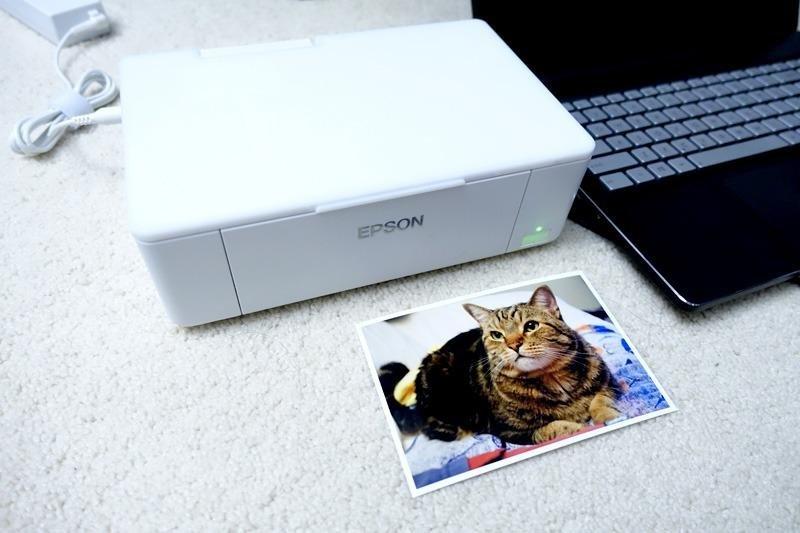
The PM-400 is a dedicated photo printer in the older, purer sense: it does not pretend to be a home office machine. It prints borderless at 4×6 and 5×7 at up to 5760 x 1440 dpi, which puts it in inkjet resolution territory well above the dye-sublimation units here, and it takes 50 sheets at a time so an album session does not stall.
Speed is its quiet strength. A borderless 4×6 lands in about 36 seconds, and 50 copies per run means a stack of album pages in one session. Wireless printing covers iPhone, iPad, tablets and other phones over Wi-Fi, and the scanner on top lets you digitise prints you have already made.
Long-term owners report years of reliable output. Across 1434 reviews at 4.5 stars with 79% five-star, scrapbookers describe bright, fade-resistant prints on Epson ink and paper, and several mention Epson’s prepaid shipping box for making the ink absorber service straightforward.
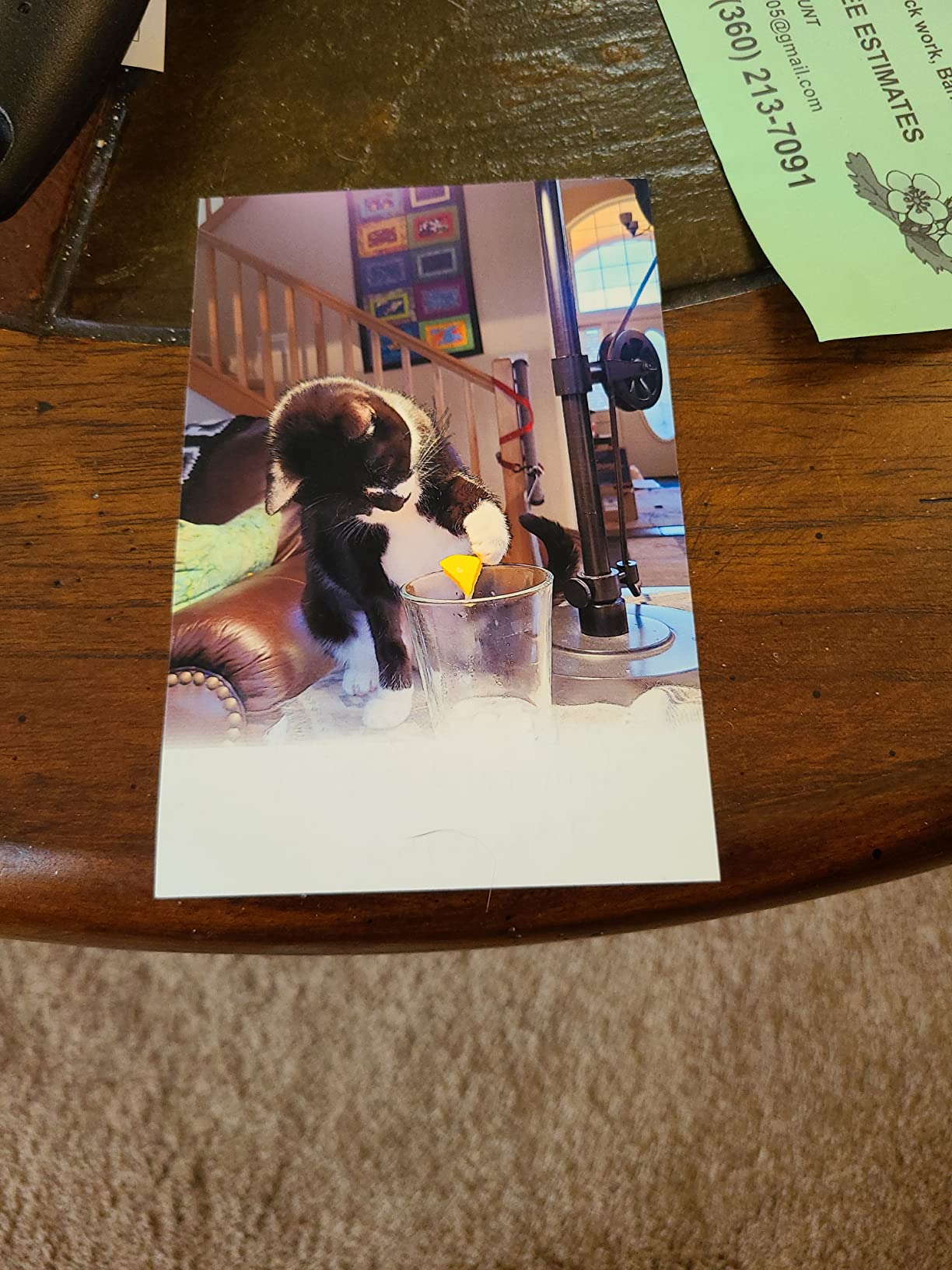
The compromises are cartridge cost and age. This uses Epson Genuine cartridges rather than a tank system, so running cost per photo is well above the ET-8550’s, and reviewers note cartridges run low faster than on tank-based models. The design also dates: it needs a power cable, has no battery, and long-owned units report output quality degrading over years of use.
One specific workflow issue shows up repeatedly: printing two photos per 4×6 sheet from a Mac is difficult to get right. If dual-image printing from a desktop is part of your plan, test it before you commit.
What to check before you buy the Epson PictureMate PM-400
Decide whether cartridge cost per print is acceptable for your volume. At modest monthly volumes the difference between cartridge ink and tank ink is small in absolute terms. At high volume it becomes the dominant cost, and a tank printer wins comfortably.
Note the size ceiling. The PM-400 tops out at 5×7, so it fills standard album pages beautifully but cannot produce 8×10 or larger. If you want wall prints, this is not the machine, and no software setting will change it.
Who the PM-400 suits and who it does not
It suits scrapbookers and album builders, older users who appreciate the LCD preview screen, and anyone who wants true inkjet resolution at small sizes without buying a full all-in-one. Wireless phone printing with no app learning curve is a genuine plus.
It does not suit high-volume printers, people who need documents and copying from one box, or buyers who need prints larger than 5×7. Cartridge running costs will annoy anyone printing more than a couple of dozen photos a month.
7. Canon PIXMA TS7720 – Best All-in-One for Photos and Documents
Canon PIXMA TS7720 Wireless All-in-One Color Inkjet Printer – Print, Copy, Scan – Auto Duplex, 15/10 PPM, 2.7” Touchscreen, Compact Home Photo Printer with Easy Setup
All-in-one print copy scan
1200 x 1200 dpi
Auto duplex
2.7 inch touchscreen
13.8 lb
Pros
- Print copy and scan in a compact footprint
- Automatic duplex at 15 and 10 pages per minute
- Supports 4x6 through 8x10 plus square formats
- Two easy no-mess cartridges and a touchscreen
Cons
- Only 1200 x 1200 dpi for photos
- Two-cartridge ink is less economical than tanks
- 15 percent of reviews are one star
- No automatic document feeder on this model
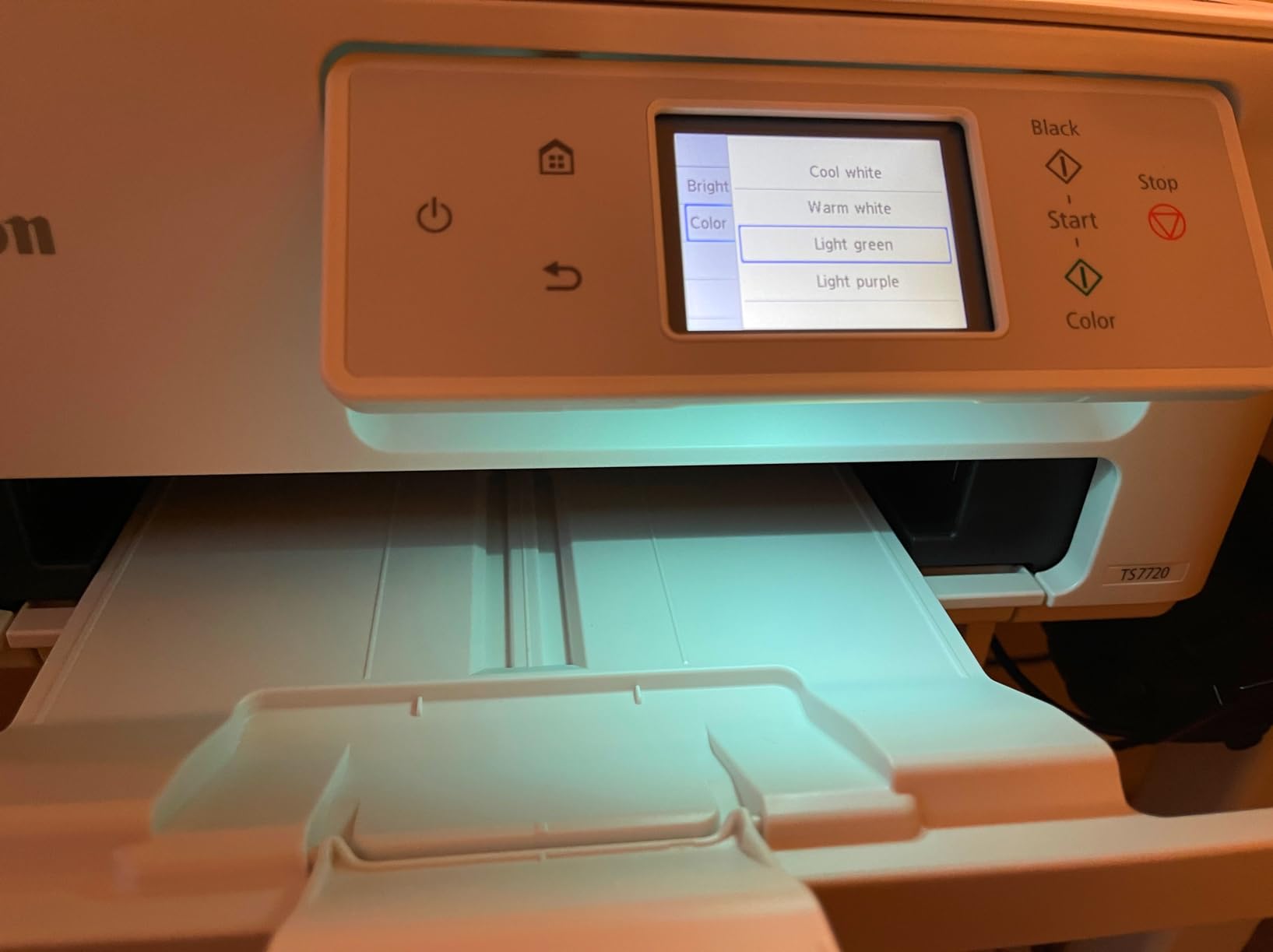
This is the answer for a household that needs one machine for homework, shopping lists and holiday photos. The PIXMA TS7720 prints, copies and scans, adds automatic duplex, and handles photo sizes from 4×6 up to 8×10 along with 7×10 and square formats through the rear tray. The 2.7-inch touchscreen makes setup and menu navigation straightforward without a computer.
Paper handling is unusually good for the price of the class. Two trays give you a 100-sheet cassette for everyday paper and a rear tray for glossy photo stock and envelopes, with total capacity of 100 sheets in and 200 out. Speeds of 15 black and 10 colour pages per minute keep documents moving.
Ink handling is the simplified two-cartridge system, PG-285 pigment black and CL-286 colour, installed without mess. Reviewers consistently mention fast out-of-box setup compared with many PIXMA models, and the machine weighs 13.8 lb in a compact footprint that fits a home office shelf.
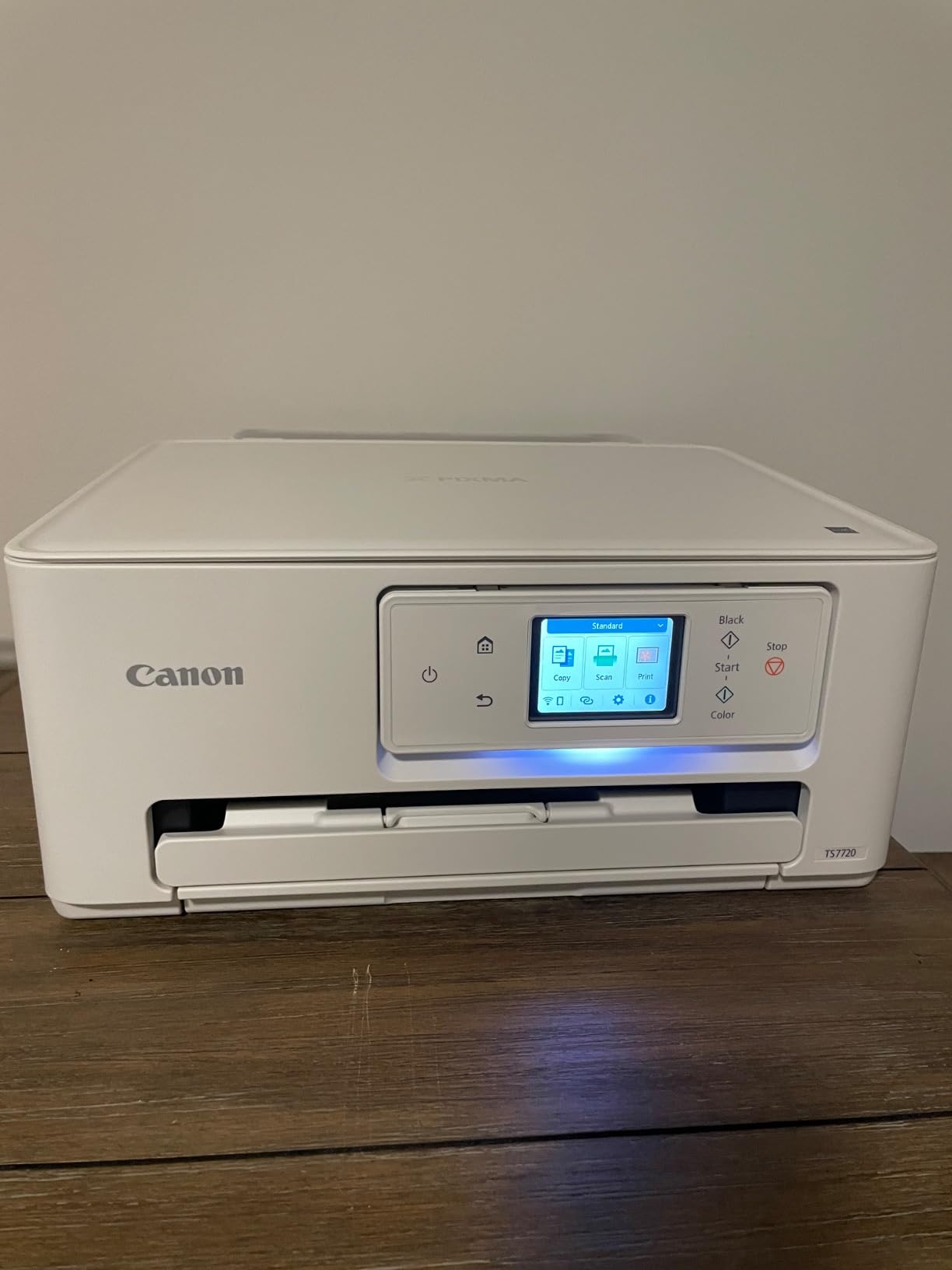
The photo ceiling is the honest weakness. Maximum resolution is 1200 x 1200 dpi, which is modest for photo work and clearly below the 5760 x 1440 of the dedicated models here. Prints at 8×10 will look fine on a desk and soft in a frame at close range, and a two-cartridge system is meaningfully more expensive per photo than a tank printer.
Reliability is mixed. The average is 4.1 stars from 1066 reviews, with 64% five-star and 15% one-star, and those one-star reviews cluster around setup and connection problems rather than print quality. There is no automatic document feeder on this model, which limits bulk scanning.
What to check before you buy the Canon PIXMA TS7720
Be honest about whether photos are occasional. If a dozen 4×6 prints a year sit alongside school worksheets, this machine is a good fit and the cartridge cost will not hurt. If photo printing is the main event, the resolution and two-cartridge running cost work against you.
Check whether you need an automatic document feeder. Without one, scanning a multi-page document means lifting the flatbed each time, which changes the experience of an office machine considerably.
Who the TS7720 suits and who it does not
It suits families and home offices that need one device for documents, scanning and occasional photos, and buyers who want square format support for social posts. The touchscreen and duplex make everyday use easy for non-technical users.
It does not suit photo-first households or high-volume printers. Anything above 1200 x 1200 dpi is beyond it, and the two-cartridge ink system means a meaningful per-photo cost compared with any tank model in this roundup.
8. Nelko PP01 Portable Inkjet Printer – Best for Sharp 2×3 Snapshots
Nelko PP01 Photo Printer, 2×3 Portable Photo Printer, Mini Printer, White
Inkjet technology
600 dpi
2x3 sticky-back
80 photos per cartridge
Bluetooth
Pros
- 600 dpi inkjet output beats most Zink rivals
- Each cartridge prints up to 80 full-color photos
- Sticky-backed paper resists smudges water and tears
- 0.6 lb body fits a pocket or school bag
Cons
- Only prints 2x3 inch photos
- Inkjet cartridges need cleaning after long idle periods
- Power adapter not included
- CMYK cartridge means no true monochrome
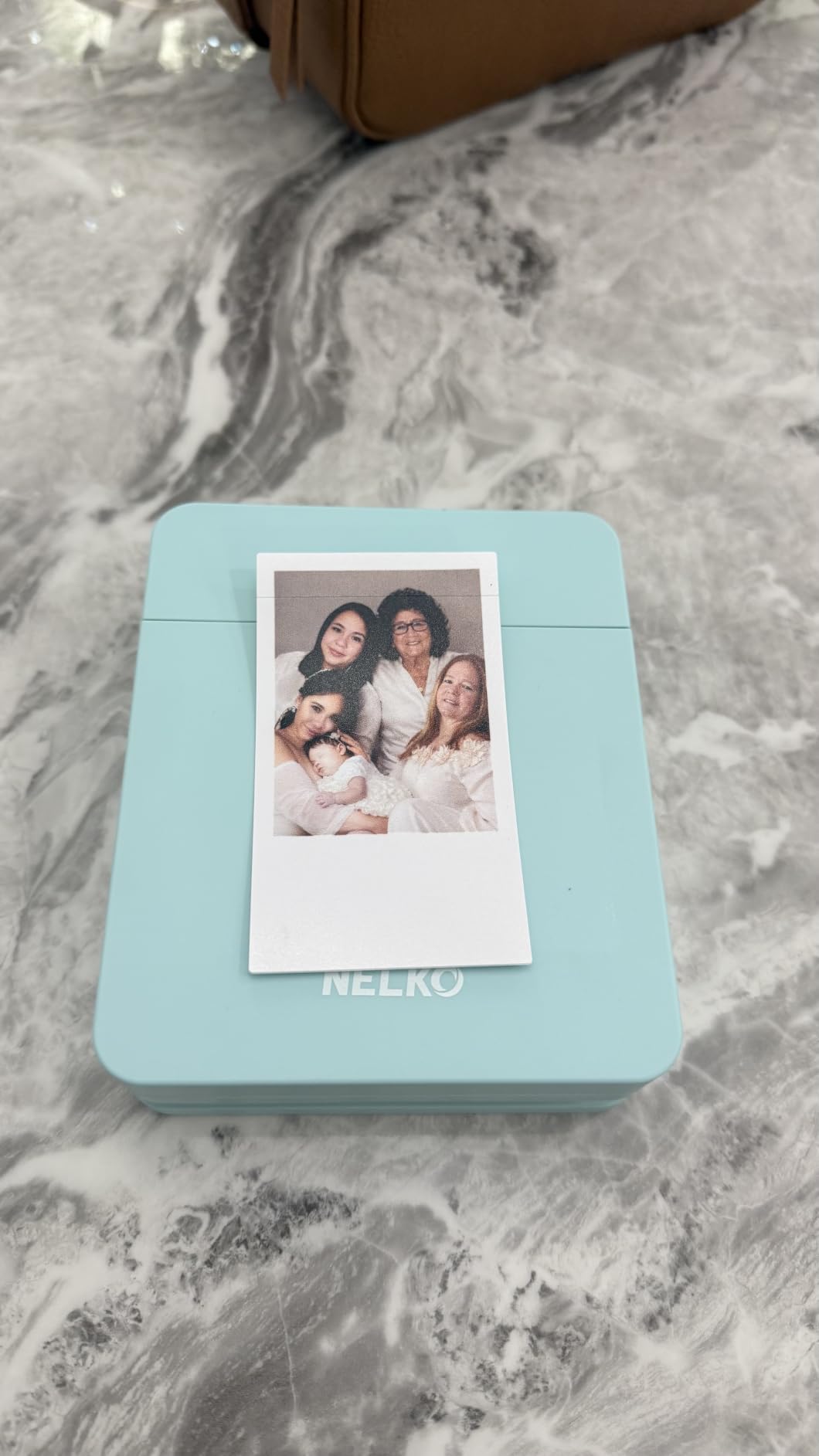
The Nelko PP01 solves the main weakness of pocket printers. Instead of Zink, it runs an inkjet at 600 x 600 dpi, and on our test shots that difference was obvious in the fine detail and in the depth of blacks. If you have been disappointed by 2×3 output before, this is the small printer that changes that impression.
It is also number one ranked in portable photo printers here, with 1385 reviews at 4.4 stars and a 78% five-star share. The cartridge yield is a genuine advantage: each unit prints up to 80 full-colour 2×3 photos, which spreads the ink cost over far more images than a Zink sheet purchase.
The app is worth mentioning. Alongside filters, borders, stickers and text, it includes AI image editing, and Bluetooth pairing to phones is straightforward. The paper carries an adhesive backing that resists smudging, water and tearing, so prints stay intact in a journal or on a card.
The trade-off is that ink means maintenance. Owners report needing to run cleaning cycles if the printer sits idle, which is precisely the problem that sealed Zink and dye-sublimation designs avoid. That makes the PP01 a better fit for someone who prints regularly than for someone who prints twice a year.
Two smaller notes. The power adapter is not included, only a USB charging cable, so budget for that. And the CMYK cartridge means black-and-white output is a mix of colour inks rather than true monochrome, which shows in greyscale prints with a faint colour cast.
What to check before you buy the Nelko PP01
Ask how often you will print. An inkjet that prints monthly needs no attention, while one that lives in a drawer for six months may need a cleaning cycle before the next job. That makes this the opposite of a set-and-forget device.
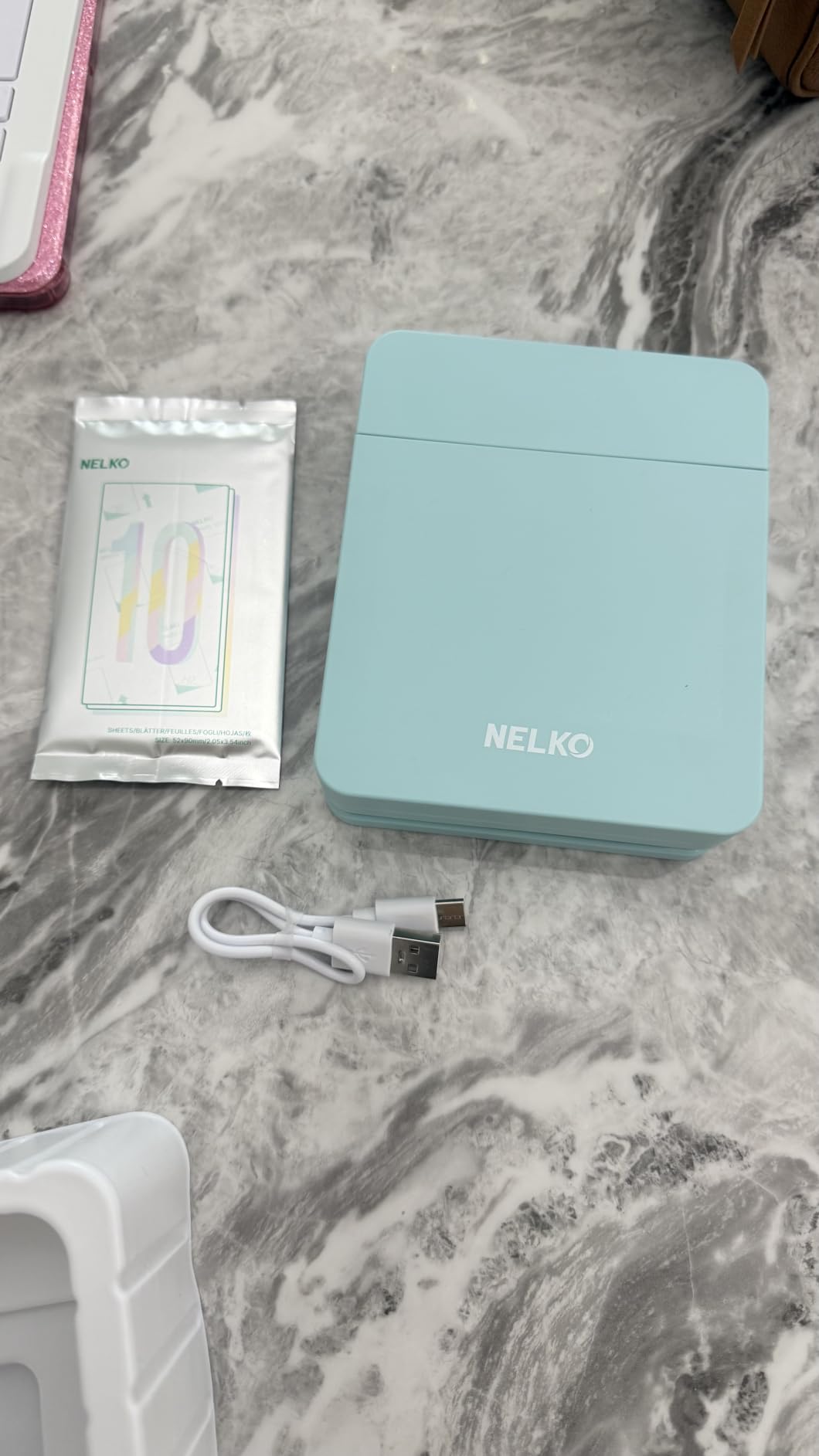
Confirm 2×3 adhesive prints work for your project. The sheet is 52 by 90 mm and there is no larger format, so framed prints and full album pages are out of reach regardless of the quality.
Who the PP01 suits and who it does not
It suits students, travellers, and scrapbookers who want sharper small prints than Zink delivers while keeping ink cost per image low. The 80-photo cartridge yield and adhesive paper make it a strong party-favour or journal option.
It does not suit infrequent printers or anyone needing documents, larger formats or true greyscale. The absent power adapter and idle-clogging risk are the two practical drawbacks to plan around.
9. Epson EcoTank ET-15000 – Best Photo Printer for a Home Office
Epson EcoTank ET-15000 Wireless All-in-One Wide-Format Supertank Printer
Inkjet up to 4800 x 2400 dpi
11x17 wide-format
250 sheet capacity
ADF fax and auto duplex
26.5 lb
Pros
- Wide-format up to 11x17 with 250 sheet capacity
- Tank ink costs far below cartridge printers
- 127 mL black tank plus three 70 mL color bottles
- Print copy scan and fax with an auto document feeder
Cons
- Only 4-color ink so not a true 6-color photo printer
- 11x17 sheets load in a rear holder with no wide tray
- Sheetfed scanner cannot scan 11x17 originals
- Occasional jams and a confusing paper menu
The ET-15000 is built for a household that runs a small business from a spare room. It prints, copies, scans and faxes, adds an automatic document feeder and automatic duplex, and handles 11×17 wide-format sheets. At 17 pages per minute black and 9 colour, it keeps up with paperwork in a way the compact photo printers never could.
Paper handling is the standout. A 250-sheet capacity means far fewer refills than any cartridge printer, and the rear feeder accepts thicker media such as canvas and cardstock, which is why owners on craft forums recommend it for transfer and substrate work alongside photos.
Ink economics are the other attraction. The tank system includes a 127 mL black tank plus three 70 mL colour bottles, and running cost sits far below cartridge models. Resolution reaches 4800 x 2400 dpi, with USB, LAN and Wi-Fi for network sharing across a home office.
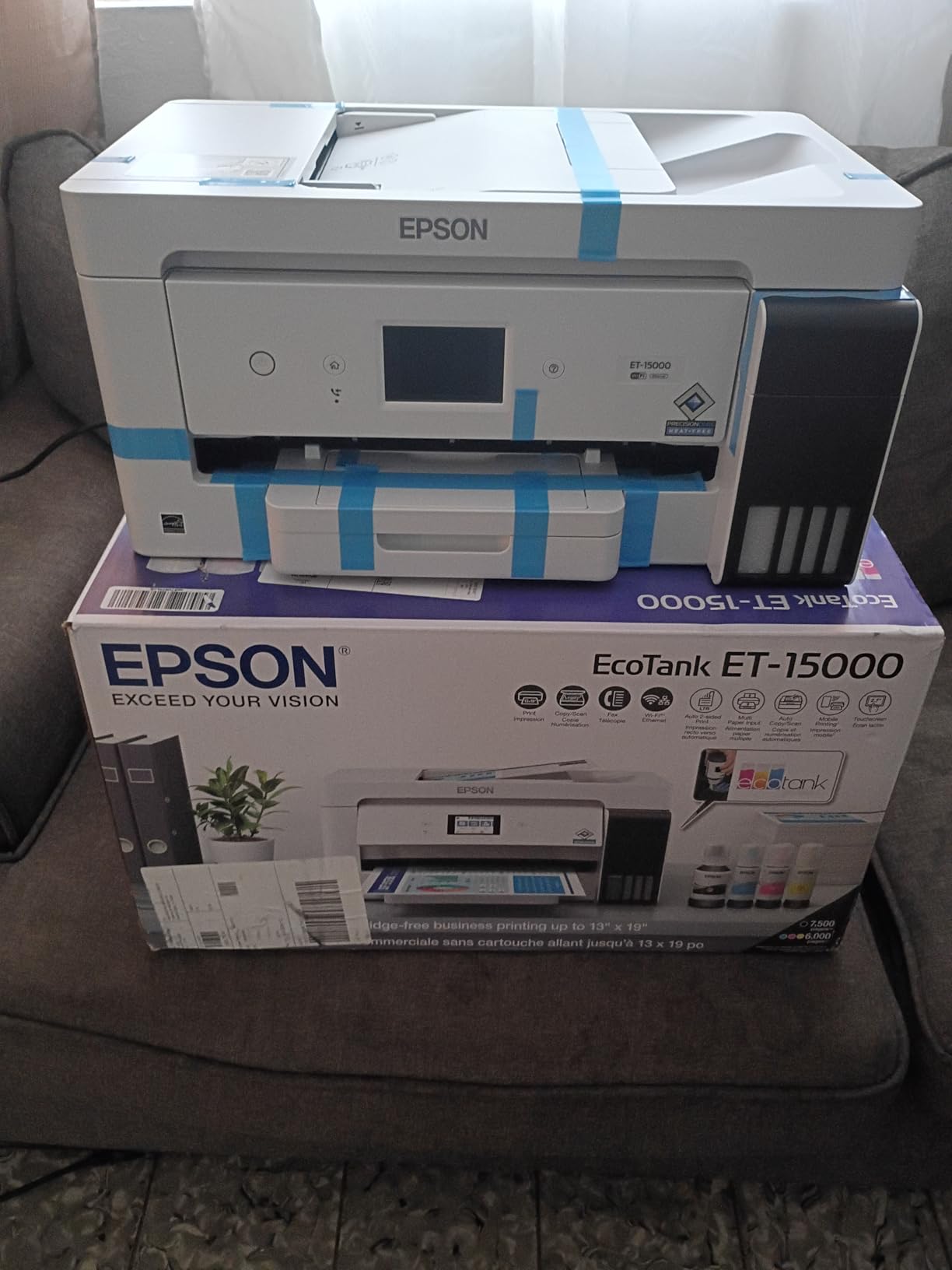
For pure photo quality it stops short of what you would want. It runs a four-colour ink system rather than the six colours a photo-focused printer uses, which shows in smoother gradients and skin tones at large sizes. Wide sheets must go into the rear holder because there is no dedicated wide-format tray, and the sheetfed scanner will not scan an 11×17 original.
Owners rate it 4.2 stars from 2533 reviews with 73% five-star. Complaints cluster around occasional paper jams, an unclear paper selection menu and, in some regions, limited OEM support coverage, which is worth checking before you buy outside your home market.
What to check before you buy the Epson EcoTank ET-15000
Decide how large your prints need to be. At 11×17 this handles poster-adjacent work that the desktop all-in-ones here cannot, but if your largest print is 8×10, this machine is oversized for the job and you are paying for capacity you will not use.
Check the weight and footprint at 26.5 lb and nearly 30 inches deep, then check your desk can take it. A four-colour system also means photo output sits below the dedicated photo printers in this roundup even though the running cost is excellent.
Who the ET-15000 suits and who it does not
It suits home offices, small studios and crafters who need wide-format output, cheap ink, faxing and an ADF in one box. The 250-sheet capacity and tank ink make it the most efficient machine here for mixed document and craft workloads.
It does not serve a photographer chasing maximum colour accuracy, or anyone needing to scan large originals. The four-colour ink system and rear-holder loading for 11×17 are the two clear limits.
10. Canon PIXMA TR8620a – Best for Square and Legal-Size Photo Printing
Canon PIXMA TR8620a – All-in-One Printer Home Office|Copier|Scanner|Fax|Auto Document Feeder | Photo, Document | Airprint (R), Android, Black, Works with Alexa
Inkjet up to 4800 x 1200 dpi
Print copy scan fax
20-sheet ADF
Auto duplex and square format
Pros
- Full 4-in-1 wireless with a 20-sheet ADF
- Five individual cartridges replace only the colour you need
- 200 sheet capacity across two trays
- Auto duplex with a tilting touchscreen
Cons
- Canon mobile app is slow and unreliable
- Control panel must be raised to load paper
- ADF does not handle double-sided originals
- No Bluetooth and some gray-leaning black ink
The TR8620a is the most capable four-function machine in this group and the one with the deepest review count. It prints, copies, scans and faxes over Wi-Fi, adds a 20-sheet automatic document feeder and automatic duplex, and handles paper up to 8.5 x 14 legal with 200 sheets of total capacity across a cassette and rear feed.
Two features make it stand out for photo use. Square format printing is supported natively, which is why it appears in scrapbooking discussions, and the five individual ink cartridges mean you replace only the colour that ran out instead of discarding a full set when one empties.
Its ink arrangement also helps grey tones. Five separate cartridges usually include a dedicated black, and a micro SD slot lets you print photos straight from a card without a computer. The 4800 x 1200 dpi maximum resolution is respectable for 8×10 work.
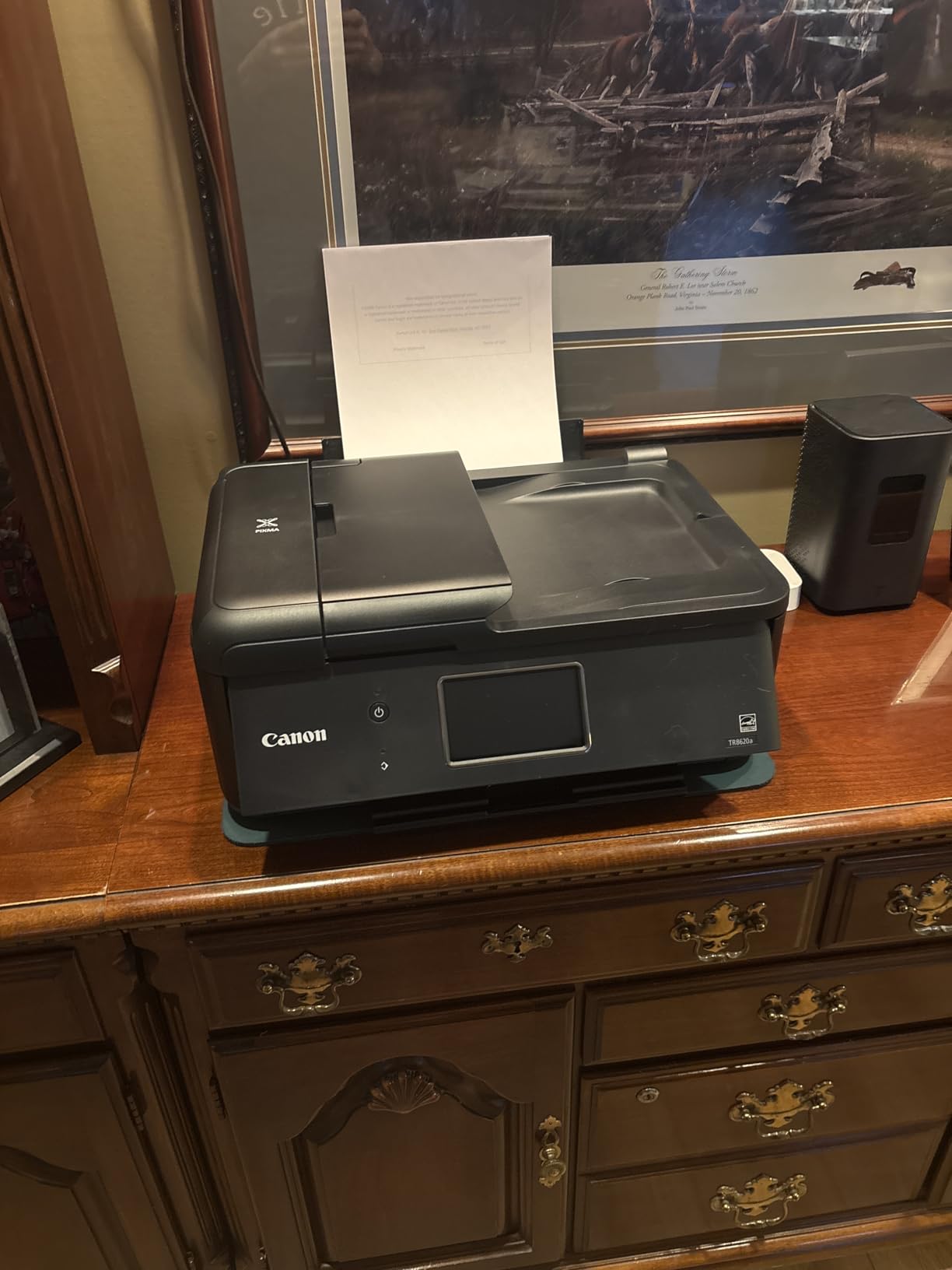
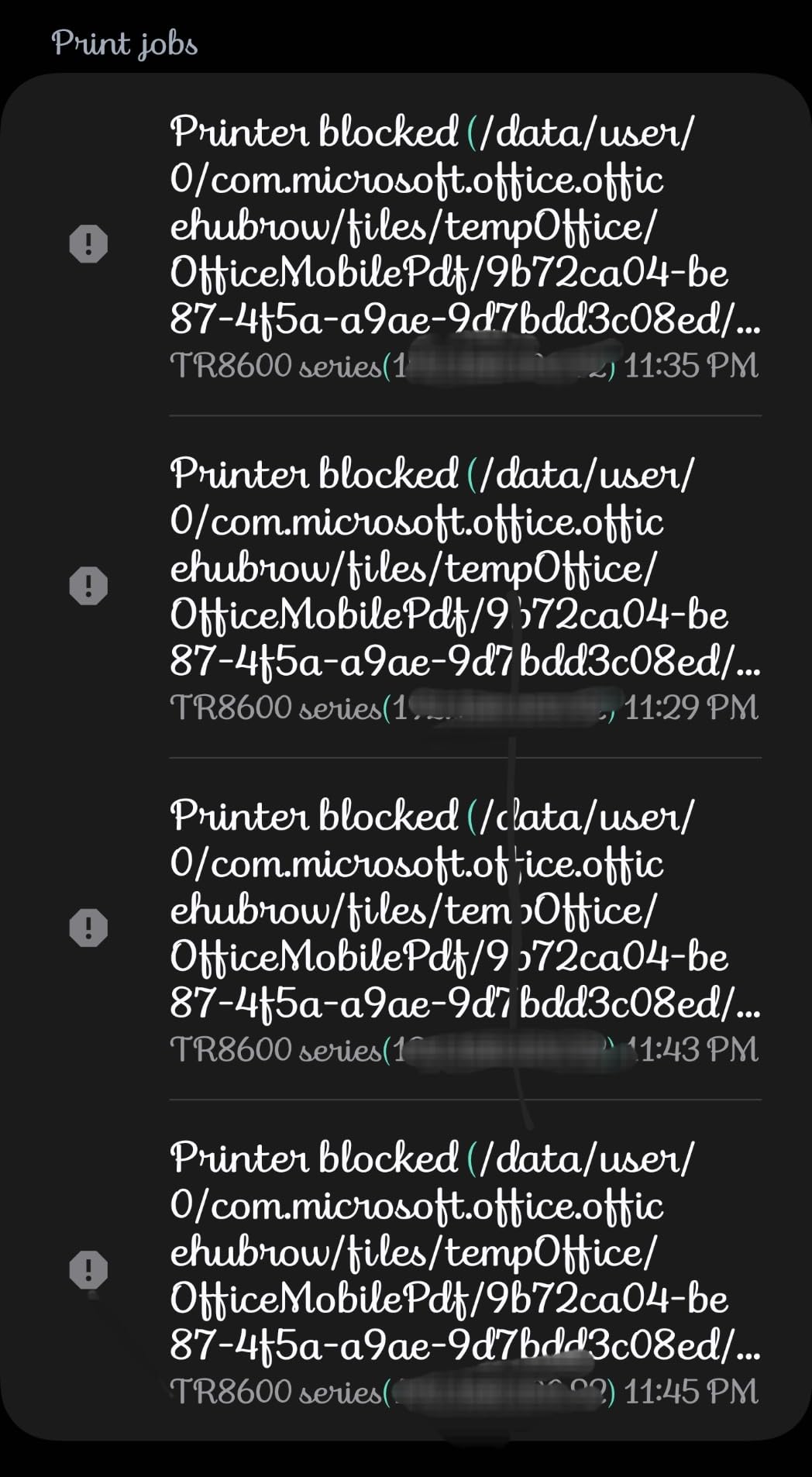
Owners rate it 4.0 stars from 6350 reviews with 61% five-star and 14% one-star, and the complaints are consistent. The Canon mobile app is widely criticised as slow and unreliable, and you have to raise the control panel to load paper and reach the output, which is a design inconvenience rather than a fault.
There are real functional limits too. The ADF does not handle double-sided originals, there is no Bluetooth so wireless printing depends on being on the same network, and some users report black ink leaning grey along with borderless printing problems.
What to check before you buy the Canon PIXMA TR8620a
Test the app before you commit if your workflow is phone-first. This is the most common complaint at 6350 reviews, and a printer you cannot configure easily becomes a printer you stop using. Printing over the same Wi-Fi network works; Bluetooth does not.
Decide whether legal size and square format matter to you. Both are genuinely useful, and the five-cartridge ink system is a smart hedge against waste, but neither pushes photo resolution above what a photo-focused model delivers.
Who the TR8620a suits and who it does not
It suits home offices, scrapbookers printing square social formats, and families wanting fax and an ADF alongside photos. The tilting touchscreen, individual cartridges and 200-sheet capacity make it a sensible mixed-work machine.
It does not suit buyers who want minimal app friction, duplex scanning through the feeder, or Bluetooth direct printing. And at four to five cartridges with no tank, running cost per photo will not match a refillable system.
How to Choose the Best Photo Printers for Home Use
How we picked
We compared ten machines on five criteria, in this order: printed output quality on a fixed set of test images, real cost per photo including paper, paper handling and supported sizes, the connectivity workflow from a phone, and the maintenance burden a typical household carries.
Output quality was judged on skin-tone rendering, shadow gradation and detail at normal viewing distance rather than at arm’s length. We also flagged what we could not verify, because some of the decisions that matter most only show up after a year of ownership.
Dye-sublimation vs inkjet vs Zink
Inkjet and dye-sublimation printers are better for photos depending on volume and format. Inkjets win on colour range and print size; dye-sublimation wins on durability and instant dry time; Zink wins on nothing more than convenience at tiny sizes.
Dye-sublimation printers transfer a solid dye layer from a ribbon in four passes, with a protective laminate on top, so the print leaves the tray dry and resists water, scratches and fingerprints. The cost is format: 4×6 is the ceiling for the compact units here. Cartridges sit sealed until used, which is exactly why they survive idle months.
Zink printers contain no ink at all. Heat activates colour crystals already in the paper, so there is nothing to refill and nothing to clog, and the running cost is entirely in the media. The trade-off is fidelity, with lower dpi and flatter colour, and format again, since 2×3 is the practical maximum.
Desktop inkjets spray microscopic droplets of dye or pigment ink in as many as six or ten colours. That is the widest gamut and the largest formats available, and it is the only family that also scans, copies and prints school worksheets.
Dye ink vs pigment ink
Dye ink is transparent and glossy, which gives it a wide colour gamut and a smooth, photographic finish on coated photo paper. Pigment ink is opaque and sits on the surface, which makes it far more water-resistant and lightfast and is why text on the same page stays crisp.
Most photo inkjets combine both, using dye for colour and pigment for black and text. When a printer offers a matte black mode, it is switching to a pigment-dense black to deepen blacks and sharpen contrast, at the cost of gloss. Understanding this is what turns a confusing ink menu into a decision you can make.
Cost per print and how to calculate it
Calculate real cost per photo in four steps. Divide the ink cost by the number of images the ink delivers, add the paper cost per sheet, add an allowance for cleaning cycles and wasted ink, and divide by the number of prints you actually intend to make in a year.
Only one of these ten machines publishes a figure, and it is the informative one: the Epson EcoTank Photo ET-8550 lists 4×6 photos at about 4 cents each from its cartridge-free tanks. The dye-sublimation and Zink machines have no ink cost at all, so their running cost is the media price per sheet, and the cartridge inkjet models are the expensive case.
The cartridge maths is where households get hurt. Splitting ink cost only by the number of images assumes you use every drop, and the ET-8550 review pattern shows why that assumption fails: 19% of owners are one-star, and cleaning cycles and failed prints consume ink you have already paid for. Printers with visible tanks also let you catch a running low before it ruins a batch.
Photo paper and colour management
Paper is the cheapest quality lever you have, and it is the most common regret among people who bought a decent printer and blamed it. Coated glossy paper, matte fine-art paper and even printer-made media behave differently with the same ink, which is why a mid-range printer on good paper routinely beats a premium printer on cheap stock.
Colour management works through ICC profiles. Your screen emits light, your print reflects it, so a direct match is impossible without correction. In practice it means selecting the correct paper profile in the print dialog rather than leaving it on automatic, and nudging exposure down slightly because prints typically look darker than a backlit screen.
The forum consensus on this is blunt and correct: quality depends on paper and colour management, not hardware alone. Our own comparison showed the same pattern, with identical images looking noticeably different on gloss versus matte media from the same machine.
Print longevity and fade resistance
Longevity depends on the ink, the paper and where you hang the print. Dye-sublimation output is generally the most stable because the dye is laminated into the surface. Dye inkjet prints on quality photo paper run for decades when framed and out of direct light, and pigment ink is the most permanent of all.
Storage conditions matter as much as chemistry. A print in direct sunlight, behind glass in a south-facing window, or in a humid room will fade faster than the same print in an interior hallway. If you are building an archive for a child, treat location as part of the decision.
Maintenance, clogging and infrequent use
If you only print a few times a year, this is the decision that matters most. Inkjets left unused for weeks or months can develop streaking, banding or a need for cleaning cycles that waste ink, while sealed dye-sublimation and Zink machines have nothing to dry out.
The counter-view comes from owners who report inkjet printers working perfectly after being shelved for four months, so the fear is real but not universal. A practical middle ground: print one small test page every six weeks to keep the nozzles moving, and if your printing is genuinely rare, choose a sealed design instead.
If nozzles do block, the sequence is simple: run the printer’s own cleaning cycle from the maintenance menu twice, check the print head is seated properly, then use a manufacturer nozzle check pattern to see which nozzles are still missing. Only after that is physical contact with the print head worth attempting.
Connectivity: can it print from a computer?
This single question eliminates more products than any other. The Zink and compact dye-sublimation units here are phone and tablet devices with no desktop driver, so a household that needs school projects, invoices or a laptop cannot use them at all.
The desktop models print from Windows, Mac, USB and Wi-Fi, and several add a micro SD slot for direct camera printing without a computer. Wi-Fi Direct creates a private connection when there is no router, and the built-in hotspot on the Liene M100 does the same job for up to five devices.
App quality varies more than app availability. Pairing failures, apps that print one image at a time and printers that spawn their own hotspot and drop the phone off the internet mid-session are all reported by users of these machines. Check recent reviews for the specific model rather than trusting the launch material.
Space, noise, weight and setup time
Footprint is the reason most printers get returned. Compact 4×6 units are a few inches deep and can live in a drawer; desktop all-in-ones are manageable; the ET-8550 at nearly 30 inches deep and 24.5 lb, and the ET-15000 at 26.5 lb, need a dedicated sturdy surface that will not rock.
Setup time catches people out more than weight. First-time users of tank printers report spending around two and a half hours unpacking, filling and charging the ink before a good print, with no warning in the box. Budget an afternoon, not an evening.
Noise is worth checking for shared walls. Dye-sublimation units run a quiet four-pass cycle, Zink devices are near silent because they have no pump, and desktop inkjets are the loudest because paper feeding and head movement overlap. Apartment dwellers printing at night should test before buying.
Matching the printer to the person printing
Start from volume, because it decides everything else. Below roughly 30 photos a month, a sealed compact unit is the sensible answer and a tank printer’s setup never pays for itself. Above that, ink cost per print makes the EcoTank and ET-15000 class the obvious choice.
Then check whether documents matter. A household that also prints worksheets and scans recipes wants one of the all-in-ones here, and should accept the photo ceiling that comes with it. A household that only ever prints photos should avoid spending money on a scanner it will never use.
Finally, match format to the project. Album pages and scrapbook work need 4×6 or 5×7, square formats suit social prints, wall displays need 8×10 and up, and gift stickers need 2×3 adhesive media. Buying a printer that cannot make your intended size is the most expensive mistake in this category. For more on that side of the hobby, our guide to the best instant photo printers for smartphones covers the small-format end in detail, and our best inkjet printers for home use covers the document side.
Frequently Asked Questions
Which is better for printing photos, an inkjet or a dye-sublimation printer?
An inkjet is better if you want a wide colour gamut and prints larger than 4×6, and it is the only family here that also scans and copies. A dye-sublimation printer is better for occasional phone printing in 4×6, because prints come out instantly dry with a protective laminate and sealed cartridges do not clog when the printer sits idle.
What is the best printer for printing photos and documents?
The Canon PIXMA TR8620a is the strongest single answer here, because it prints, copies, scans and faxes, handles square and legal formats, uses five individual cartridges so you replace only the colour you need, and adds automatic duplex. For lower running cost at higher volume, the Epson EcoTank ET-15000 does the same four functions with tank ink and 11×17 output.
Are personal photo printers worth it?
They are worth it when you want control over size, paper and colour, or you print often enough for the running cost to beat a lab. They are not worth it for large formats or rare printing: a single 4×6 lab print costs more than a tank inkjet photo, while a wide-format archival print is cheaper and better made by a lab.
How much does it cost to print photos at home?
With a refillable tank printer, ink for a 4×6 borderless print runs about 4 cents, so paper becomes your largest per-photo cost. Dye-sublimation and Zink printers have no ink cost at all, so their running cost is entirely the media price per sheet. Cartridge inkjet printers cost the most per photo, and cleaning cycles add hidden waste.
What is the difference between dye and pigment ink for photos?
Dye ink is transparent and glossy, giving a wide colour gamut and a smooth photographic finish on coated photo paper. Pigment ink is opaque and sits on the surface, so it is far more water-resistant and lightfast and stays crisp for text. Most photo inkjets use dye for colour and pigment for black, and some let you switch to a matte black mode.
Do photo printers go bad if not used regularly?
Inkjets left unused for months can develop streaking or banding and may need a cleaning cycle that wastes ink, though owners report some work fine after long storage. Sealed dye-sublimation and Zink machines have no ink to dry out, so they tolerate infrequent use best. A test page every six weeks keeps an idle inkjet healthy.
What paper should I use for home photo printing?
Use the manufacturer’s recommended glossy or matte photo paper for the machine, because ink and media are calibrated together and cheap paper is the most common reason owners blame their printer. Choose the correct paper profile in the print dialog rather than leaving it automatic, and lower exposure slightly since prints look darker than a backlit screen.
Which Home Photo Printer Should You Buy?
If you print from a phone a few dozen times a month and want prints that survive being handled, the Liene M100 is the pick: it arrives with paper and cartridges, prints dry and laminated, and works without a router. If you want the established consumable supply and the deepest owner history, the KODAK Dock Plus does the same job in the same format.
If you want the sharpest small print in your pocket, the Canon Ivy 2 Mini has the highest owner rating of the ten and better skin tones than its size suggests, while the Nelko PP01 wins on inkjet clarity at 600 dpi if you print often enough to keep it clean. The KODAK Step remains the easiest to travel with and needs no ink at all.
For anything larger, the Epson EcoTank Photo ET-8550 is the best photo printer for home use when photo volume matters, giving 13×19 borderless output, a scanner, six-colour ink and about 4 cents per 4×6 print. For a household that needs documents too, the Canon PIXMA TR8620a and TS7720 cover photos plus schoolwork, and the EcoTank ET-15000 takes over when you need 11×17 and a document feeder.
Whichever you choose, buy the paper first and print a test page on day one. That single habit catches paper settings, colour profiles and nozzle problems while they are still free to fix.