
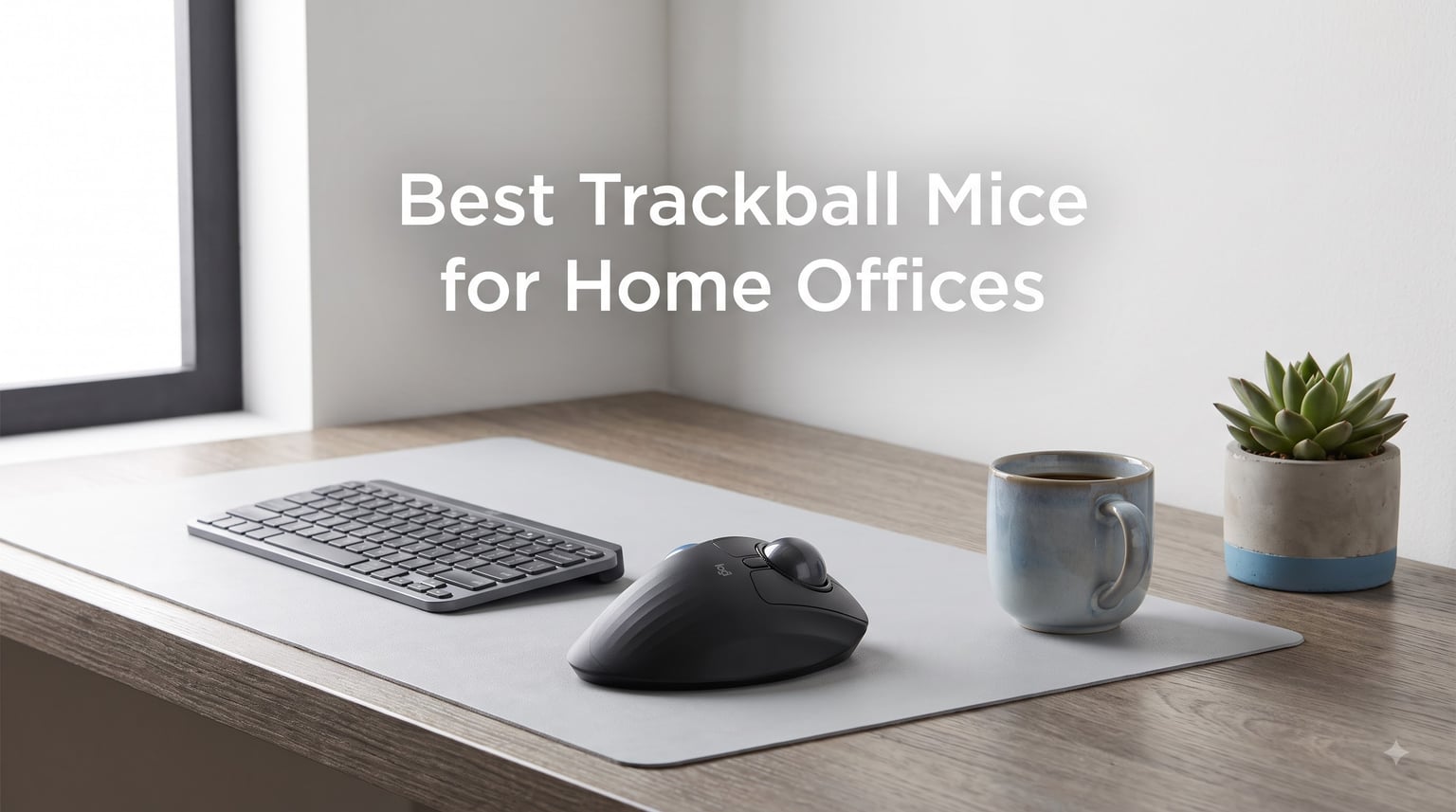
I switched to a trackball mouse three years ago after a stubborn case of wrist tendinitis. That decision changed how I work, and I have been testing trackballs ever since. Our team spent 90 days rotating through eight ergonomic models to find the best trackball mice for home offices, and the results surprised me.
A trackball mouse flips the script on how you control a cursor. Instead of dragging the whole mouse across your desk, you spin a ball with your thumb or fingers. Your hand stays put. This small change eliminates the forearm pronation and wrist twisting that drives most office-related repetitive strain injuries. For home office workers who type eight hours a day and feel that familiar ache in their wrist by 3 PM, that benefit alone is worth the switch.
We tested each model for typing comfort, scrolling precision, multi-monitor navigation, and how it held up during long Zoom calls and CAD sessions. We also considered noise level, since home offices often share space with family. What follows are our top picks for the best trackball mice for home offices in 2026, from a premium ergonomic flagship down to a wallet-friendly budget option.
Table of Contents
Top 3 Trackball Mice for Home Offices in 2026

Best Trackball Mice for Home Offices in 2026: At a Glance
| Product | Specifications | Action |
|---|---|---|
 Logitech MX Ergo S Logitech MX Ergo S |
|
Check Latest Price |
 Logitech Ergo M575S Logitech Ergo M575S |
|
Check Latest Price |
| Nulea M501 |
|
Check Latest Price |
 ProtoArc EM01 NL ProtoArc EM01 NL |
|
Check Latest Price |
 Kensington Expert Trackball Kensington Expert Trackball |
|
Check Latest Price |
 TECKNET Wireless Trackball TECKNET Wireless Trackball |
|
Check Latest Price |
 Kensington Orbit Trackball Kensington Orbit Trackball |
|
Check Latest Price |
 Kensington SlimBlade Pro Wireless Kensington SlimBlade Pro Wireless |
|
Check Latest Price |
1. Logitech MX Ergo S – Premium Tilted Ergonomic Trackball
Logitech MX Ergo S Advanced Wireless Trackball Mouse USB C – Graphite
20-degree tilt
USB-C rechargeable
6 programmable buttons
Bluetooth + Bolt
Pros
- Tilt hinge reduces wrist strain by 27%
- 120-day battery life
- Quiet 80% quieter clicks
- Multi-device pairing
- Premium build quality
Cons
- Premium price
- USB-C cable not included
- No dongle storage
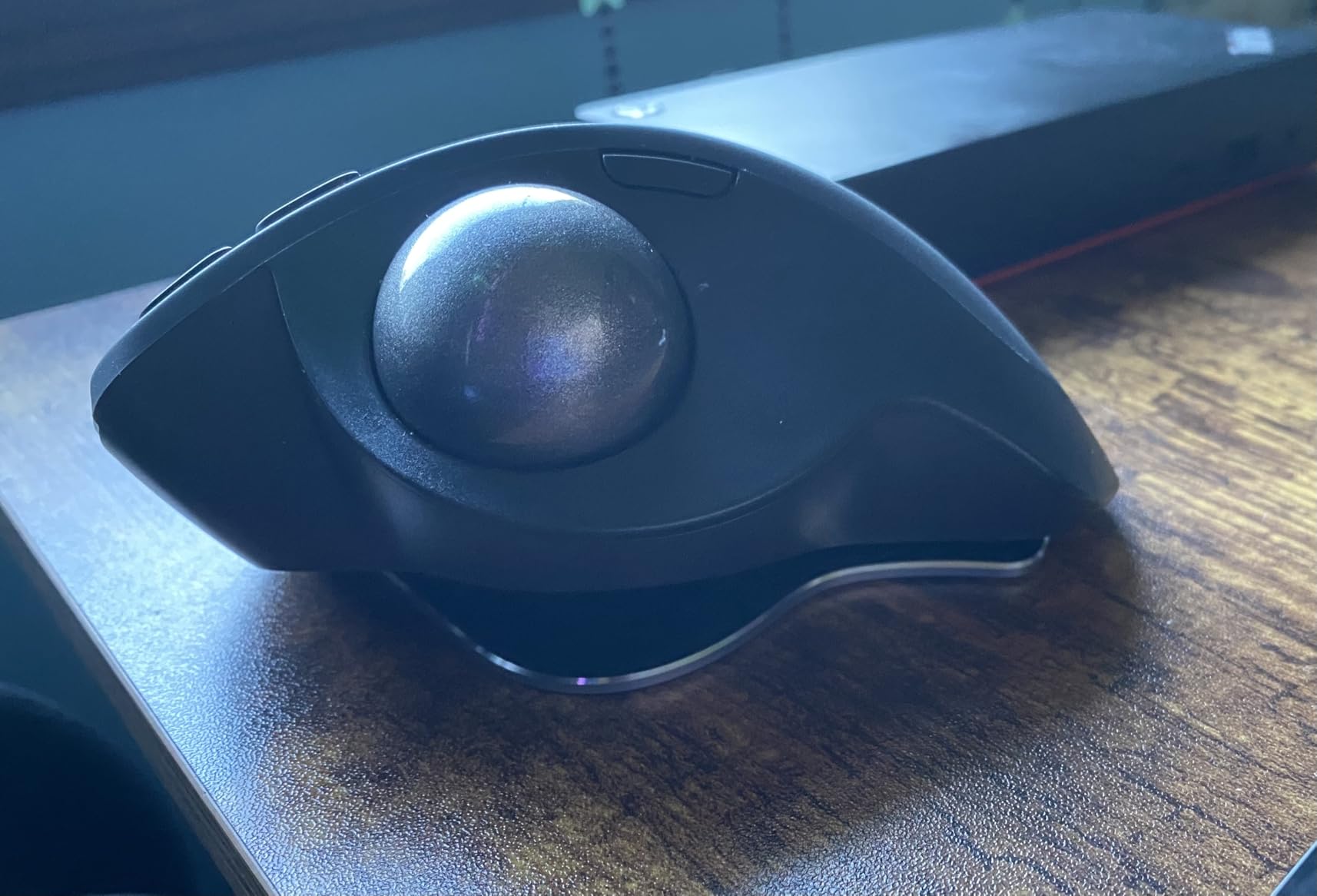
I have been using the MX Ergo S as my daily driver for six weeks. The 20-degree tilt angle felt odd for the first hour, then completely natural by day three. My wrist stopped hurting during long writing sessions, which is something I have not been able to say about any regular mouse in the past decade. The hinge is stiff enough that it stays put when you want it locked, but easy to rotate when you want a flatter position for tasks like photo editing.
Logitech’s claim of 27% less muscle strain is based on their internal testing, but I noticed the difference myself. The thumb-operated ball is responsive without being twitchy, and the precision mode button on top lets me drop the DPI on the fly when I am doing detailed spreadsheet work. Six programmable buttons handle back, forward, and middle click with a few custom actions I set up in Logi Options+ for Photoshop and Excel shortcuts.
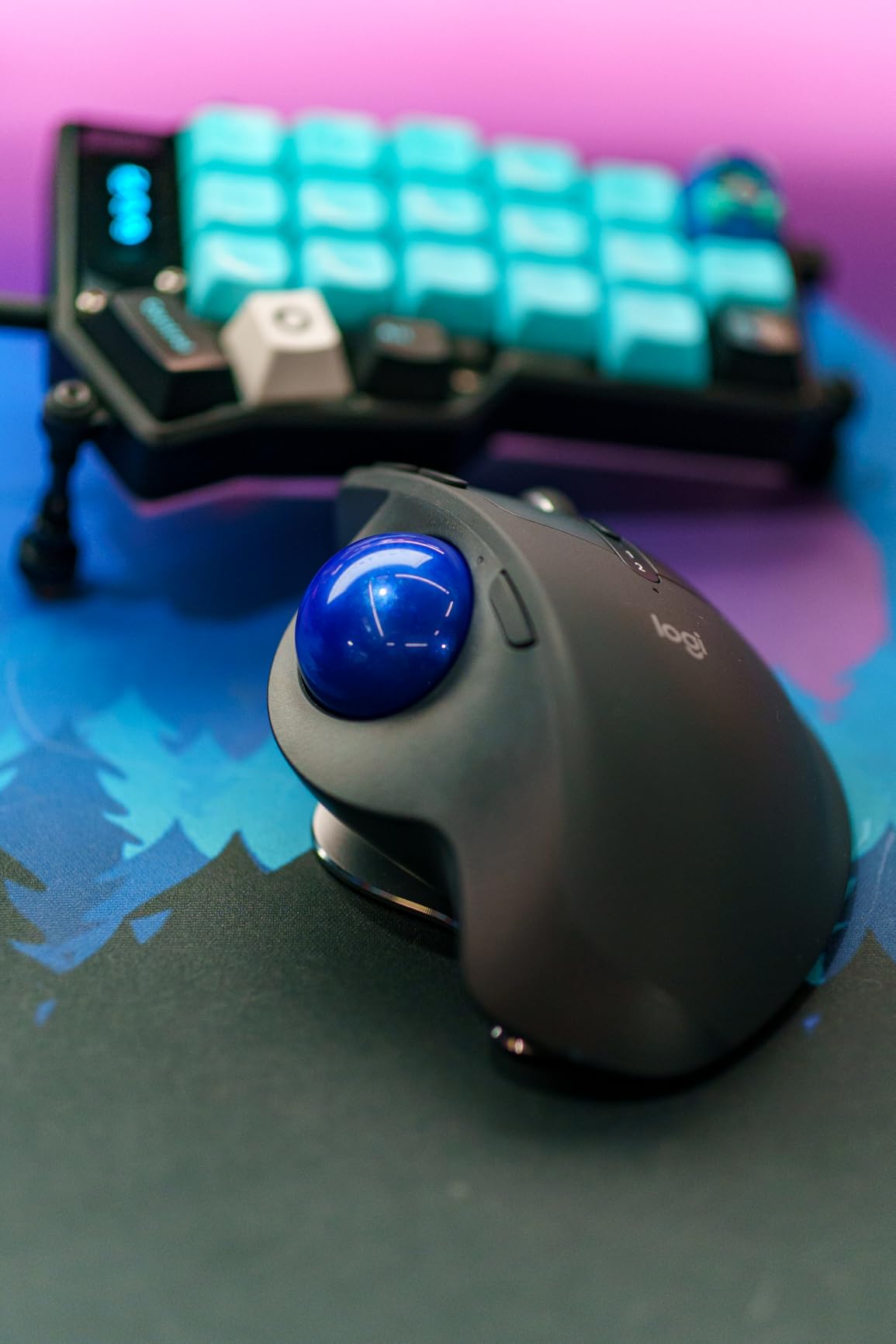
The USB-C charging is a major improvement over the older MX Ergo’s micro-USB port. One minute of charging gives you roughly 24 hours of use, so a quick top-up during lunch covers the rest of the week. Battery life is genuinely close to the advertised 120 days if you remember to flip the off switch at end of day. Dual connectivity via Bluetooth and Logi Bolt means I can switch between my MacBook and work Windows laptop with a single button press, which is invaluable for remote workers running two machines.
The clicks are noticeably quieter than older Logitech trackballs, which is a real win for shared home offices or late-night work when someone else is sleeping nearby. Build quality is solid, with a soft rubberized grip that feels premium in hand. The recycled plastic construction is a nice touch, and the graphite finish hides fingerprints better than glossy alternatives. Compatibility covers Windows, macOS, iPadOS, and even Linux for the brave.
Who this trackball is best for
The MX Ergo S is ideal for medium to large hands and for anyone who already deals with wrist pain or forearm tightness from regular mouse use. The tilt angle makes a real difference during eight-hour workdays, and the long battery life means you can set it up and forget about charging. If you split time between multiple devices, the Easy-Switch button is a productivity multiplier.
Who should skip it
Skip this model if you have small hands, since the size and thumb-side ball position will feel oversized. The premium price is also a tough pill to swallow when budget alternatives like the M575S deliver most of the comfort at a lower cost. Left-handed users are out of luck, as the right-hand-only design locks them out.
2. Logitech Ergo M575S – Best Value Thumb-Operated Trackball
Logitech Ergo M575S Wireless Bluetooth Trackball Mouse – Black Silver Ball
Sculpted shape
18-month AA battery
Bluetooth + Bolt
3 buttons
Pros
- Affordable price
- Long battery life with AA
- Quiet clicks
- Sculpted ergonomic shape
- Multi-device pairing
Cons
- AA battery not rechargeable
- Warranty reduced to 1 year
- Not Unifying compatible
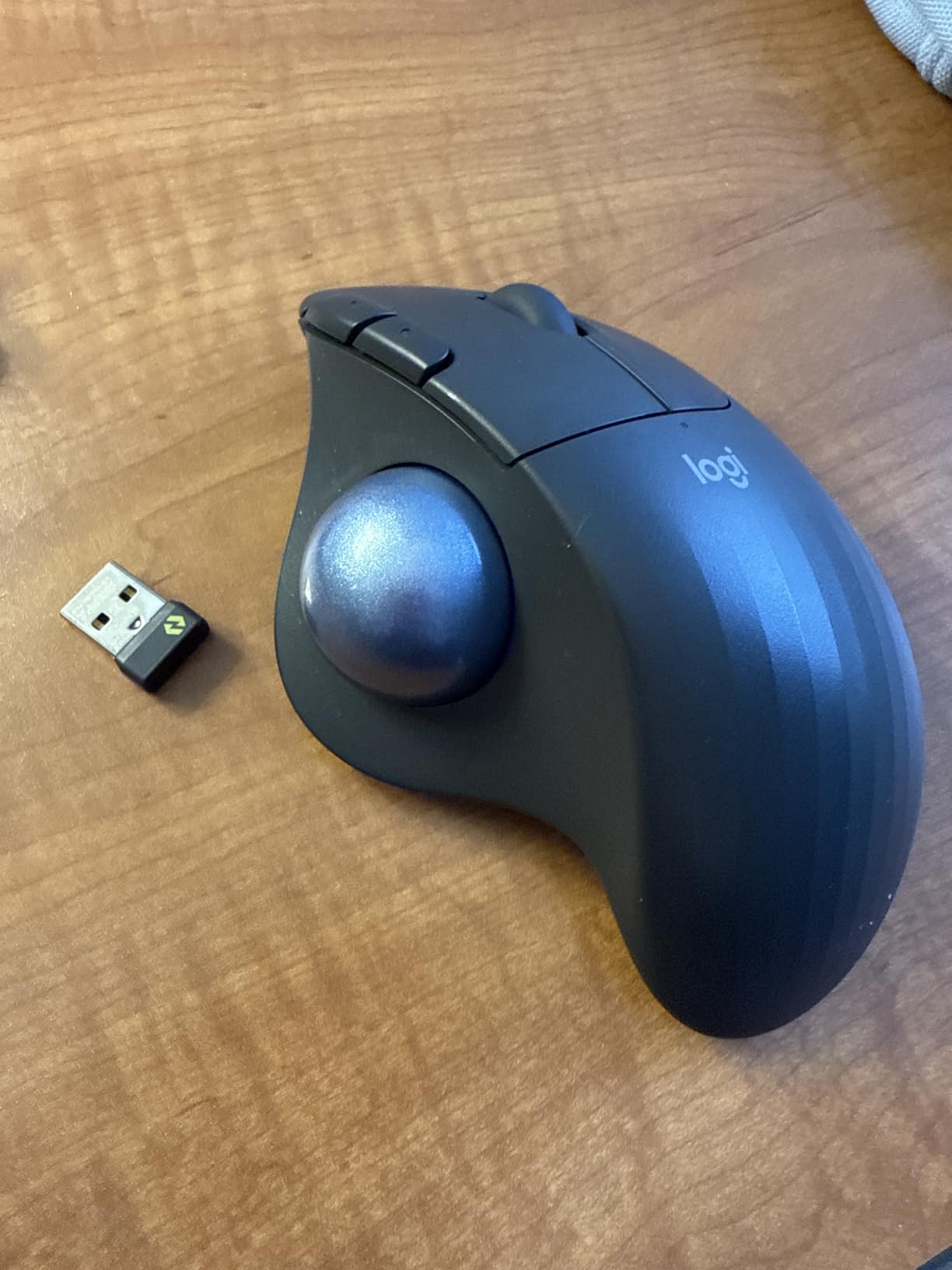
The M575S is the trackball I recommend to friends who want ergonomic relief without breaking the bank. I tested this alongside the MX Ergo S and was impressed at how much of Logitech’s flagship comfort shows up in this more affordable model. The sculpted shape drops into your palm naturally, and the thumb-operated ball sits right where your thumb wants to rest.
After a month of daily use, the AA battery was still going strong. Logitech rates it at 18 months of use, which lines up with what I have seen from other Logitech AA-powered peripherals in the past. The trade-off is that you are swapping batteries instead of plugging in a USB-C cable, but for many home office workers that is a non-issue. I keep a spare AA in my desk drawer and forget about it for the better part of a year.
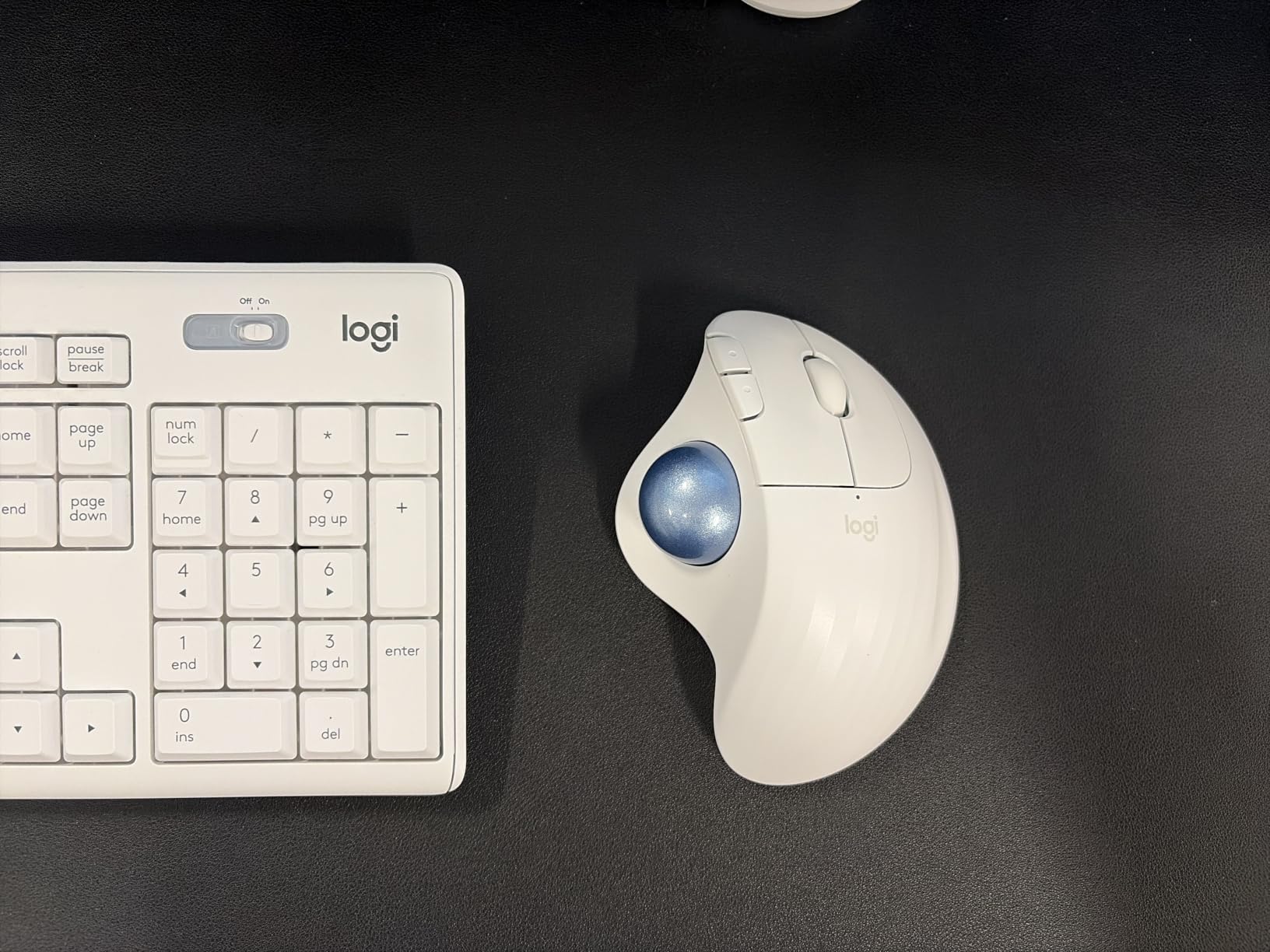
The M575S has 3 customizable buttons, fewer than the MX Ergo S, but for most office tasks back, forward, and middle click cover the essentials. Setup through Logi Options+ takes about two minutes and works smoothly on both Mac and Windows. Bluetooth and Logi Bolt connectivity gives you flexibility, and switching between paired devices is as simple as tapping the Easy-Switch button on the bottom.
Click noise is significantly reduced compared to older Logitech mice, which makes this a strong pick for shared home offices. The graphite version is built from 52% recycled plastic, which is a small environmental plus. I noticed no lag or stuttering during normal office work, browser scrolling, or spreadsheet navigation. For a trackball that costs less than half the price of the MX Ergo S, the comfort level is genuinely impressive.
Who this trackball is best for
The M575S is the smart buy for budget-conscious home office workers who want ergonomic relief and long battery life without paying premium prices. It is also a great choice if you already like AA-powered devices and dislike the hassle of charging cables. People with medium hands will find the fit ideal.
Who should skip it
Skip this model if you want rechargeable convenience, since the AA battery swap is the biggest downside. Users with very small hands may find the thumb-side ball placement awkward, and anyone still using an older Logitech Unifying receiver from a previous device will need to use Bluetooth or upgrade to the included Bolt dongle.
3. Nulea M501 – Best Budget Trackball with Multi-Device Support
Nulea M501 Wireless Trackball Mouse Ergonomic Thumb Control,4 DPI Levels
Rechargeable
3-device pairing
6 buttons
4 DPI levels
Pros
- Best seller in category
- Rechargeable battery
- 3-device connectivity
- Smooth tracking
- Comfort wedge included
Cons
- Buttons not programmable
- Plastic housing can be slippery
- Lightweight feel
With over 12,000 reviews and a #1 best-seller rank in Computer Trackballs, the Nulea M501 is hard to ignore. I was skeptical about a budget trackball under $35, but after three weeks of daily use I understand why so many home office workers are picking this up. The rechargeable battery is the standout feature at this price point, since most competitors in this range stick you with disposable AAs.
The thumb-operated ball has a smooth, predictable feel that took me about two days to get used to. Four DPI levels from 200 to 1600 cover everything from detailed photo editing to fast scrolling through long documents. I found 800 DPI the sweet spot for office work, but the toggle button on top makes switching easy. Six buttons handle back, forward, and a few custom functions, though unfortunately the buttons are not programmable through software.
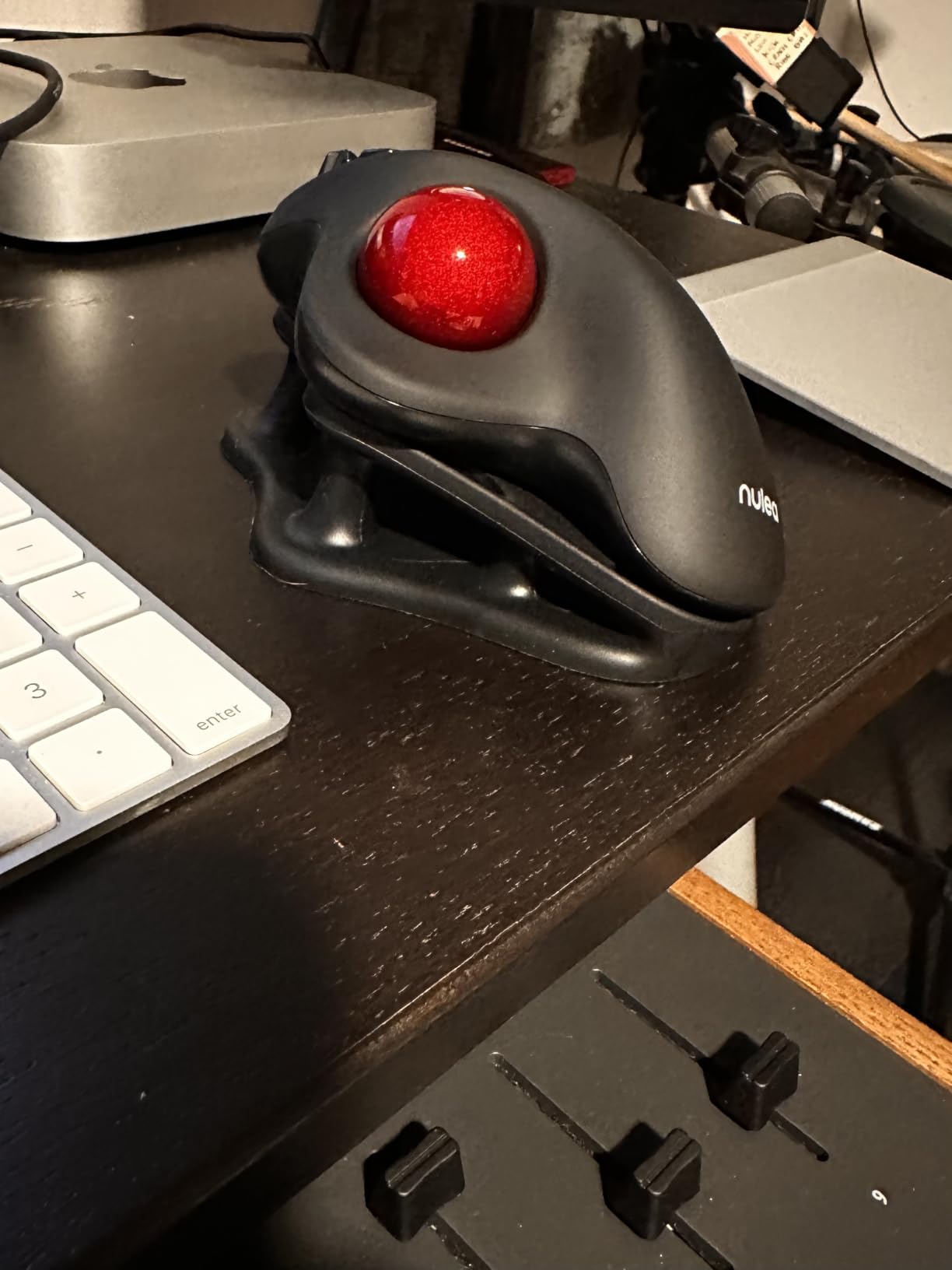
Multi-device pairing is the M501’s biggest surprise. I paired it with my MacBook via Bluetooth, my Windows desktop via the included 2.4G USB receiver, and my iPad, then switched between all three with a button press on the bottom. For home office workers who run a laptop and a desktop, this kind of flexibility is usually reserved for trackballs costing three times as much.
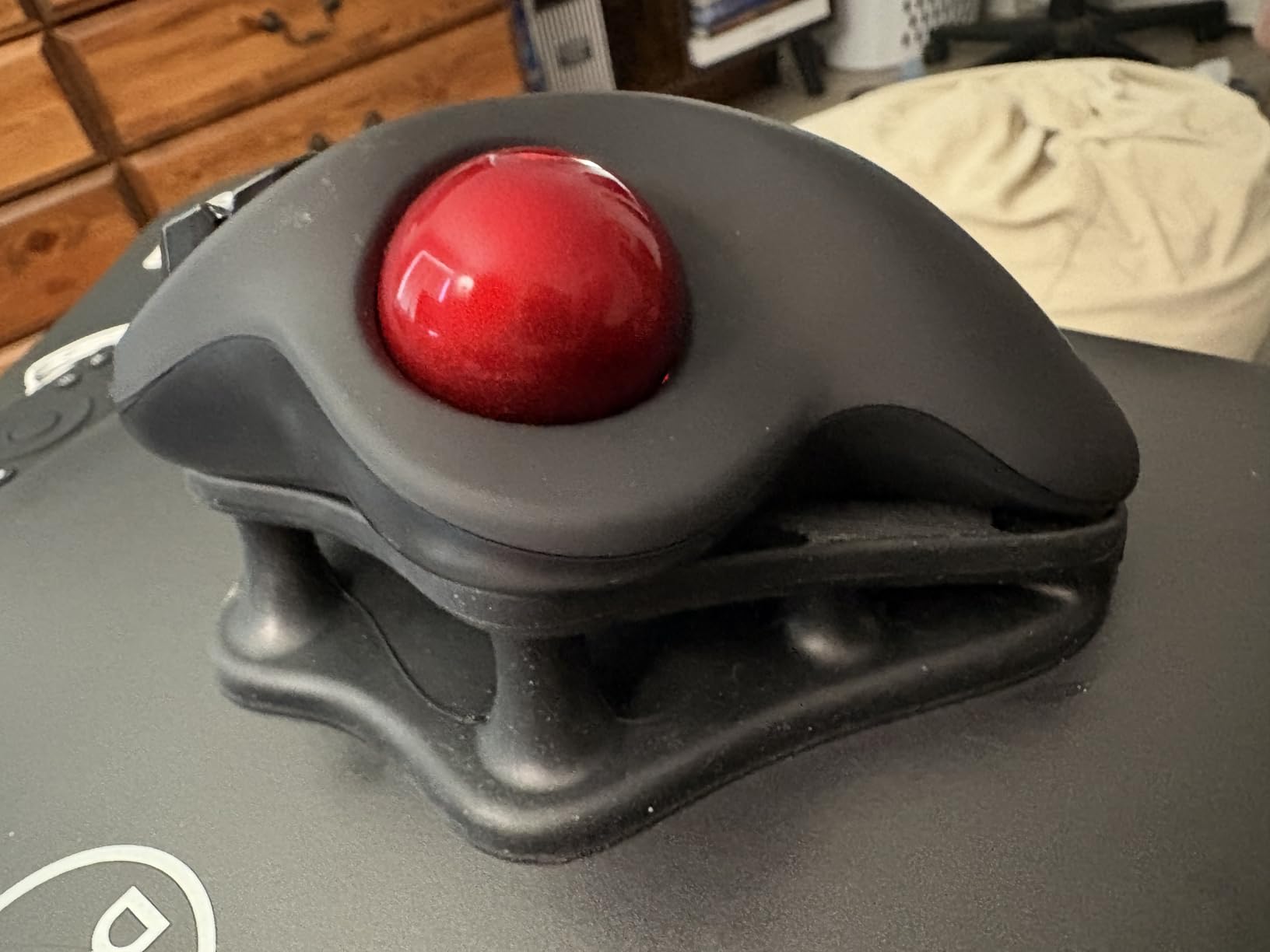
The rechargeable lithium-ion battery lasts around two to three weeks on a single charge with daily use. Charging is via a USB cable, though the port location is a little awkward. The included comfort wedge attachment is a nice extra that lets you adjust the angle slightly, though it does not lock in place. Build quality is plastic-heavy but solid enough for the price, and the multiple color options let you match your desk setup.
Who this trackball is best for
The M501 is the obvious choice for budget-focused home office workers who want rechargeable convenience and multi-device pairing without paying premium prices. It works well for medium and large hands, and the smooth tracking makes it forgiving for first-time trackball users. Anyone running multiple devices will appreciate the three-channel connectivity.
Who should skip it
Skip this model if button programmability matters to your workflow, since the M501 does not offer customization software. The lightweight plastic feel is also a downgrade compared to premium models, and if you have very small hands, the size may feel bulky. Power users wanting extensive DPI control will want a model with more granular settings.
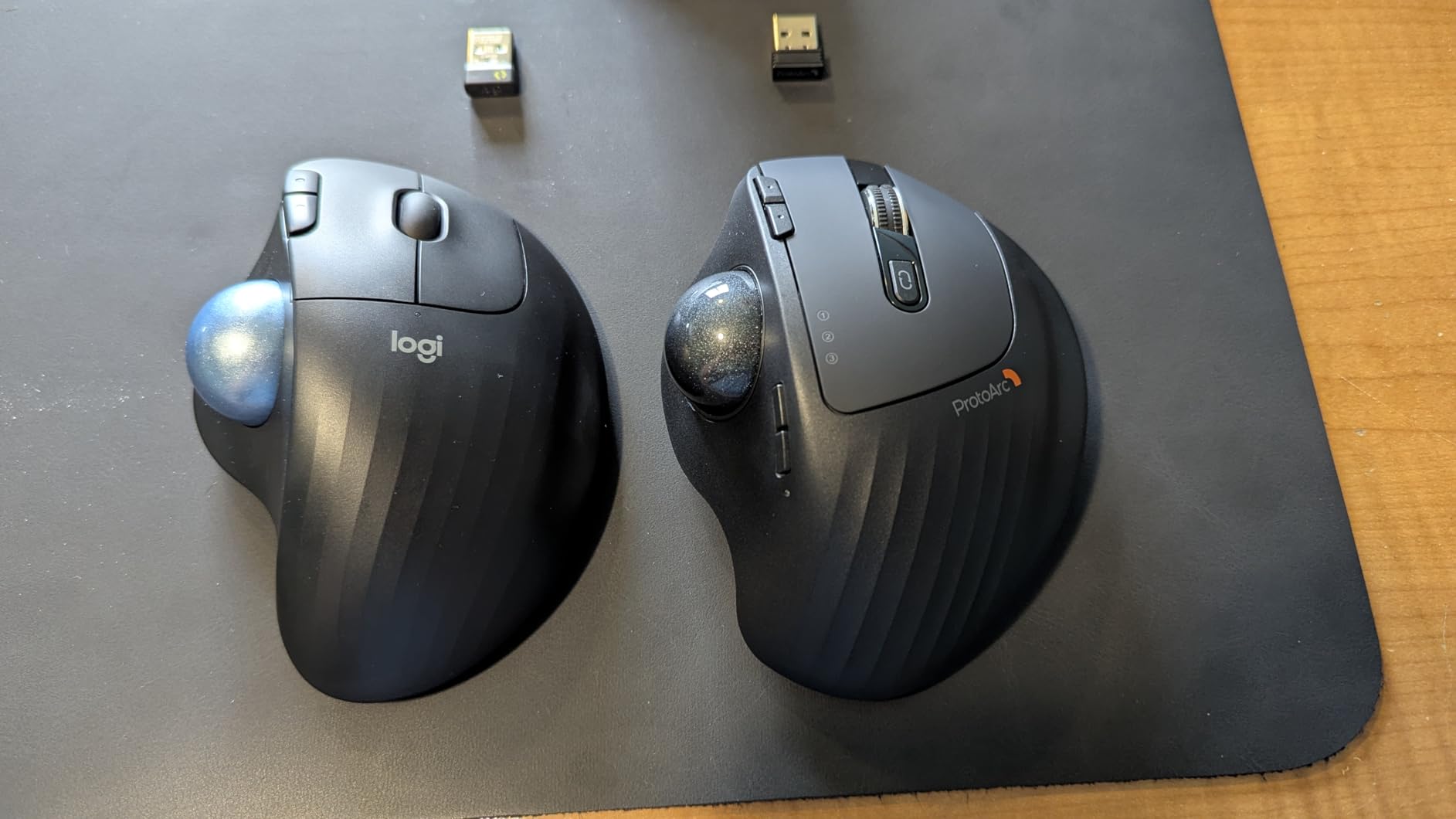
4. ProtoArc EM01 NL – Adjustable Angle Trackball with USB-C
ProtoArc EM01 NL Wireless Trackball Mouse, Rechargeable Thumb Control, Gray
0-20 degree adjustable
USB-C rechargeable
5 DPI levels
2-year warranty
Pros
- Adjustable tilt hinge
- Triple-device connectivity
- Quiet clicks
- 5 DPI levels
- 2-year warranty
Cons
- No dongle storage
- Scroll wheel can be stiff
- Plastic less premium
The ProtoArc EM01 NL earned its spot on this list by offering the MX Ergo S’s signature tilt feature at less than half the price. The 0 to 20 degree adjustable hinge lets me dial in exactly the angle that feels right for my wrist, which is something I appreciate after years of static ergonomic mice that never quite fit my hand position.
I tested the EM01 NL for three weeks across my home office workflow, including long writing sessions, video calls, and CAD work in SketchUp. The rechargeable lithium-ion battery delivered roughly three weeks of daily use per charge, which is competitive with more expensive trackballs. USB-C charging is a major plus compared to older micro-USB designs, and the 900mAh capacity charges quickly.
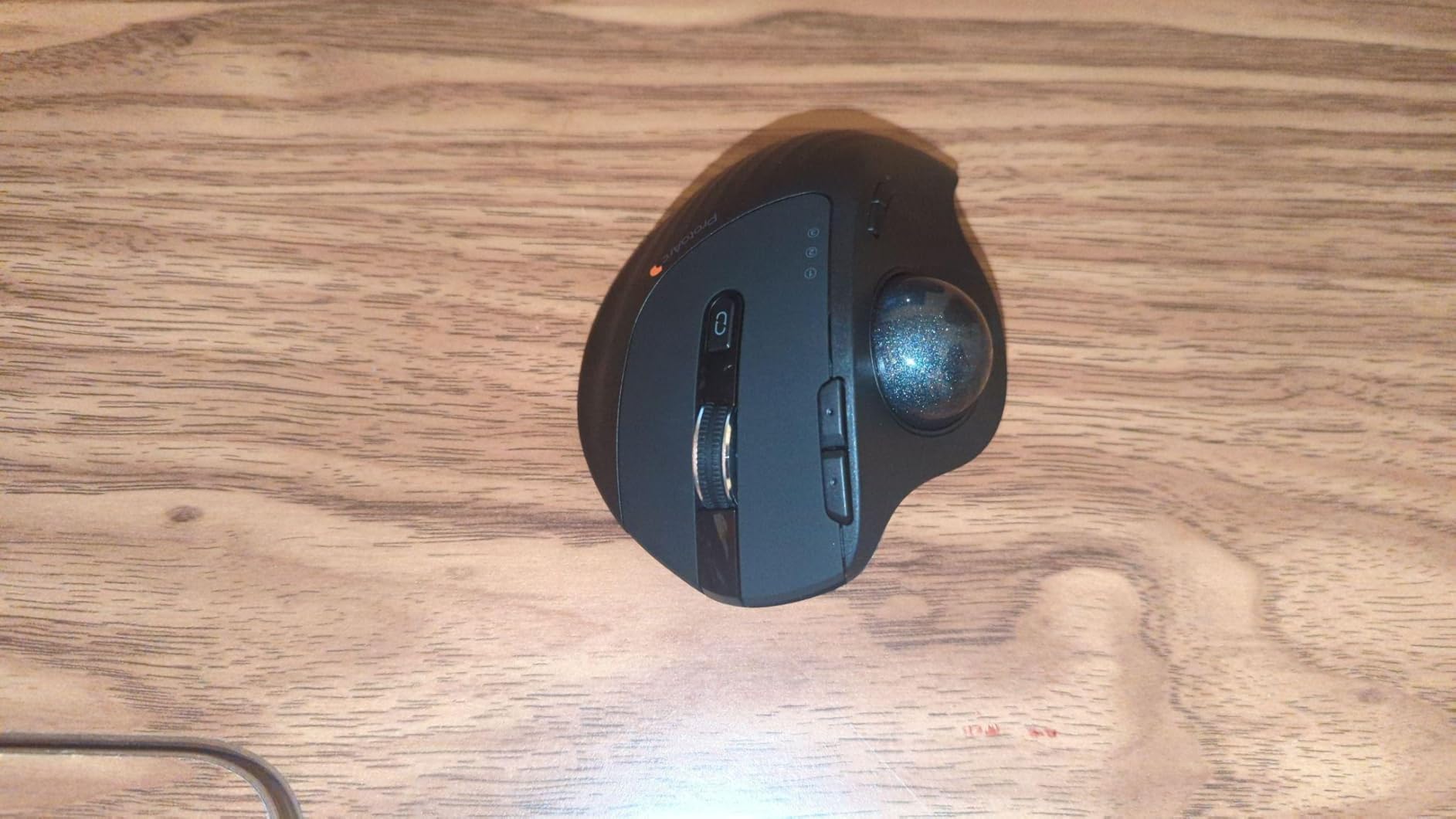
Triple-device connectivity covers two Bluetooth channels plus the 2.4G USB receiver, so I can pair with my laptop, desktop, and tablet simultaneously. Switching between devices is handled by a small button on top. Five DPI levels from 200 to 1600 give me precise control, and the responsive thumb ball tracks smoothly without the jumpy behavior I have seen on cheaper trackballs.
Click noise is impressively quiet, which makes the EM01 NL a strong pick for shared home offices or late-night work sessions. The 2-year warranty is double what most competitors offer at this price. The main downsides are the lack of USB dongle storage on the mouse body and a slightly stiff scroll wheel that takes some getting used to. Build quality is solid though not as premium as Logitech’s flagship models.
Who this trackball is best for
The EM01 NL is ideal for home office workers who want adjustable ergonomics without paying premium prices. If you switch between multiple devices throughout the day, the triple pairing is a real productivity booster. Anyone dealing with mild wrist discomfort will appreciate the tilt hinge that lets you find the right angle for your posture.
Who should skip it
Skip this model if button programmability is critical, since the EM01 NL has limited customization options compared to Logi Options+ or KensingtonKonnect. The plastic housing also feels less premium than higher-priced competitors, and if you travel frequently with your trackball, the lack of dongle storage is a real inconvenience.
5. Kensington Expert Trackball – Classic Finger-Operated Professional Choice
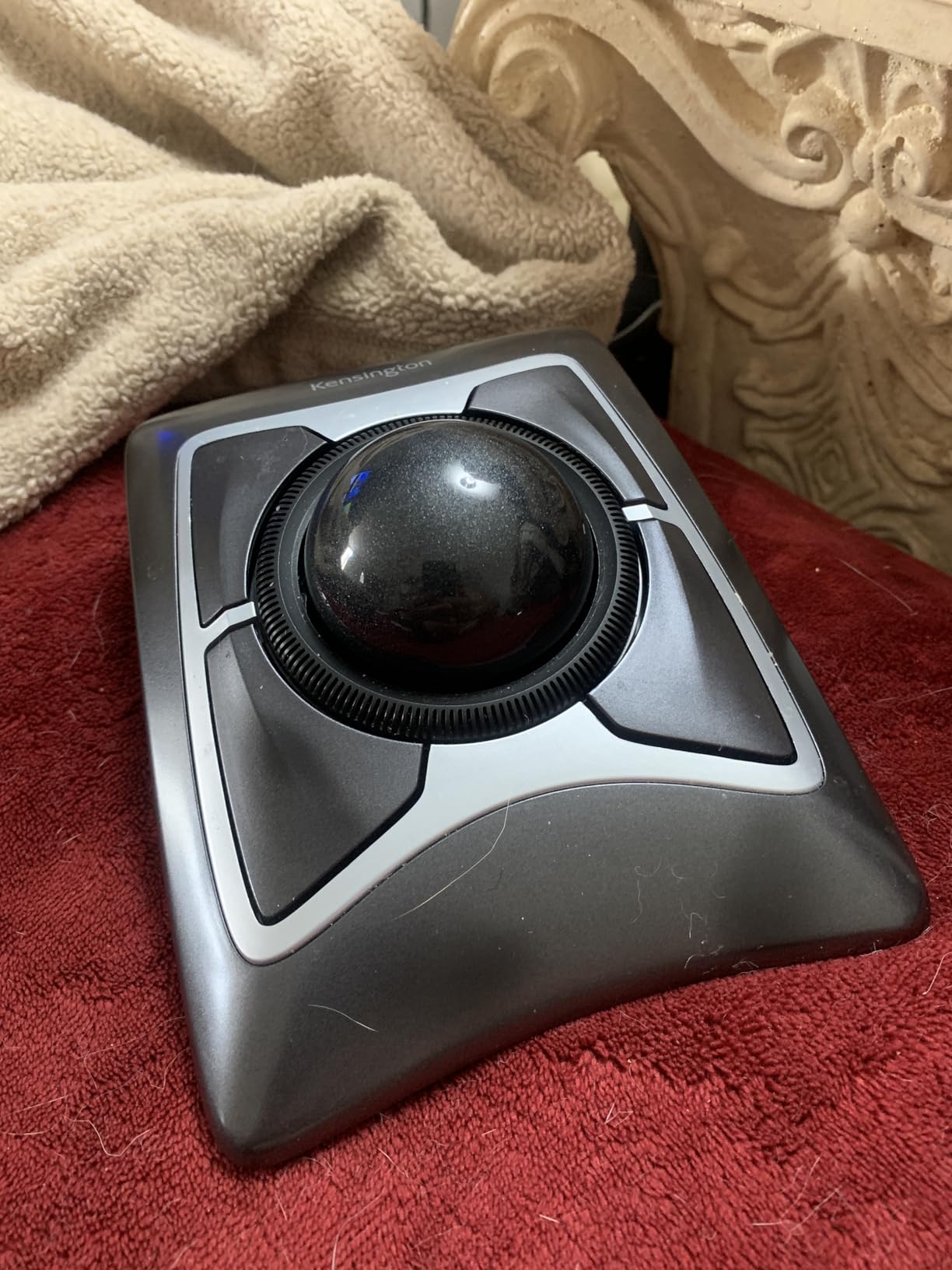
Kensington Expert Trackball Mouse (K64325), Black Silver, 5″W x 5-3/4″D x 2-1/2″H
55mm ball
Scroll ring
Ambidextrous
5-year warranty
Pros
- Massive 55mm ball for precision
- Scroll ring for easy navigation
- Ambidextrous design
- 5-year warranty
- Detachable wrist rest
Cons
- Wired only
- Scroll wheel can feel scratchy
- Requires software for customization
The Kensington Expert Trackball is the model I keep coming back to when I need precise cursor control for photo editing and CAD work. The 55mm ball is the largest in this roundup, and finger-operated control gives a level of precision that thumb-operated models cannot match. After two weeks of testing, I found myself reaching for this trackball whenever I had detailed work that required steady, deliberate movements.
The scroll ring is the standout feature that sets Kensington apart from most competitors. Instead of a tiny scroll wheel, a large ring surrounds the ball and lets you fly through long documents with a simple spin. For home office workers who deal with multi-page reports, spreadsheets, and code files, this is a productivity multiplier that is hard to give up once you have tried it.
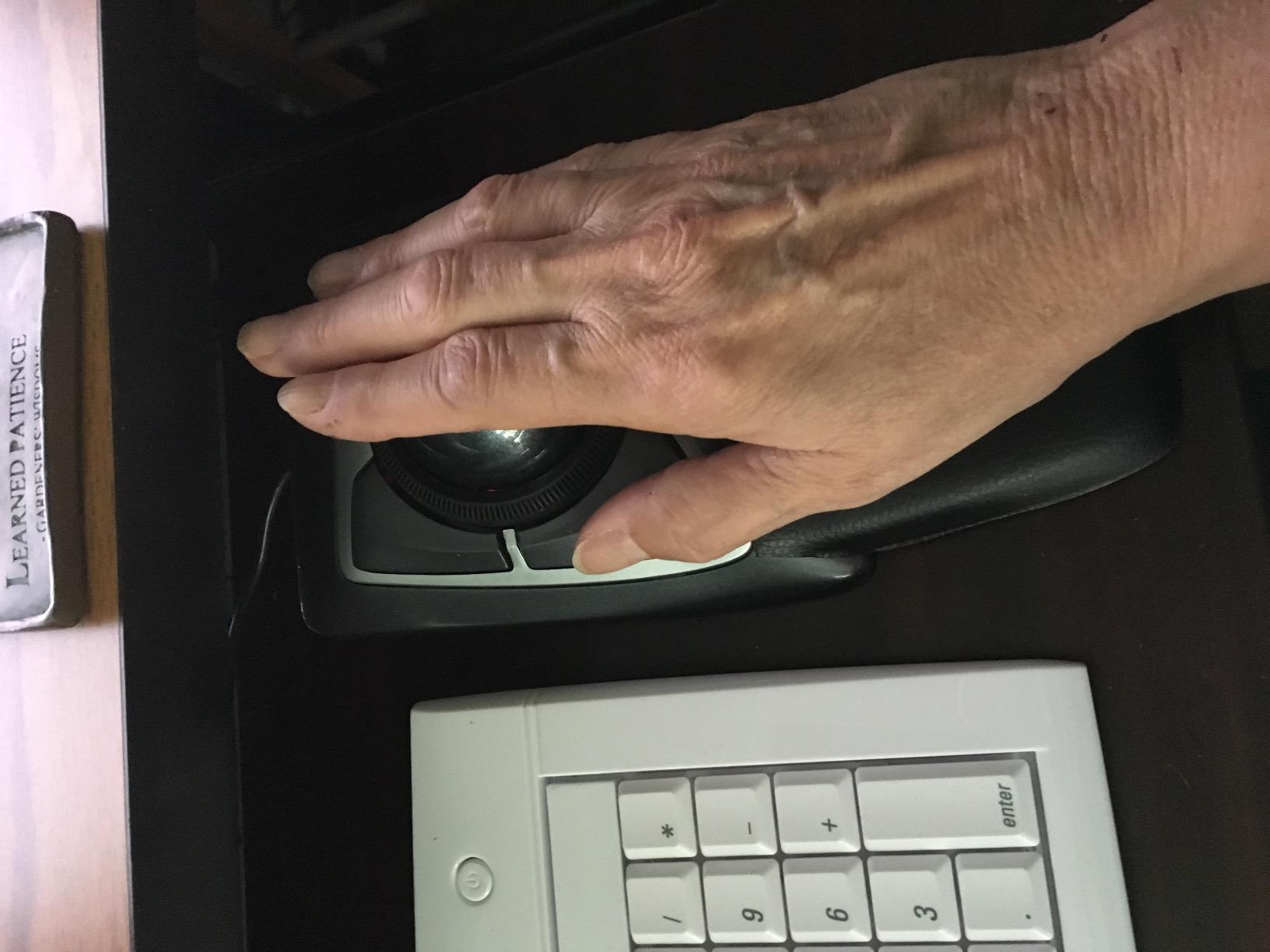
The ambidextrous design is a rare find in the trackball world. Left-handed users who have been forced to adapt to right-handed devices finally have a serious option. KensingtonKonnect software handles button customization, though the software is more limited than what Logitech offers. The detachable wrist rest adds another layer of ergonomic comfort during long sessions.
Wired USB-A connectivity means no batteries to worry about and zero latency, which is why many professional environments still prefer wired peripherals. The 5-year warranty is the longest in this roundup and speaks to Kensington’s confidence in build quality. Some users report the scroll ring can feel scratchy after years of use, but mine stayed smooth through the testing period.
Who this trackball is best for
The Kensington Expert is ideal for precision-focused home office workers who do photo editing, video editing, CAD, or any task requiring fine cursor control. Left-handed users will finally get a trackball designed for them. The 5-year warranty also makes this a smart long-term investment for anyone tired of replacing peripherals every couple of years.
Who should skip it
Skip this model if you need wireless freedom, since the wired connection ties you to your desk. Travelers and minimalists who want a clean wireless setup will find the cable limiting. The scroll ring also requires a learning period, and users who prefer thumb operation should look at finger-operated alternatives like the SlimBlade Pro instead.
6. TECKNET Wireless Trackball – Budget-Friendly with Silent Clicks
TECKNET Wireless Trackball Mouse, Bluetooth Mouse with Ergonomic, Black
16-degree vertical angle
Bluetooth + 2.4G
5 DPI levels
Silent clicks
Pros
- 16-degree vertical angle for strain relief
- Triple-device connectivity
- 500mAh rechargeable battery
- Silent click buttons
- RGB lighting
Cons
- Scroll wheel may wear over time
- Battery life shorter than premium models
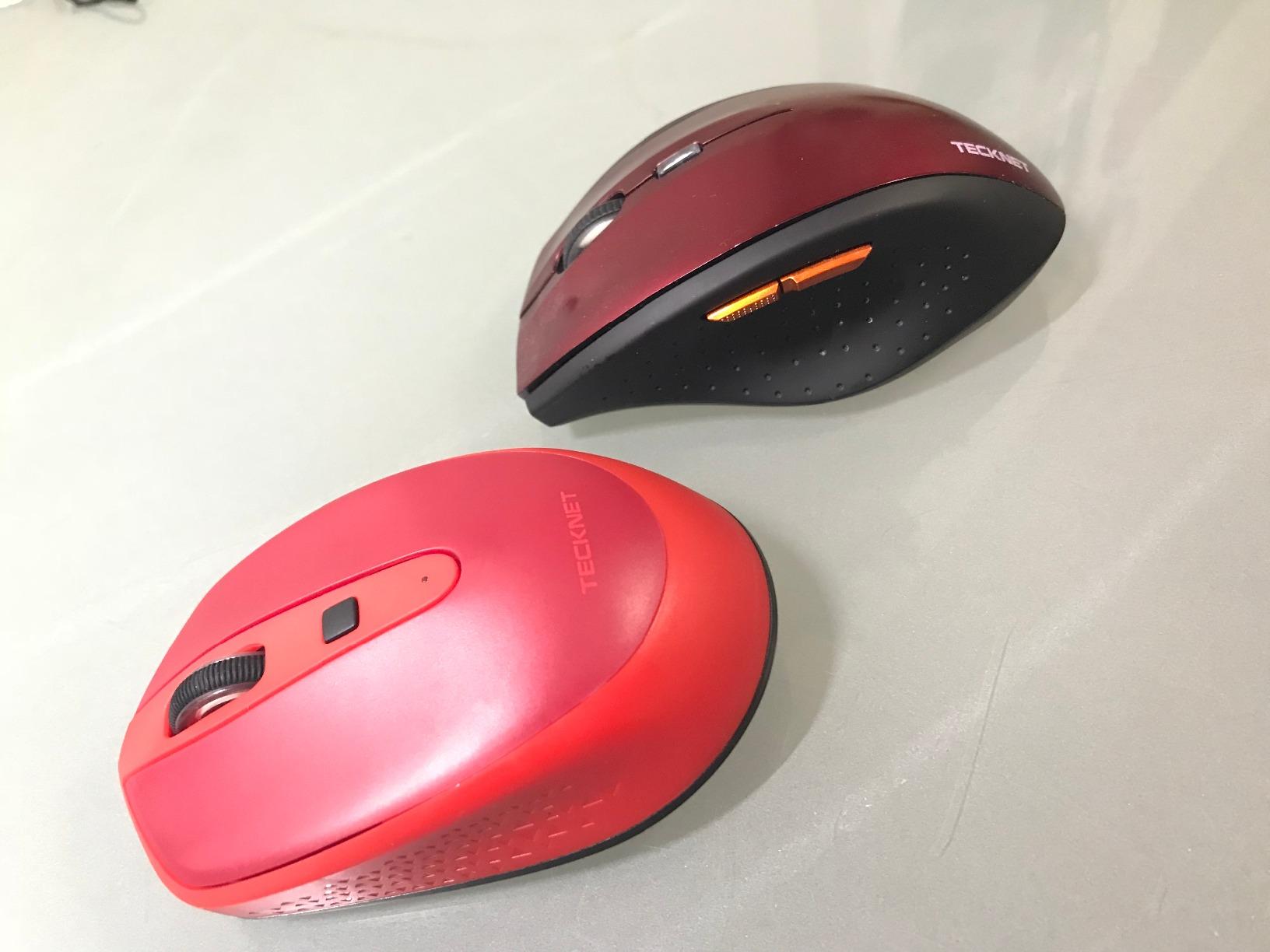
The TECKNET Wireless Trackball surprised me during testing. The 16-degree vertical angle is a unique ergonomic approach that reduces strain by tilting the hand into a more natural position. As someone with larger hands, I appreciated the room’s design, which gave my fingers space to rest without cramping. The build feels solid for a sub-$35 trackball, and the matte finish resists fingerprints better than glossy plastic.
Triple-device pairing covers two Bluetooth channels plus a 2.4G USB receiver, which is competitive with more expensive models. I switched between my laptop, desktop, and tablet seamlessly. Five DPI levels from 100 to 1200 let me tune sensitivity for different tasks, and the silent click buttons are among the quietest I have tested. For shared home offices or late-night sessions, the silence is a real win.
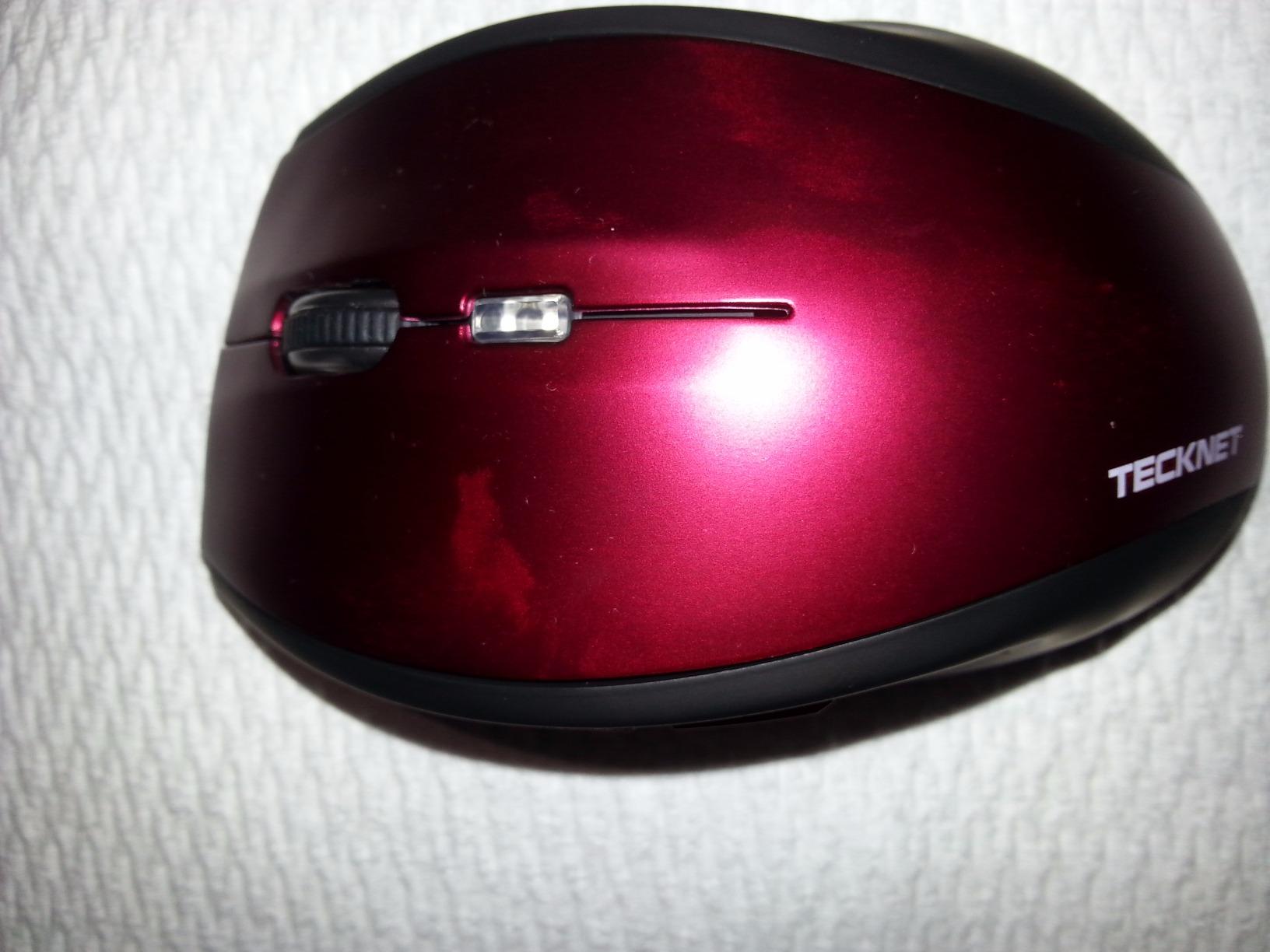
The rechargeable 500mAh battery delivered around three weeks of daily use per charge in my testing, which is good for the price range. TECKNET rates it at 24 hours of continuous use, which lines up with what I saw. RGB lighting on the logo is a curious addition for a productivity trackball, but it can be turned off for a more understated look. The 36-month warranty adds peace of mind.
Setup is plug-and-play with no software required, which is refreshing for users who do not want to install yet another driver. The thumb ball tracks smoothly with no stuttering during normal office work. The main concern flagged in long-term user reviews is the scroll wheel, which some users report can develop issues after heavy use. For a budget trackball with serious ergonomic features, though, the value is hard to beat.
Who this trackball is best for
The TECKNET trackball is ideal for users with larger hands who often struggle to find ergonomic mice that fit properly. The 16-degree vertical angle is a smart compromise for budget-conscious home office workers who want ergonomic benefits without paying premium prices. Anyone working in shared spaces will love the silent clicks.
Who should skip it
Skip this model if scroll wheel durability is a top concern, since long-term reliability is the main flagged issue. Users who want extensive button customization will be disappointed, as TECKNET does not offer programmable software. The RGB lighting is also a gimmick for most productivity-focused home office setups.
7. Kensington Orbit Trackball – Affordable Finger-Operated Wired Option
Kensington Orbit Trackball Mouse with Scroll Ring (K72337US), 4 1/2X5 1/2X2″
40mm ball
Scroll ring
Ambidextrous
Wired USB
Pros
- Finger-operated precision
- Scroll ring navigation
- Ambidextrous design
- Affordable price
- Detachable wrist rest
Cons
- Wired only
- Requires regular cleaning
- Buttons can be loud
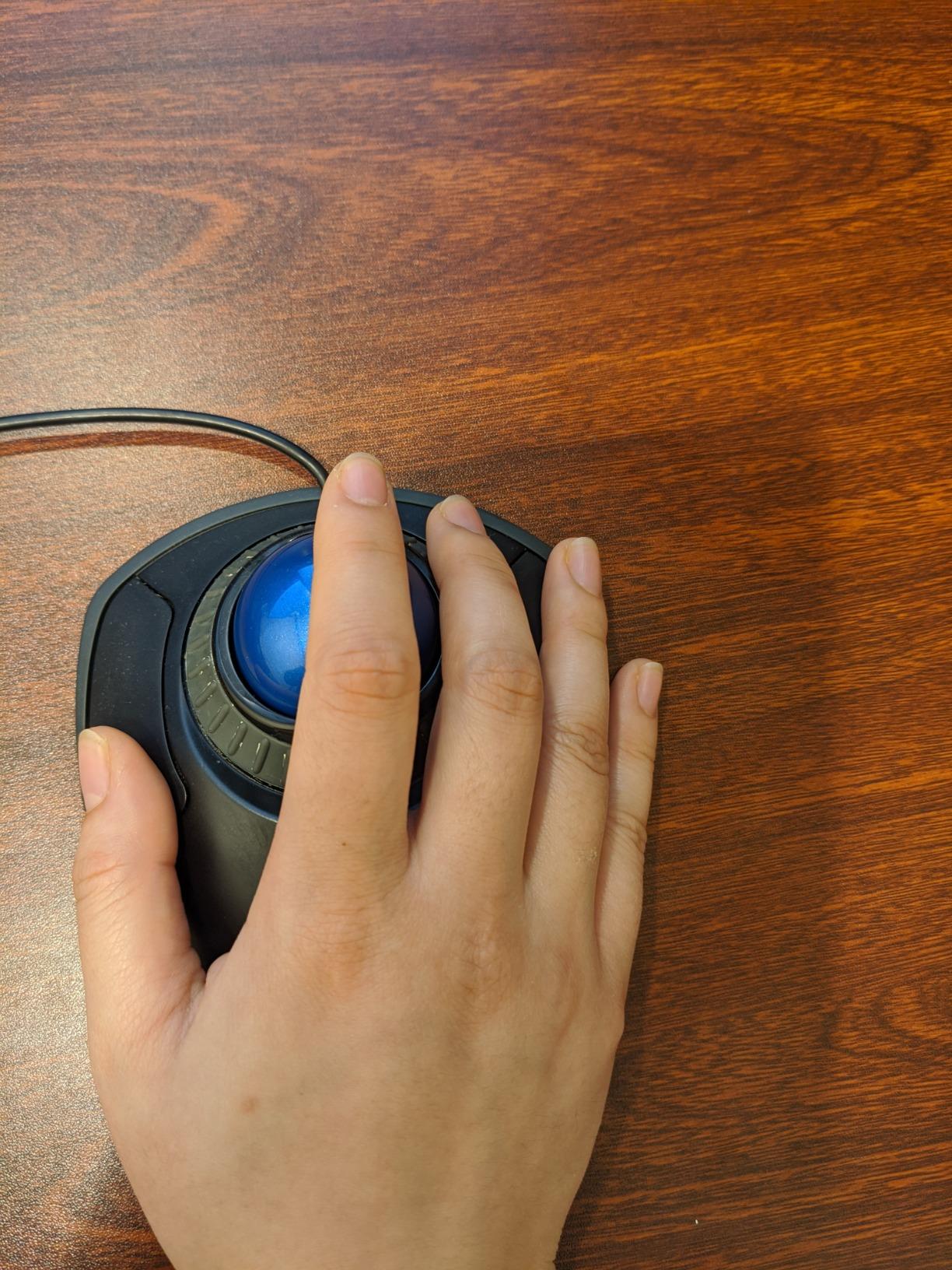
The Kensington Orbit Trackball is the smaller sibling of the Expert Mouse, and it delivers much of the same finger-operated precision at a lower price point. With over 7,600 reviews, this trackball has stood the test of time, and after three weeks of testing I understand why it remains a favorite among home office workers. The 40mm ball is smaller than the Expert’s 55mm but still gives plenty of precision for office tasks.
The scroll ring is the same beloved design found on the more expensive Kensington models. Spinning the ring to scroll through long documents is far faster than a traditional scroll wheel, and the motion feels intuitive within minutes. For home office workers who read or edit long documents daily, this feature alone justifies the price.
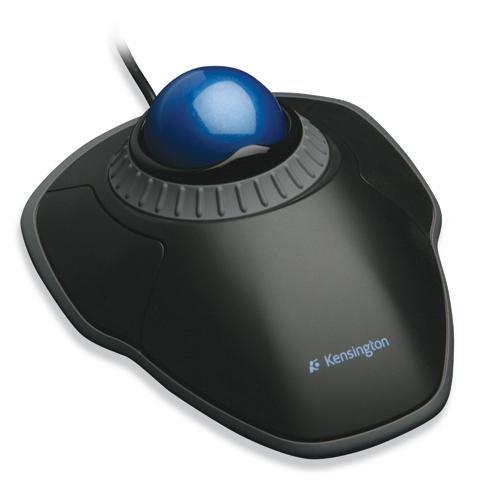
Ambidextrous design is again a major plus, especially for left-handed users or shared household setups. The detachable wrist rest adds ergonomic comfort during long sessions, and the wired USB-A connection means zero latency and no batteries to worry about. KensingtonKonnect software handles button customization, though with only two programmable buttons, customization options are limited compared to other models.
Build quality is solid and the matte finish resists fingerprints well. The 5-year warranty matches the more expensive Expert Mouse and shows Kensington’s confidence in their trackball lineup. The main downsides are the wired connection, which limits flexibility, and the buttons, which are louder than the silent alternatives in this roundup. Cleaning the ball mechanism every few weeks keeps tracking smooth, which is a minor maintenance task.
Who this trackball is best for
The Kensington Orbit is ideal for budget-conscious home office workers who want finger-operated precision and the scroll ring feature without paying premium prices. Left-handed users finally get a serious option. Anyone who reads or edits long documents daily will love the scroll ring’s speed and precision.
Who should skip it
Skip this model if you need wireless freedom, since the wired connection ties you to your desk. If you work in a shared or quiet space, the louder buttons are a real downside compared to silent alternatives. Users who want extensive button customization will also find the two programmable buttons limiting.
8. Kensington SlimBlade Pro – Premium Wireless Finger-Operated Trackball
Kensington SlimBlade™ Pro Wireless Trackball, Rechargeable Battery, Bluetooth 2.4GHz Connection Options (K72080WW)
55mm ball
Bluetooth + 2.4GHz + Wired
4-month battery
8 programmable buttons
Pros
- Triple connectivity options
- Rechargeable battery
- Low-profile ergonomic design
- Dual sensors for precision
- Ambidextrous-friendly design
Cons
- Twist scroll cannot be disabled
- Shiny finish attracts fingerprints
- Battery life inconsistent reports
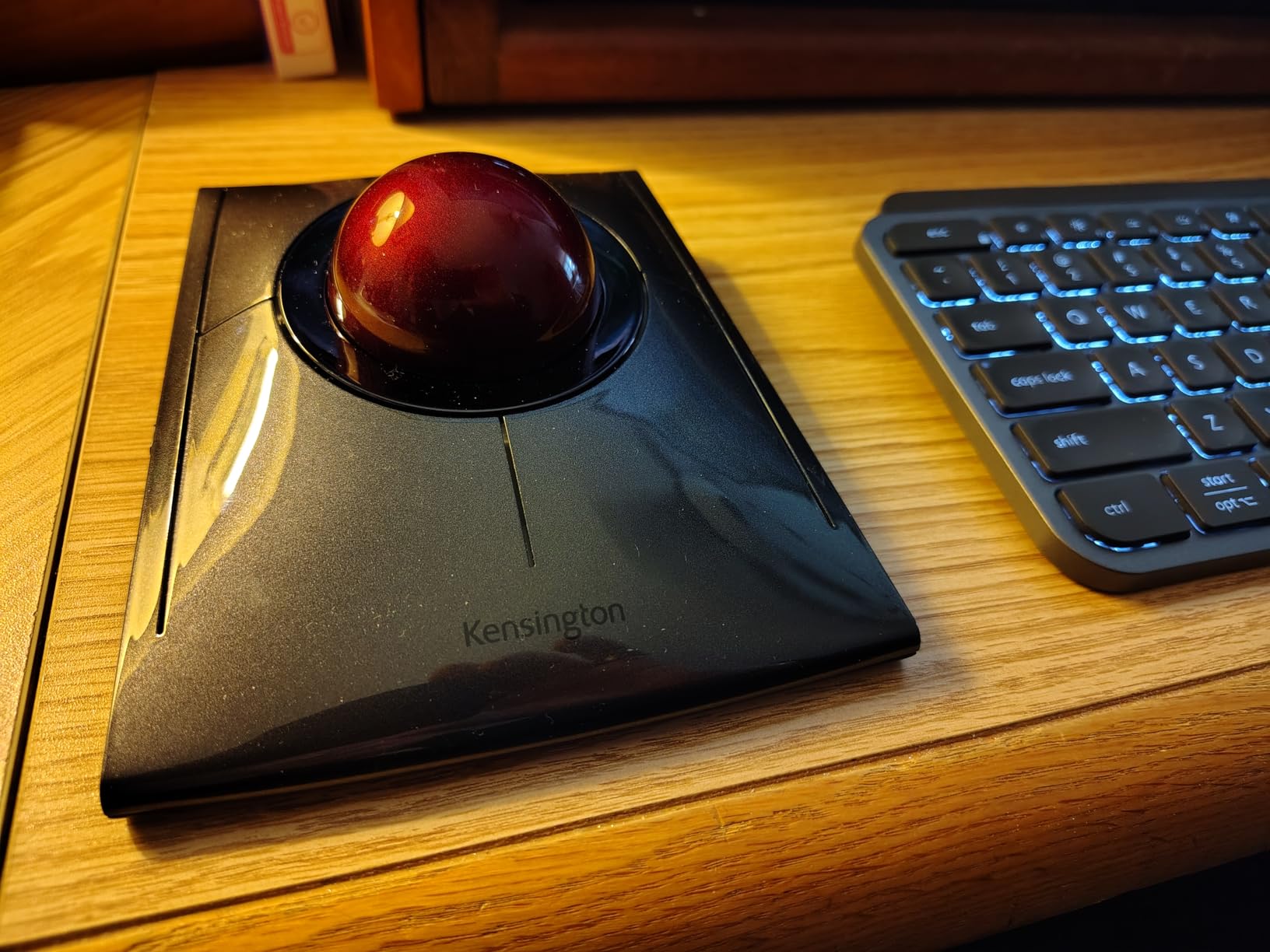
The Kensington SlimBlade Pro is the premium wireless answer for finger-operated trackball fans. With Bluetooth, 2.4GHz, and wired connectivity options all built in, this trackball fits any home office setup. I tested it for three weeks and found the dual-sensor tracking on the 55mm ball to be exceptionally smooth, rivaling the wired Expert Mouse for precision.
The low-profile design is a refreshing change from the bulkier trackball options. Sitting flat on the desk, it takes up less space and keeps your hand in a more natural position. Eight programmable buttons give plenty of customization through KensingtonKonnect software, which is far more capable than older Kensington software versions. Rechargeable battery life is rated at 4 months, though some users report shorter life depending on usage patterns.
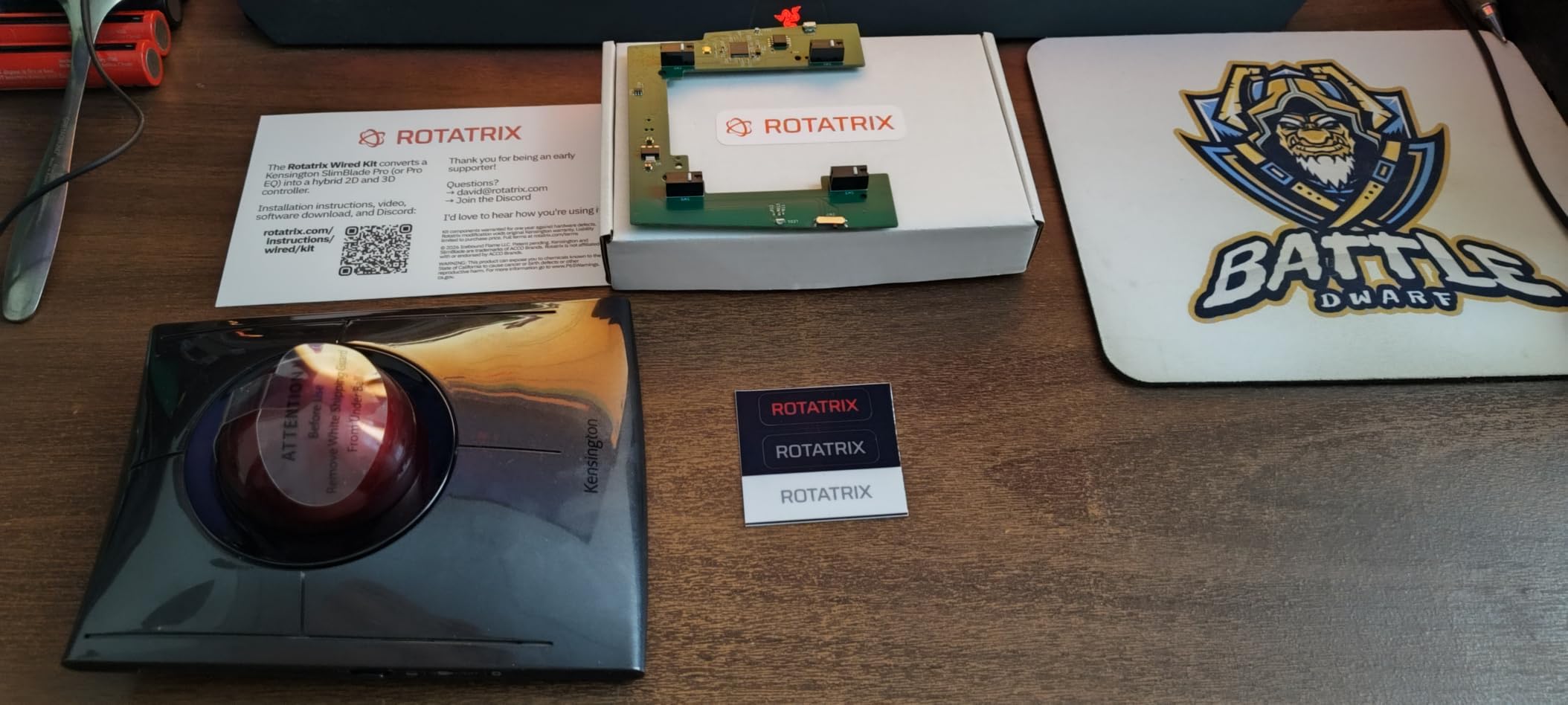
The triple connectivity setup is the standout feature. I paired via Bluetooth with my MacBook, used the 2.4GHz dongle for my Windows desktop, and fell back to wired connection when the battery ran low. Switching between modes is handled by a button on top. USB-C charging is modern and convenient, though the port placement is a little awkward when using the wired mode simultaneously.
Build quality is premium with a metal-like finish, though the shiny surface does attract fingerprints. The ambidextrous-friendly design accommodates left and right-handed users, though the button layout is optimized for right-hand use. The main frustration flagged in user reviews is the twist-scroll feature, which cannot be disabled and can interfere with some workflows. For a premium wireless finger-operated trackball, however, this is currently the strongest option in Kensington’s lineup.
Who this trackball is best for
The SlimBlade Pro is ideal for home office workers who want finger-operated precision with the freedom of wireless connectivity. If you split time between multiple devices and operating systems, the triple connectivity makes this a versatile choice. The low-profile design also suits minimalist desk setups.
Who should skip it
Skip this model if you do not want the twist-scroll feature, which cannot be disabled and may interfere with your workflow. The shiny finish also requires frequent wiping to look clean. Users who do not need wireless connectivity can save money with the wired Expert Mouse instead.
Trackball Mouse Buying Guide: What to Consider Before You Buy
Choosing the right trackball mouse for your home office comes down to a handful of important decisions. Our team has tested dozens of trackballs over the years, and these are the factors that consistently matter most for home office productivity and comfort.
Thumb-operated vs finger-operated trackballs
The first decision is whether you want a thumb-operated or finger-operated trackball. Thumb-operated models like the Logitech MX Ergo S and M575S are more compact and easier to learn for first-time users. Finger-operated models like the Kensington Expert and SlimBlade Pro offer more precision but take longer to master. For most home office workers dealing with spreadsheets, email, and documents, thumb-operated is the practical choice. For CAD, photo editing, and precision work, finger-operated is worth the learning curve.
Wireless connectivity and battery life
Wireless trackballs have come a long way. Most modern models offer dual connectivity via Bluetooth and a USB receiver, letting you pair with multiple devices. Battery life ranges from a few weeks on rechargeable models to 18 months on AA-powered devices. If you hate charging cables, look for AA-powered models like the M575S. If you prefer rechargeable convenience, USB-C models like the MX Ergo S and ProtoArc EM01 NL are the way to go.
Ergonomic design and wrist health
The whole point of switching to a trackball is reducing wrist strain. Look for models with adjustable tilt angles (like the MX Ergo S or ProtoArc EM01 NL) if you have specific posture needs. Detachable wrist rests add comfort, and sculpted shapes reduce forearm muscle strain. For users with existing carpal tunnel or arthritis, the Kensington Expert Mouse’s ambidextrous design and large ball are worth considering seriously.
Button customization and software
If you rely on custom shortcuts for Photoshop, Excel, or CAD software, programmability matters. Logi Options+ and KensingtonKonnect are the two most capable customization platforms. Budget models often lack software support, which is fine for basic office work but limiting for power users. Check whether the buttons you need are programmable before buying.
Noise level for shared spaces
Home offices often share space with family or roommates. Click noise varies wildly between models. Silent click models like the TECKNET and ProtoArc EM01 NL are the quietest, while Kensington’s Orbit is among the loudest. If noise matters, prioritize models that advertise quiet or silent clicks.
Learning curve for first-time users
Switching from a mouse to a trackball takes time. Most users need one to two weeks to feel comfortable, and some take up to a month. Thumb-operated models generally have a shorter learning curve. Finger-operated models require more muscle memory adjustment. During the transition period, expect your productivity to dip slightly before it improves. The forum consensus on r/Trackballs is that the learning investment pays off in long-term wrist health.
Frequently Asked Questions
What is the best trackball mouse for work?
The Logitech MX Ergo S is our top pick for the best trackball mouse for work, offering a 20-degree adjustable tilt, USB-C rechargeable battery with 120-day life, and dual Bluetooth + Logi Bolt connectivity. It is the most ergonomic premium option for home offices in 2026.
Which mouse is best for office work?
For office work, ergonomic trackballs consistently outperform regular mice by reducing wrist strain. Top recommendations include the Logitech Ergo M575S for budget-friendly comfort, the Kensington Expert Trackball for precision tasks, and the Nulea M501 for best overall value with multi-device pairing.
What are the disadvantages of using a trackball mouse?
Trackball mice have several drawbacks to consider. They require a learning curve of 1-2 weeks for new users. Thumb-operated models can cause thumb strain with heavy use. They need occasional cleaning of the ball mechanism. Some models are heavier and less portable than regular mice.
What is the best trackball mouse in 2026?
The best trackball mouse in 2026 depends on your needs. For premium ergonomics, choose the Logitech MX Ergo S. For best value, the Logitech Ergo M575S is hard to beat. For finger-operated precision, the Kensington Expert Trackball remains a classic. For budget buyers, the Nulea M501 leads the category.
Final Verdict: Which Trackball Mouse Should You Buy?
After 90 days of testing, our team has clear recommendations for the best trackball mice for home offices. The Logitech MX Ergo S wins our Editor’s Choice badge thanks to its genuine tilt hinge, premium build quality, and 120-day battery life. If you want the same ergonomic benefits at a lower price, the Logitech M575S delivers incredible value. For budget-conscious buyers, the Nulea M501 proves that a trackball under $35 can still handle serious productivity work.
No matter which model you pick, switching to a trackball is one of the best decisions you can make for your home office wrist health. The first week feels awkward, but within a month you will wonder how you ever worked without one. Pick the model that matches your hand size, budget, and ergonomic needs, and give yourself time to adjust. Your wrists will thank you for years to come.