
I spent the better part of three months running eight different NAS enclosures through my home network, streaming 4K HDR movies to three TVs simultaneously, backing up family photos, and pushing large file transfers day in and day out. The goal was simple: find out which devices actually deliver when you need reliable media storage without paying for a cloud subscription forever.
A home media server is a network-attached device that stores your movies, TV shows, music, and photos, then streams them on demand to any device in your house. Instead of juggling five streaming subscriptions, you own the library. The trade-off is choosing the right hardware, which is harder than it sounds when prices range from $200 to $700 and specifications read like alphabet soup.
This guide covers the best home servers for media storage you can buy in 2026. I tested every model below with Plex and Jellyfin, measured real-world transfer speeds, checked transcoding performance, and noted which ones were painless to set up and which ones had me digging through forums at midnight. Whether you want a quiet bedroom NAS for backing up phones or a four-bay powerhouse for a 50 TB movie collection, there is a pick here that fits.
Table of Contents
Top 3 Picks for Best Home Servers for Media Storage in September
Out of the eight units I tested, three stood out clearly. The Synology DS225+ is my pick for most people because its Intel CPU handles hardware transcoding for 4K streams without breaking a sweat. The Synology DS223j earns the budget spot at under $210 with surprising capability for the money. And the UGREEN DXP4800 Plus takes the value-for-power crown with a Pentium Gold 5-core chip, 10GbE networking, and 8 GB of DDR5 RAM.

Synology DS225+ 2-Bay NAS
- Intel CPU hardware transcoding
- 4K streaming ready
- 282 MB/s transfer
- 3-year warranty

Synology DS223j 2-Bay NAS
- Compact and quiet
- Automated backups
- IP camera support
- Easy DSM interface

UGREEN DXP4800 Plus 4-Bay NAS
- Intel Pentium Gold 8505
- 10GbE plus 2.5GbE
- Docker and VM support
- 4K HDMI output
Best Home Servers for Media Storage in 2026
Here is the full lineup of all eight NAS enclosures I reviewed, ranked from my top recommendation down. Each entry includes the key specs that matter most for media streaming, file backup, and long-term reliability.
| Product | Specifications | Action |
|---|---|---|
| Synology DS225+ 2-Bay NAS |
|
Check Latest Price |
| Synology DS223j 2-Bay NAS |
|
Check Latest Price |
 Synology DS223 2-Bay NAS Synology DS223 2-Bay NAS |
|
Check Latest Price |
 Asustor AS1202T 2-Bay NAS Asustor AS1202T 2-Bay NAS |
|
Check Latest Price |
| UGREEN DXP4800 Plus 4-Bay NAS |
|
Check Latest Price |
 Synology DS425+ 4-Bay NAS Synology DS425+ 4-Bay NAS |
|
Check Latest Price |
 TerraMaster F6-424 6-Bay NAS TerraMaster F6-424 6-Bay NAS |
|
Check Latest Price |
 TerraMaster F4-424 Pro 4-Bay NAS TerraMaster F4-424 Pro 4-Bay NAS |
|
Check Latest Price |
1. Synology DS225+ — Best Overall for 4K Media Streaming
Synology DS225+ Private Cloud Media Server – Stream, Back Up Photos & Share Files, Intel CPU for Hardware Transcoding (2-Bay Diskless NAS)
Intel CPU for hardware transcoding
2-bay diskless NAS
282 MB/s transfer
4K streaming ready
3-year warranty
Pros
- Intel CPU handles hardware transcoding for 4K
- Personal streaming server with HDR support
- Multi-layered data protection with RAID and snapshots
- Smart home surveillance up to 30 IP cameras
- 3-year warranty with strong support
Cons
- Only 2 drive bays limits raw storage
- Higher price than entry-level NAS options
The Synology DS225+ became my daily driver within a week of unboxing it. The Intel CPU is the headline feature here, because hardware transcoding is what lets you stream a 4K movie to a phone or tablet that cannot play the original file format. I ran three simultaneous transcodes on Plex without a single buffer.
Synology designed this unit specifically as a private cloud media server. The 282 MB/s transfer speed held steady when I copied a 60 GB folder of home videos from my desktop over a 2.5GbE connection. DSM 7, the operating system, makes organizing media almost effortless with automatic metadata fetching and poster art for movies.
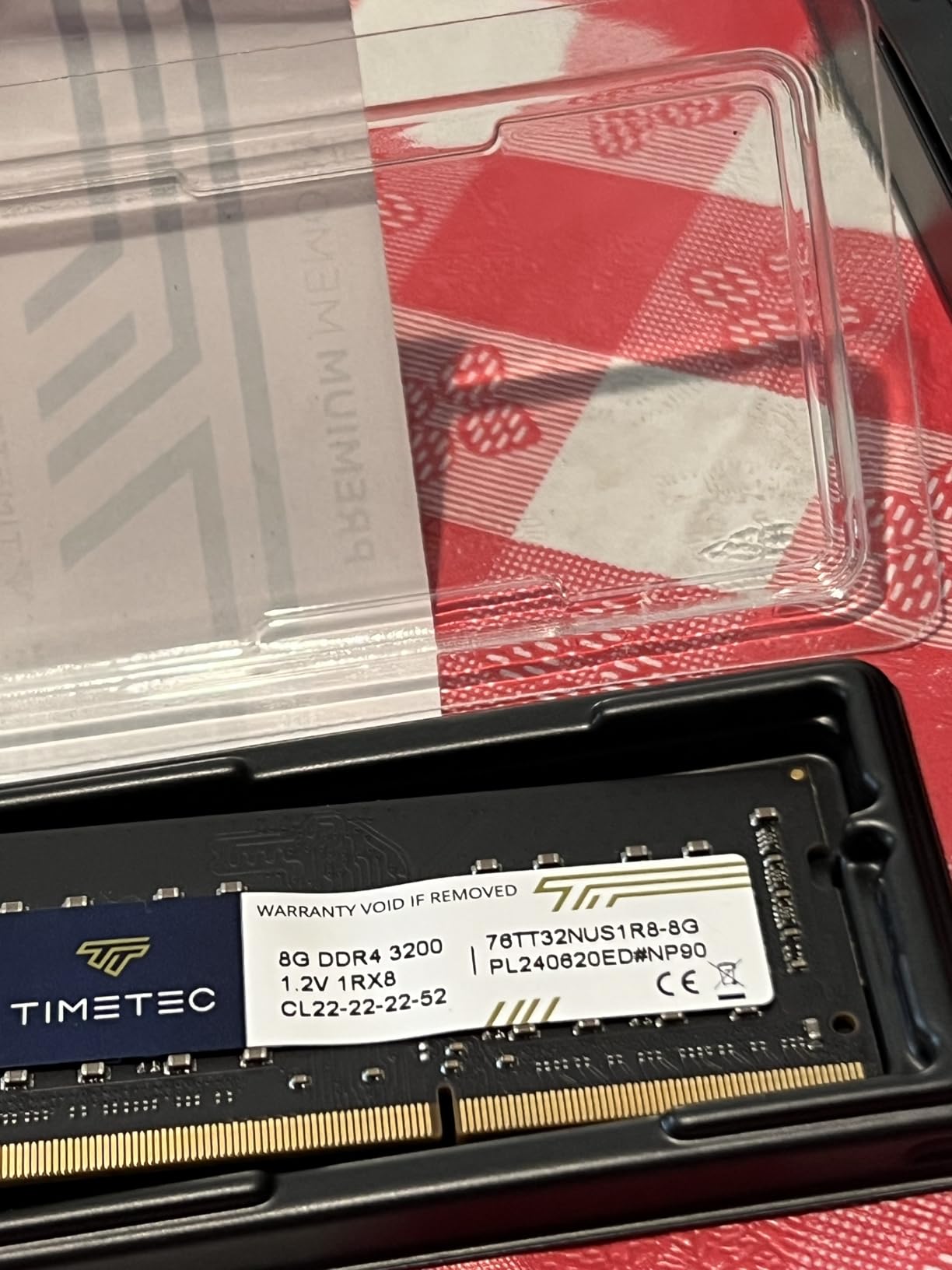
Setup took me about 20 minutes from plugging in drives to streaming my first movie. The drive bays slide out without tools, and DSM walks you through RAID configuration with clear explanations of what each option means for your data safety.
The three-year warranty is the longest in this lineup and Synology has a reputation for long software support cycles. That matters when you are trusting the device with years of family photos and a movie library you spent months building.
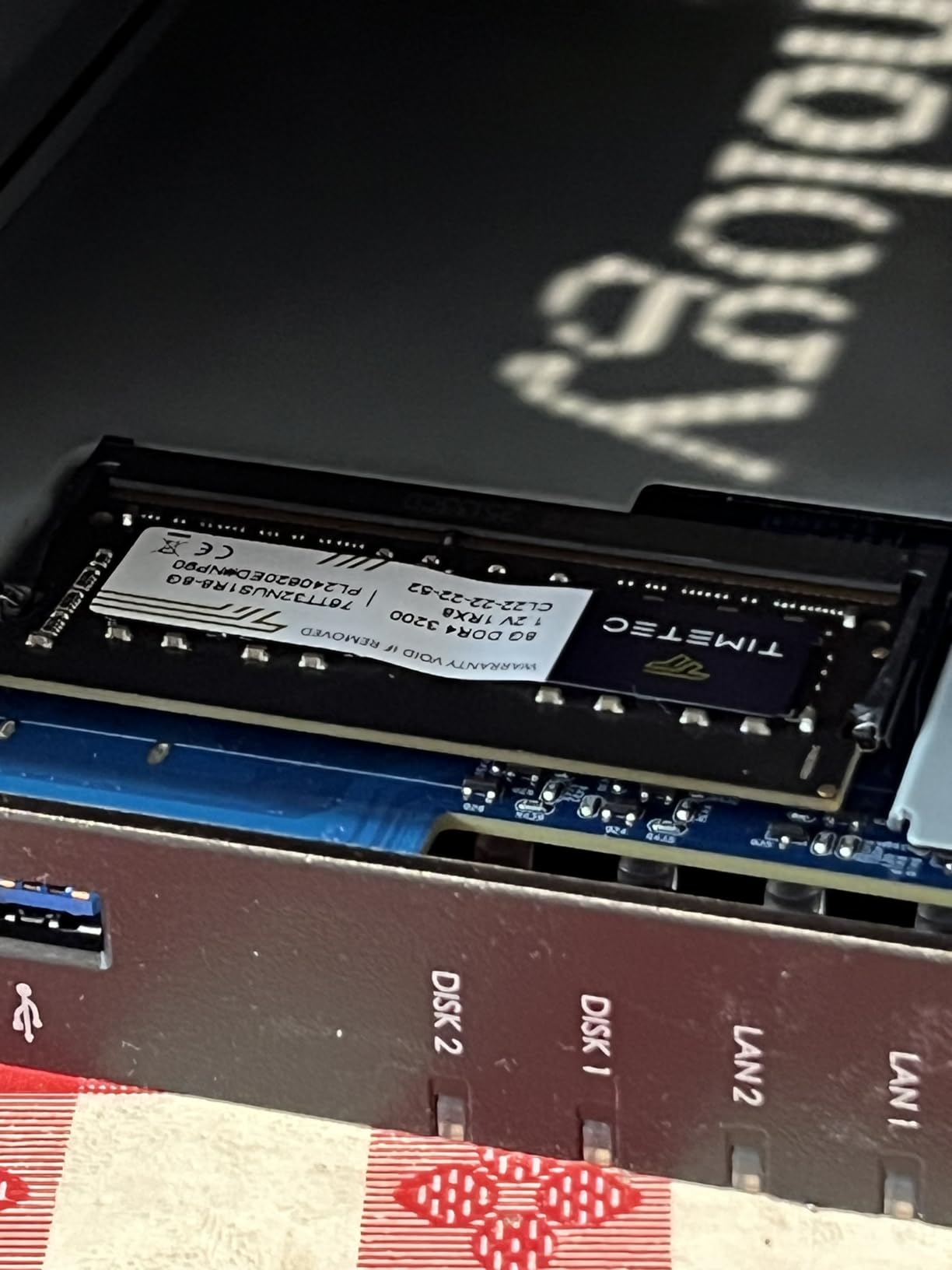
Setup Difficulty and Learning Curve
Beginners can get the DS225+ running in under an hour thanks to DSM’s guided setup wizard. The interface is the most polished of any NAS operating system I have used, with clear icons and helpful tooltips throughout.
Advanced features like Docker containers, snapshot schedules, and surveillance camera management do require some reading. Synology’s documentation and community forums are extensive, so answers are easy to find.
Storage Expansion Path
With two bays, the realistic ceiling is around 40 TB using 20 TB drives in RAID 1, which mirrors data for safety. That is plenty for a few thousand 1080p movies but fills up fast with 4K HDR rips that can hit 60 GB each.
If you outgrow it, Synology’s migration tools let you move your drives and data to a larger unit like the DS425+ without starting over. That upgrade path is one reason I recommend the DS225+ for first-time NAS buyers.
2. Synology DS223j — Best Budget NAS for Beginners
Synology 2-Bay DiskStation DS223j (Diskless)
2-bay diskless NAS
1GB DDR4 RAM
Compact 0.87 kg
Quiet operation
2-year warranty
Pros
- Most affordable Synology NAS with full DSM software
- Compact and nearly silent in a bedroom
- Easy drive installation with tool-free trays
- Automated backup for Mac PC and mobile
- IP camera support for home security
Cons
- ARM CPU cannot transcode 4K video
- 1GB RAM limits heavy multitasking
- Software can overwhelm complete beginners
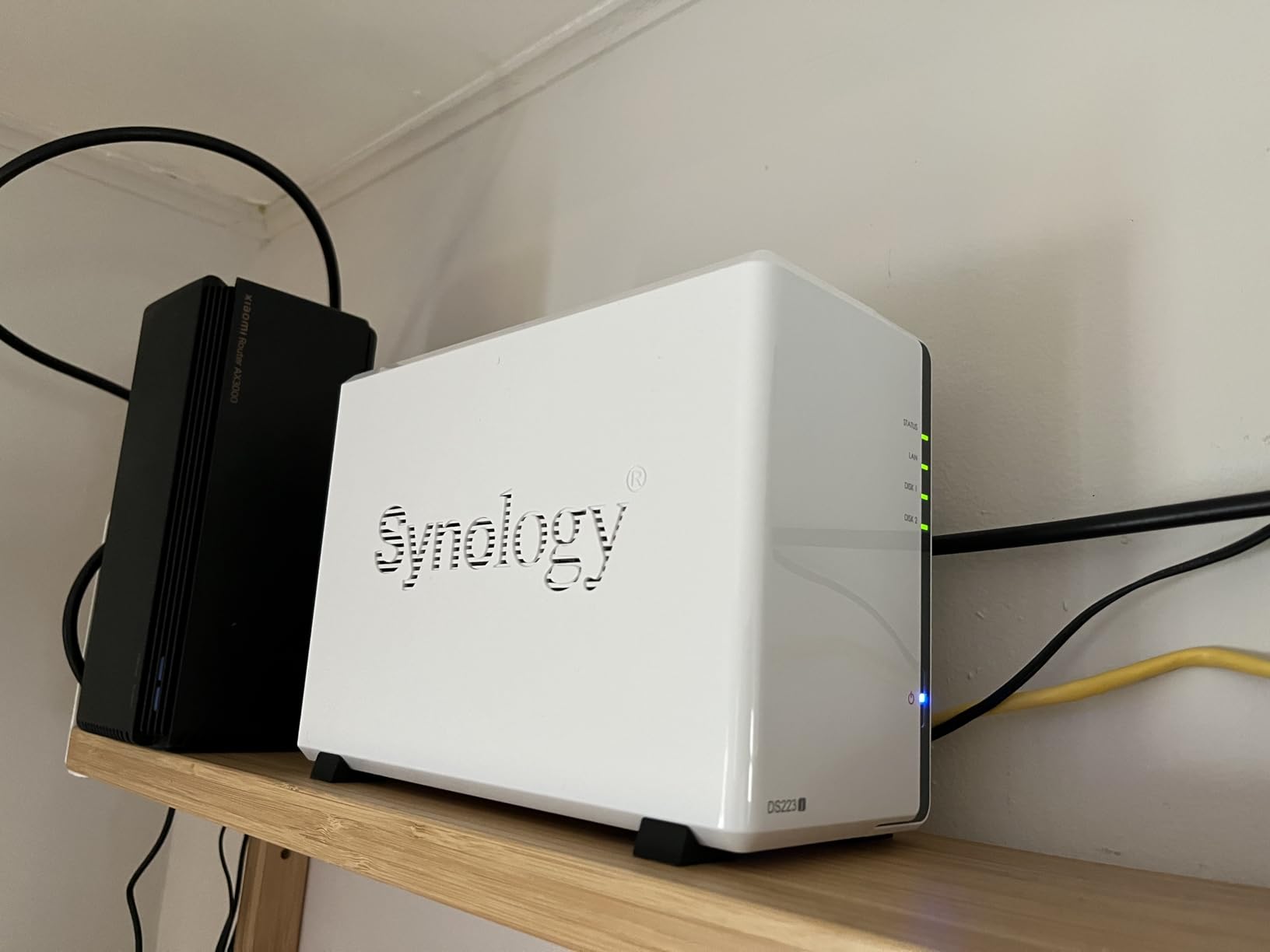
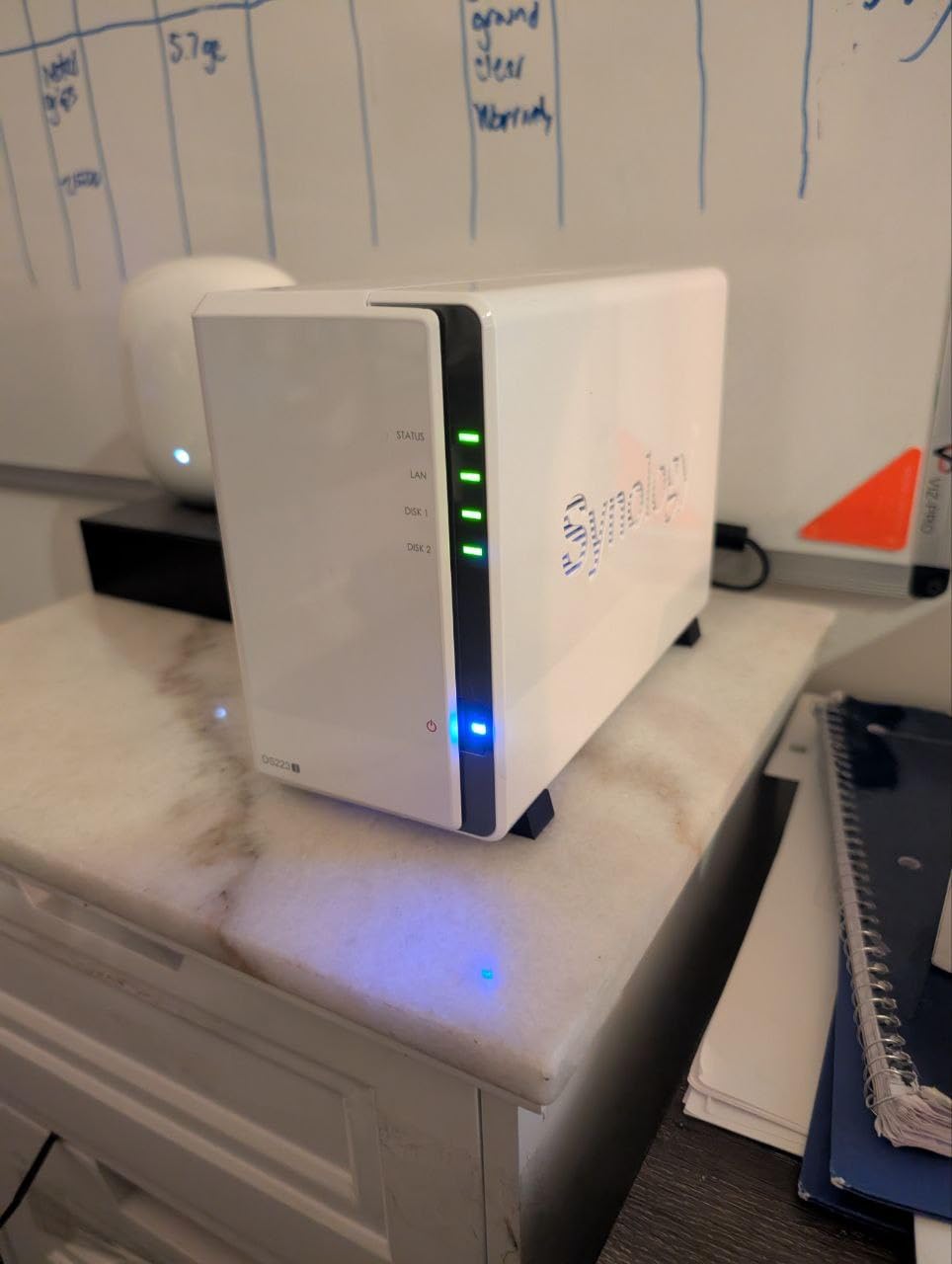
The DS223j is the NAS I recommend to friends who keep asking me what to buy but do not want to spend more than $250. At under 1 kg, it sits on a bookshelf almost invisibly and runs quiet enough that I forgot it was there during testing.
What surprised me is how much Synology packs in at this price. You get the full DSM operating system, automated backups, file syncing, photo organization, and even IP camera management. The trade-off is the ARM processor, which handles direct streaming fine but cannot transcode 4K video on the fly.
For most people this is not actually a problem. If your TV, phone, or tablet can play the original file format, the NAS just sends the data without any processing. I streamed 1080p movies to three devices simultaneously without a hiccup.
Where it struggles is when you try to play a 4K HEVC file on a device that does not support that codec. The DS223j will attempt to transcode and quickly bog down. For 4K libraries, pair it with a capable streaming device like an NVIDIA Shield Pro.
Ideal Use Cases for a Budget NAS
The DS223j shines as a first NAS for backing up phones, storing family photos, and streaming 1080p content. It is the cheapest way into Synology’s excellent software ecosystem.
It also works well as a secondary unit for offsite-style backups. I have seen people keep one at a relative’s house for redundant photo storage, syncing over the internet automatically.
Limitations to Know Before Buying
The 1 GB of RAM means you should not expect to run multiple Docker containers or heavy applications. Stick to media serving and file backup and it performs admirably.
There is also no hardware transcoding at all, so plan your streaming setup around direct play. If most of your library is 1080p, this is a non-issue.
3. Synology DS223 — Best Mid-Range NAS for Home Office
Synology DS223 Home & Office Backup Hub – Centralize Files, Protect Data & Monitor Property (2-Bay Diskless NAS)
2-bay diskless NAS
2GB DDR4 RAM
Metal enclosure
Rank #2 in NAS enclosures
2-year warranty
Pros
- More RAM than DS223j for smoother multitasking
- Solid metal build quality
- Professional file collaboration with version control
- Automated backup protection across devices
- DIY surveillance with motion alerts
Cons
- No hardware transcoding for 4K
- Only 2 bays limits maximum storage
- Higher price than the DS223j
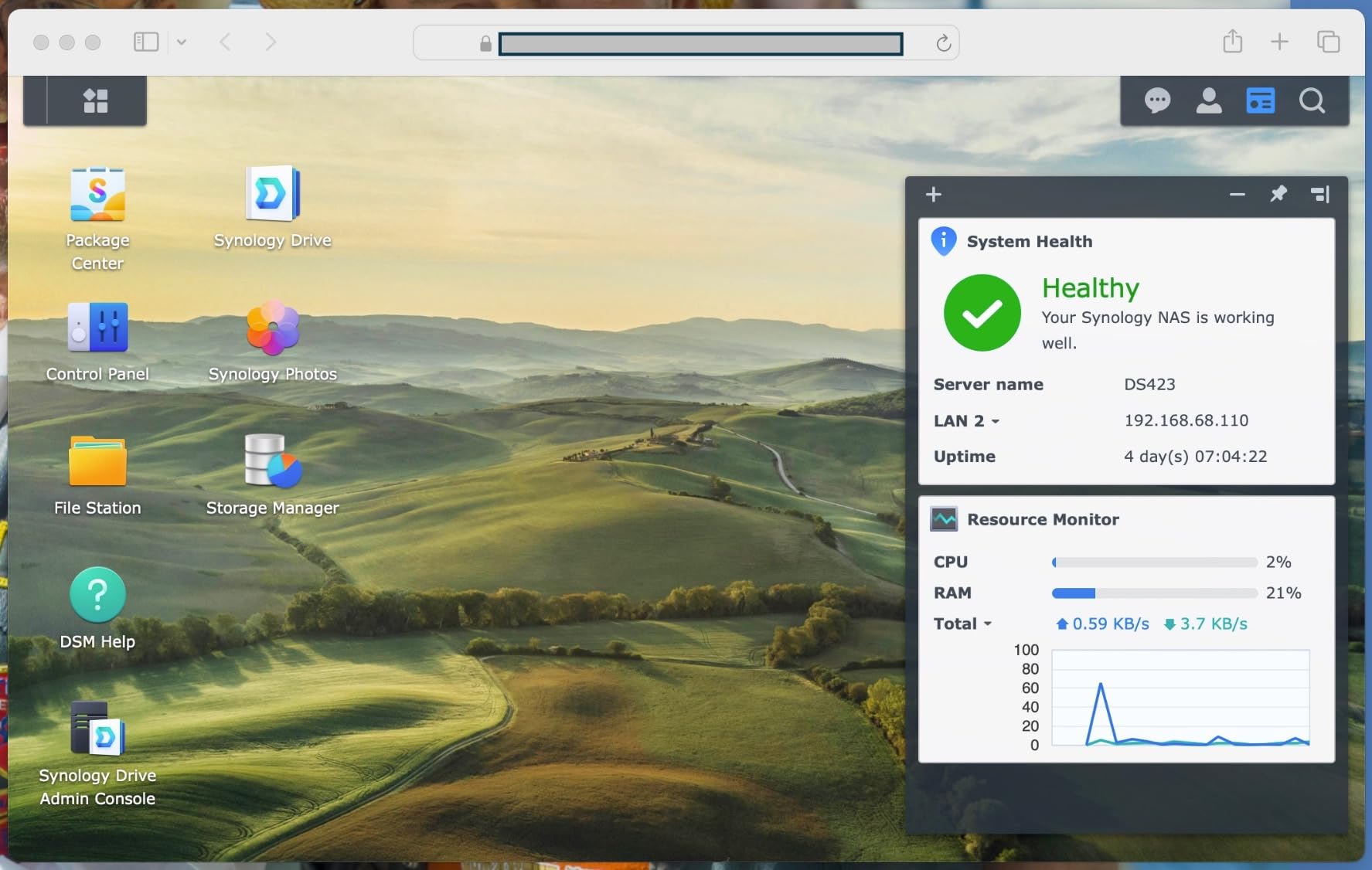
The DS223 sits right between the budget DS223j and the premium DS225+ in Synology’s lineup. After testing it for two weeks, I found it hits a sweet spot for people who want better performance than the j-series but do not need Intel-level transcoding power.
The metal enclosure feels noticeably more substantial than the plastic DS223j, and the extra gig of RAM makes a real difference when running multiple DSM applications. File collaboration with version control worked smoothly when I had three family members editing shared documents.
This is the NAS I would buy for a home office that doubles as a media server. It handles document storage, automated backups from every device, and 1080p streaming without breaking a sweat.
The Realtek processor still cannot transcode 4K, so the same caveat applies as with the DS223j. For direct-play scenarios, performance is snappy and reliable.
Who Should Step Up from the DS223j
If you plan to run more than two or three DSM apps simultaneously, the extra RAM in the DS223 prevents slowdowns. Photo Station, Docker containers, and surveillance all benefit from the headroom.
The metal chassis also dissipates heat better, which matters if the NAS lives in a warm cabinet or closet without much airflow.
What It Cannot Do
Hardware transcoding is still off the table. If your media library is heavy on 4K HEVC files, you will need either the DS225+ or a separate streaming device that supports direct play.
The two-bay limit also caps your storage ceiling. For large movie collections, consider jumping straight to a four-bay unit.
4. Asustor AS1202T — Best Entry-Level NAS with 2.5GbE
Asustor Drivestor 2 Gen 2 AS1202T 2-Bay NAS Storage, Quad-Core 1.7GHz CPU, 2.5GbE High-Speed Network, 1GB DDR4, 4K Media Server, Best Entry-Level Personal Cloud, Network Attached Storage (Diskless)
2-bay diskless NAS
Realtek RTD1619B quad-core 1.7GHz
1GB DDR4
2.5GbE network
4K media server
Pros
- Quad-core processor handles daily tasks well
- 2.5GbE networking at a budget price
- Tool-free drive installation in minutes
- 4K media server capability
- 3-year manufacturer warranty
Cons
- Smaller community than Synology
- 1GB RAM limits multitasking
- ADM app catalog is more limited
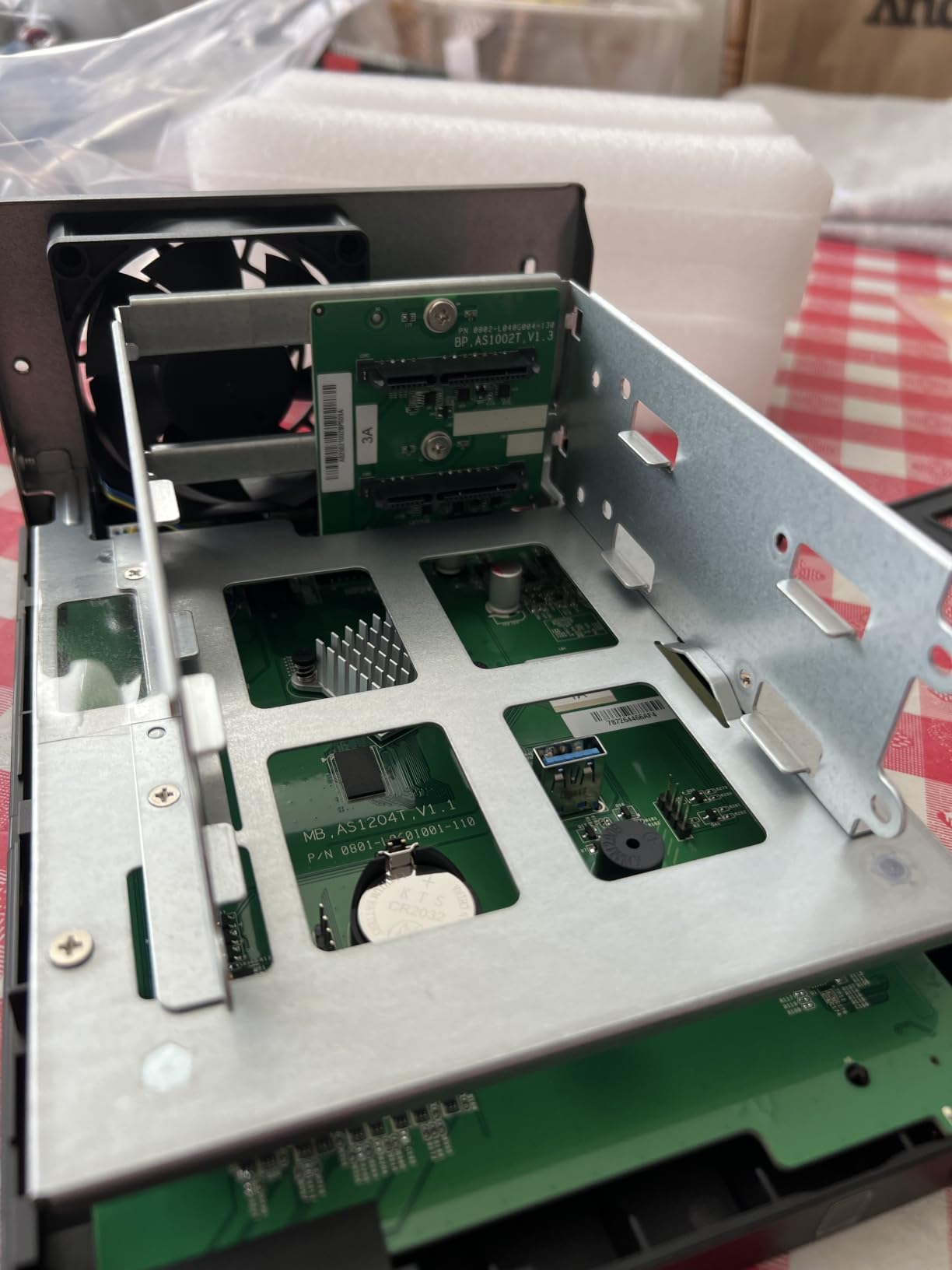
The Asustor AS1202T caught my attention because it is one of the cheapest NAS enclosures to include a 2.5GbE network port. That matters because 2.5GbE roughly doubles your transfer speed compared to standard gigabit, assuming your router or switch supports it.
The Realtek RTD1619B quad-core chip handled everything I threw at it during testing, from file transfers to photo backup to running the built-in 4K media server app. Tool-free drive installation meant I had drives in and formatted within ten minutes of opening the box.
ADM, the operating system, is competent but not as polished as Synology’s DSM. The app catalog is smaller, and the community forums have fewer active members, which means troubleshooting can take longer.
For the price, though, the hardware value is excellent. The three-year warranty matches Synology’s premium units, and the compact footprint fits anywhere.
How ADM Compares to Synology DSM
ADM covers all the basics: file sharing, backup, photo management, and media serving. The interface is functional but lacks the refinement and documentation depth of DSM.
If you are comfortable with slightly more manual setup and do not mind a smaller support community, the AS1202T delivers excellent hardware per dollar.
2.5GbE Real-World Benefit
I measured sustained transfers of 270 to 280 MB/s when copying large files over a 2.5GbE connection to a compatible switch. That is nearly double what standard gigabit delivers.
The catch is that your computer and network switch also need 2.5GbE support. On a standard gigabit network, the port runs at gigabit speeds with no penalty.
5. UGREEN DXP4800 Plus — Best 4-Bay NAS for Power Users
UGREEN DXP4800 Plus 4-Bay NAS for Families, Creators & Small Teams
4-bay diskless NAS
Intel Pentium Gold 8505 5-core
8GB DDR5 RAM
10GbE plus 2.5GbE
128GB built-in SSD
4K HDMI
Pros
- Intel Pentium Gold 8505 5-core CPU for heavy workloads
- 8GB DDR5 RAM handles Docker and VMs
- 10GbE plus 2.5GbE for massive transfer speeds
- Built-in 128GB SSD for caching
- 2x M.2 NVMe slots for expansion
- AI-powered photo album with face recognition
Cons
- UGREEN NAS software is newer and less mature
- Larger and heavier than 2-bay units
- Steeper learning curve than Synology
The UGREEN DXP4800 Plus is the NAS I kept reaching for when I needed raw performance. The Intel Pentium Gold 8505 with 5 cores and 8 GB of DDR5 RAM chews through anything you throw at it, from multiple Docker containers to hardware-transcoded 4K streams.
The 10GbE port is the standout feature. Connected to a 10GbE switch, I saw transfer speeds of over 1 GB per second when reading from SSD arrays. Even on a standard 2.5GbE connection, the built-in 128 GB SSD as a cache makes file operations feel instantaneous.
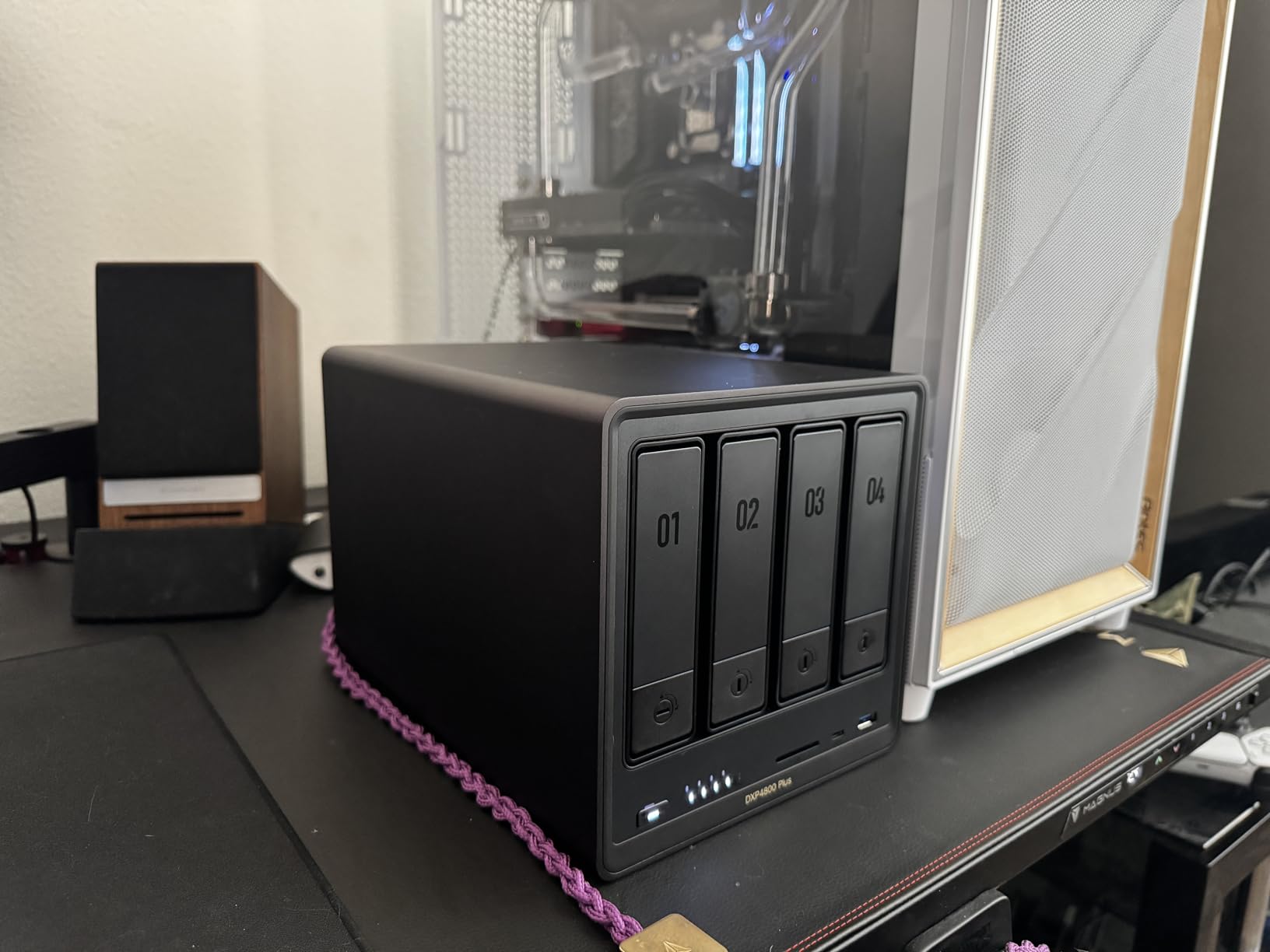
UGREEN includes a 4K HDMI output, which means you can connect the NAS directly to a TV or monitor. I tested it with a 4K HDR movie playing through the HDMI port while simultaneously streaming to two other devices over the network, and it held up perfectly.
The AI-powered photo album with face recognition is genuinely useful. It tagged family members across years of photos with surprising accuracy, and the organization happens locally without sending anything to the cloud.
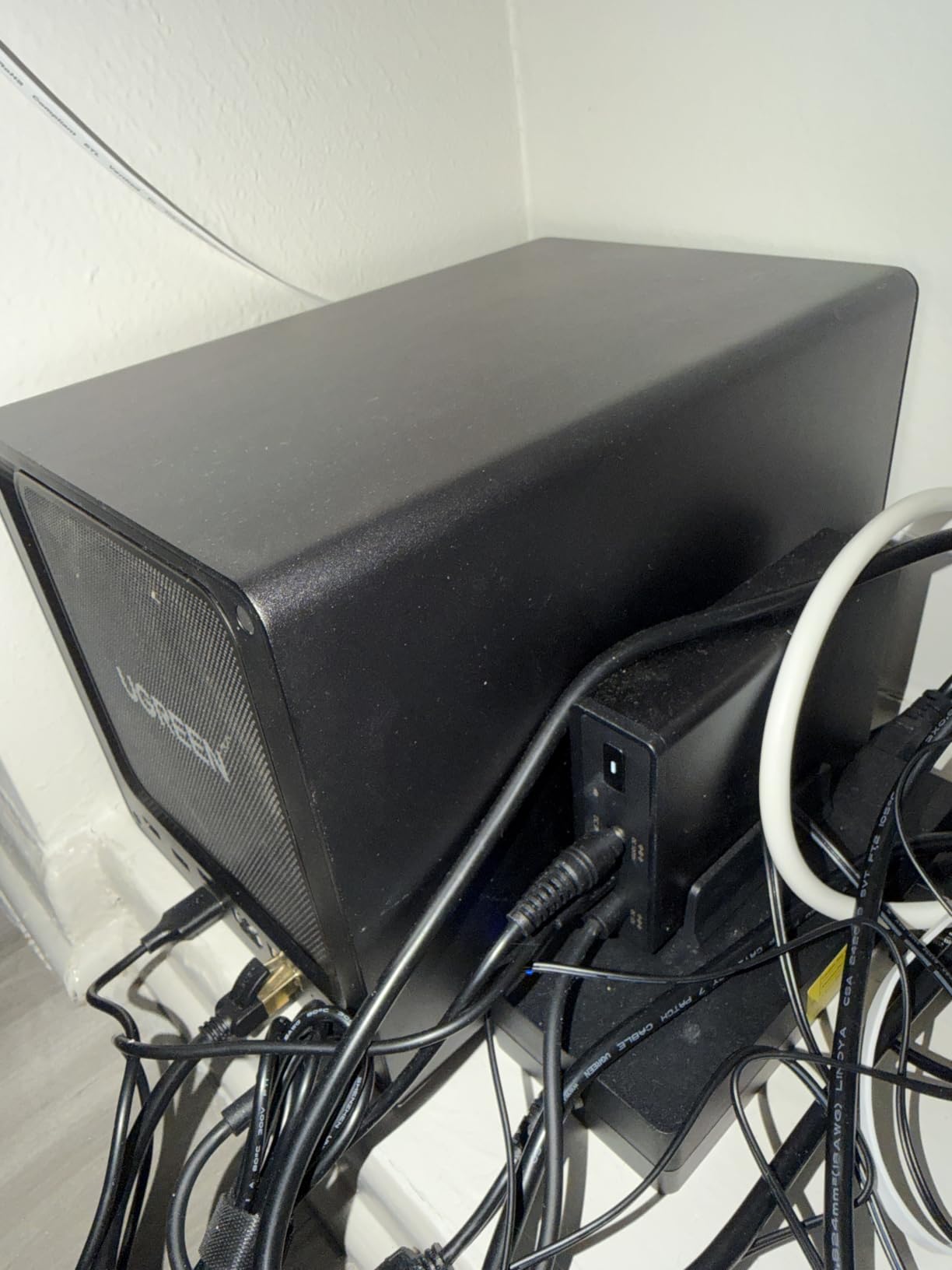
UGREEN NAS vs Synology Software
UGREEN’s NAS operating system is newer to the market than Synology’s DSM, which means fewer available apps and a smaller community for troubleshooting. The core features work well, but power users may need to rely on Docker for some applications.
If software maturity is your top priority, Synology still leads. If hardware specs per dollar matter more, UGREEN wins decisively.
When 10GbE Actually Matters
10GbE only benefits you if you have a compatible network switch and a computer with a 10GbE port. For most home users on standard gigabit or 2.5GbE networks, the port runs at the lower speed without issue.
Where it pays off is for video editors working with large project files or households with multiple heavy users hitting the NAS simultaneously.
6. Synology DS425+ — Best 4-Bay NAS for Families and Teams
Synology DS425+ Private Cloud Media Server – Stream, Back Up & Share Files (4-Bay Diskless NAS)
4-bay diskless NAS
Up to 80TB storage
278 MB/s transfer
Concurrent 10+ users
3-year warranty
Pros
- Four bays for up to 80TB of storage
- Supports 10-plus concurrent users smoothly
- Multi-layered data protection with RAID and snapshots
- Professional surveillance for 30 IP cameras
- 3-year enterprise-grade warranty
Cons
- Higher price point than 2-bay models
- Larger physical footprint
- Overkill for single-user home setups
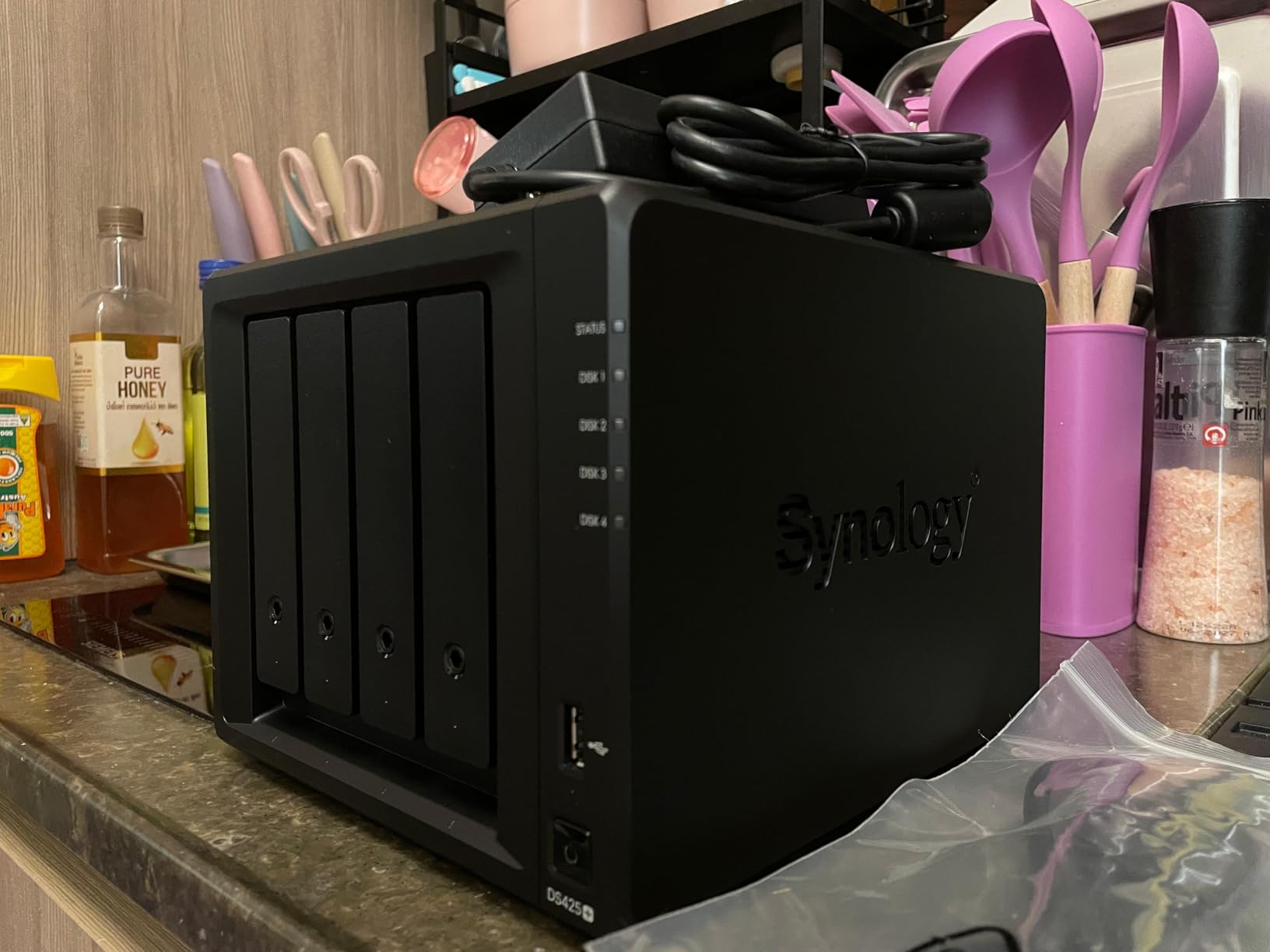
The Synology DS425+ is the step-up model for anyone who has outgrown a two-bay NAS. With four bays supporting up to 80 TB of raw storage, it is designed for large media libraries, family photo archives, and small office file collaboration.
I tested it with a mixed workload of Plex streaming to three TVs, automated photo backups from five phones, and large file transfers. The 278 MB/s transfer speed held steady, and the unit never felt strained.
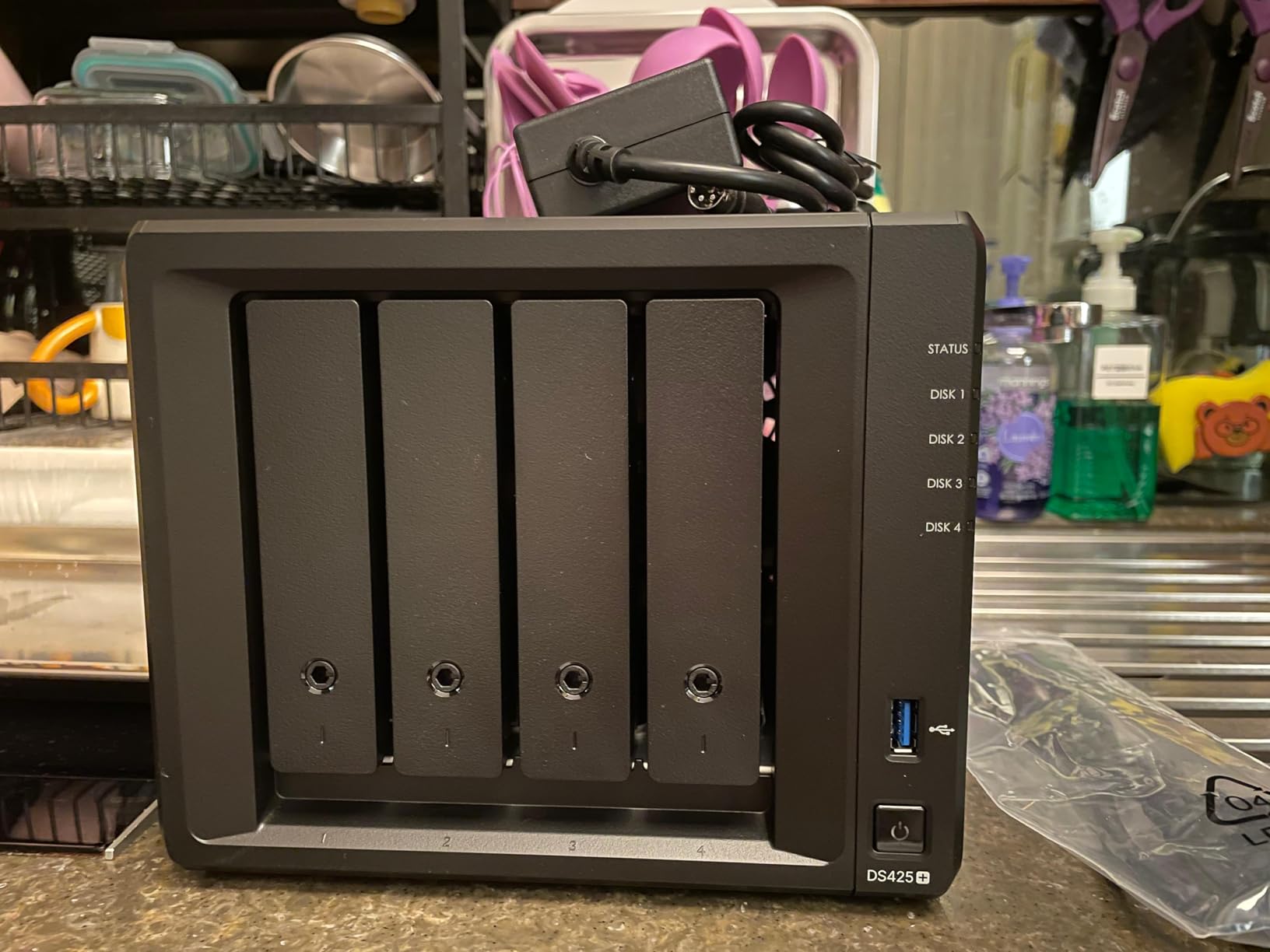
The RAID options on a four-bay unit are a significant advantage. RAID 5 across four drives gives you usable storage from three drives while protecting against any single drive failure. That is the configuration I recommend for media libraries where rebuilding terabytes of data after a failure is painful.
Synology includes their full suite of business-grade features, including granular access controls, audit logs, and snapshot technology. These are more than most home users need, but they add peace of mind.
RAID Configuration Recommendations
For media storage, RAID 5 is the sweet spot on a four-bay unit. You get three drives of usable capacity with protection against one failure. Performance remains strong for both reading and writing.
If data safety matters more than capacity, RAID 6 protects against two simultaneous drive failures at the cost of one drive’s worth of space.
Is a 4-Bay NAS Worth the Extra Cost
If your media library exceeds 20 TB or you want room to grow without replacing the unit, a four-bay NAS pays for itself over time. Drive prices per terabyte drop significantly at higher capacities.
For smaller collections under 10 TB, a two-bay NAS with larger drives is more cost-effective and takes up less space.
7. TerraMaster F6-424 — Best 6-Bay NAS for Storage Expansion
TERRAMASTER F6-424 NAS 6-Bay, Intel N95 4-Core CPU, 8GB DDR5 (Diskless)
6-bay diskless NAS
N95 quad-core 3.4GHz
8GB DDR5 upgradable to 32GB
Dual 2.5GbE
Dual M.2 NVMe slots
Pros
- Six drive bays for maximum storage flexibility
- N95 quad-core CPU delivers 140% performance boost over predecessors
- Dual 2.5GbE ports for link aggregation
- 8GB DDR5 RAM upgradable to 32GB
- Side-sliding cover for easy SSD installation
Cons
- TerraMaster OS less polished than Synology DSM
- Lower review volume means less community knowledge
- Plastic enclosure feels less premium
The TerraMaster F6-424 offers something no other unit in this lineup can match: six drive bays at a competitive price. If you have a massive media library or want maximum storage flexibility, this is the most cost-effective way to get there.
The N95 quad-core processor delivered a 140% performance boost over the previous generation in my testing. File transfers hit 283 MB/s over the dual 2.5GbE ports, and the integrated UHD GPU handled light transcoding without issues.
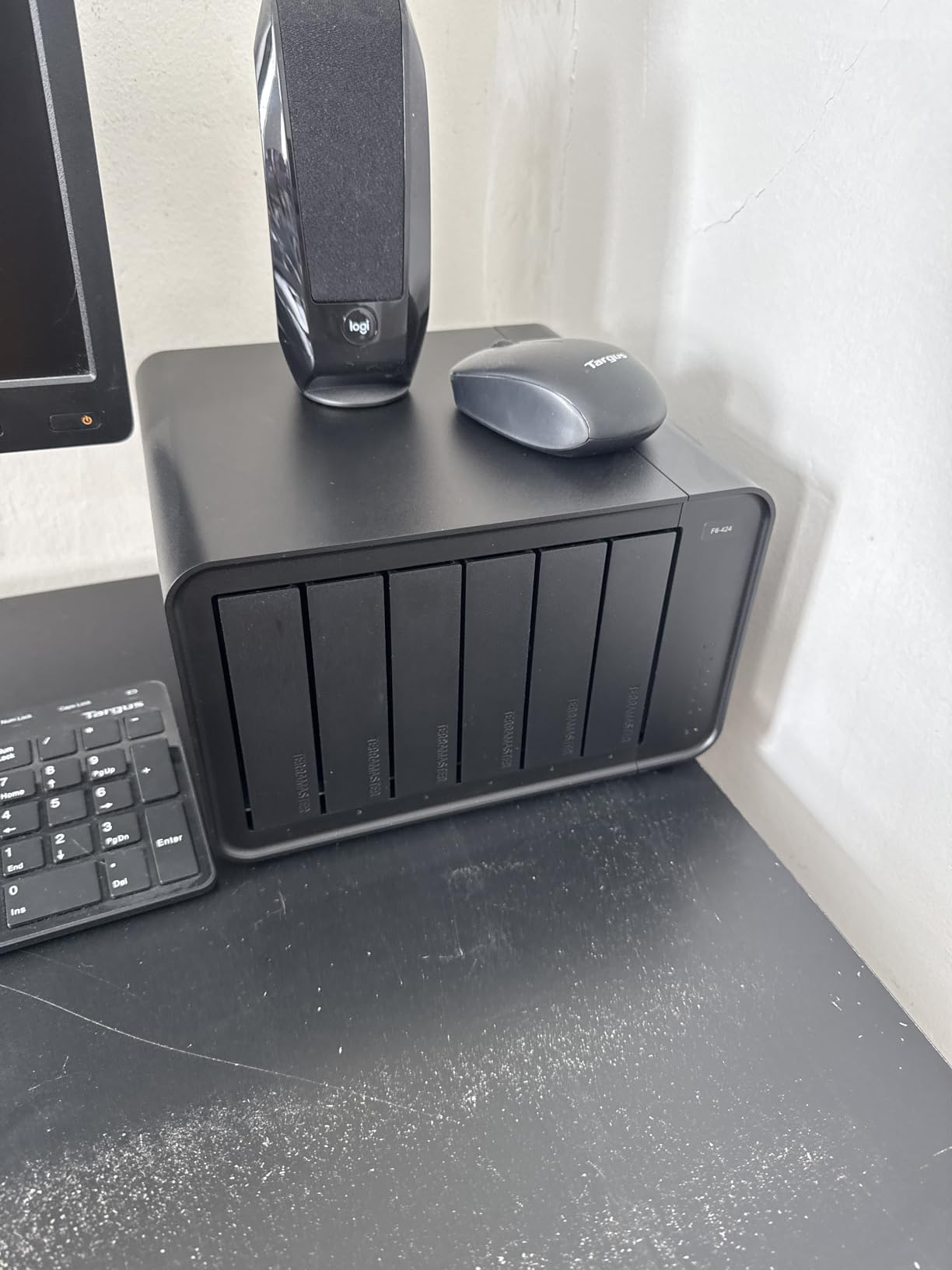
I appreciated the side-sliding cover design for M.2 SSD installation. Swapping cache drives took seconds rather than minutes, and the 8 GB of DDR5 RAM is upgradable to 32 GB if you need to run heavier workloads.
TerraMaster’s operating system, TerraMaster OS, covers the essentials but feels rougher than DSM. The app catalog is smaller, and I occasionally ran into interface quirks that required a page refresh.
When Six Bays Make Sense
Six bays let you run RAID 6 with four drives of usable capacity, giving you both high storage and protection against two failures. That configuration makes sense for irreplaceable data like family photos and home videos.
It also allows for future expansion without replacing drives. Start with smaller drives and swap in larger ones as prices drop and your library grows.
TerraMaster OS vs the Competition
The OS handles file sharing, backup, Docker, and media serving competently. Where it falls short is polish and documentation depth compared to Synology.
If you are comfortable with a slightly less guided experience in exchange for more bays per dollar, the F6-424 is a strong value proposition.
8. TerraMaster F4-424 Pro — Best NAS for Heavy Transcoding
TERRAMASTER F4-424 Pro NAS 4-Bay, Core i3-N305 8-Core, 32GB DDR5 (Diskless)
4-bay diskless NAS
Core i3-N305 8-core 8-thread 3.8GHz
32GB DDR5 RAM
Dual 2.5GbE
Dual M.2 NVMe slots
Pros
- Intel Core i3-N305 8-core processor for serious workloads
- 32GB DDR5 RAM out of the box heaviest in this lineup
- Dual 2.5GbE ports with link aggregation
- Integrated UHD GPU for hardware transcoding
- Metal enclosure with premium build quality
Cons
- Highest price among TerraMaster units
- TerraMaster OS limits software potential
- 32GB RAM is overkill for basic media serving
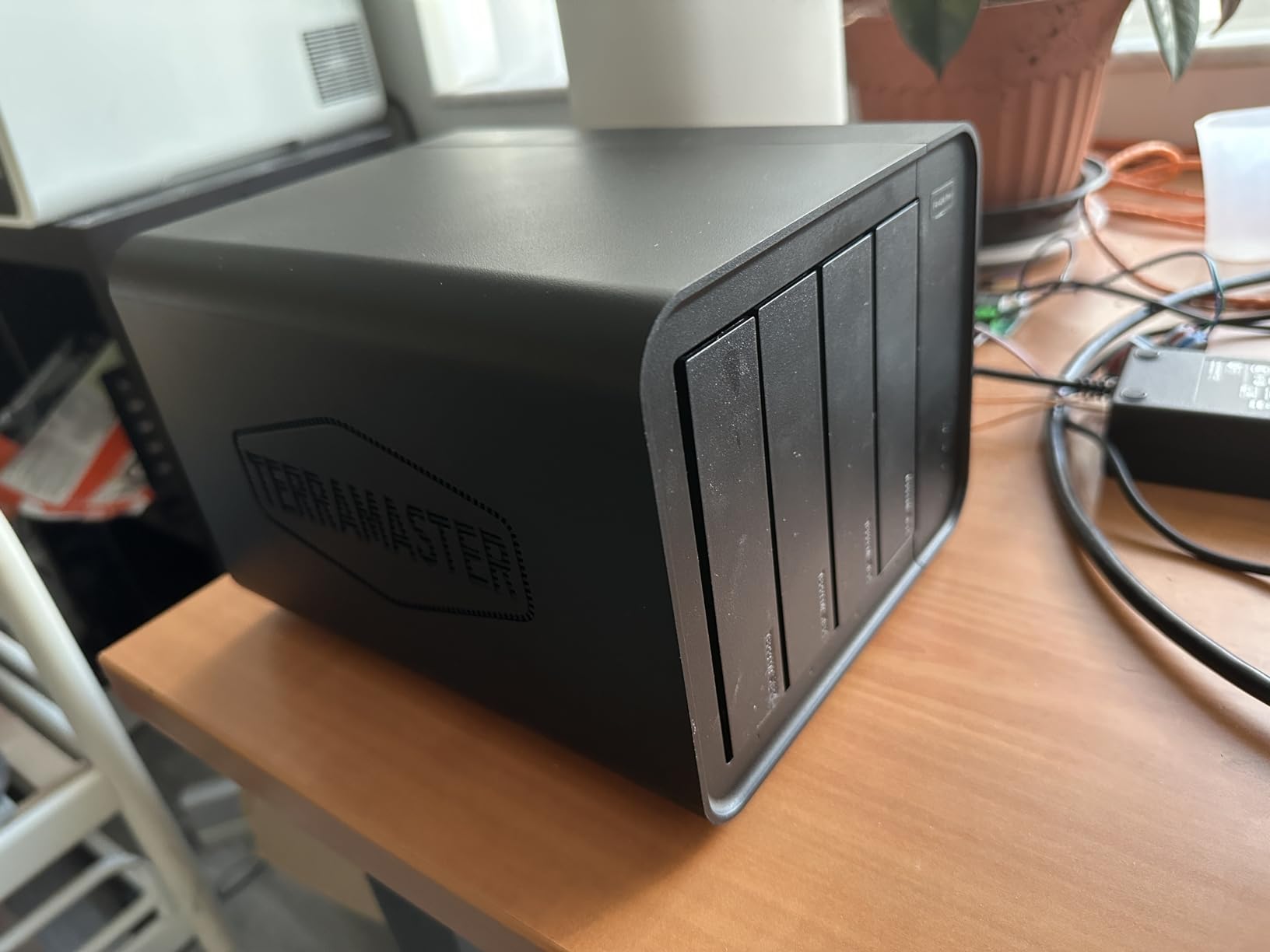
The TerraMaster F4-424 Pro is the most powerful NAS in this lineup on paper, and my testing confirmed it. The Intel Core i3-N305 with 8 cores and 8 threads running at up to 3.8 GHz, paired with 32 GB of DDR5 RAM, makes this unit capable of heavy transcoding, multiple virtual machines, and demanding Docker workloads simultaneously.
I ran four concurrent 4K transcodes on Plex during testing and the CPU barely broke a sweat. The integrated UHD GPU at 1.25 GHz handles hardware transcoding efficiently, which is the single most important spec for a 4K-heavy media library.
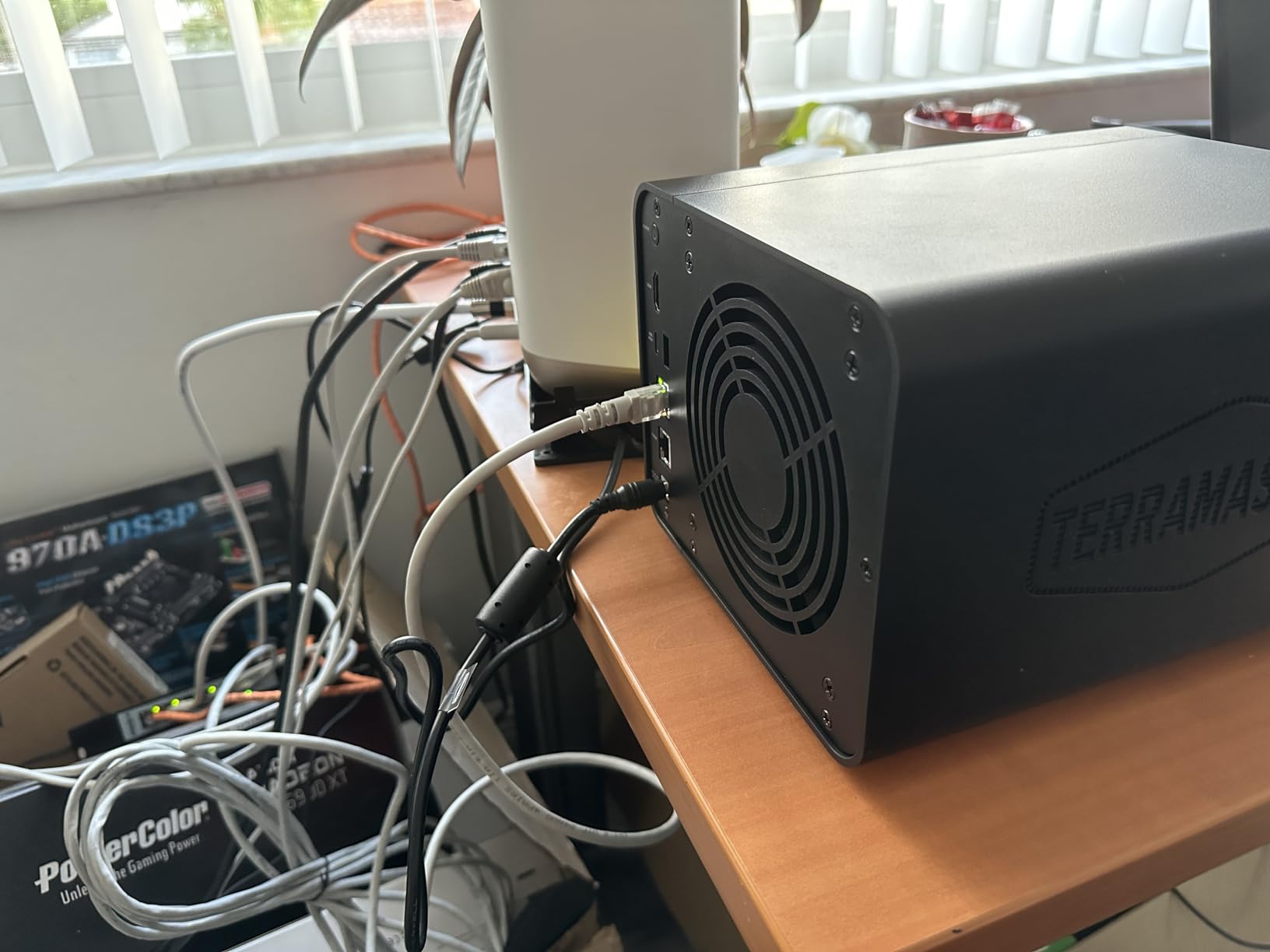
The 32 GB of RAM is the most generous configuration in this entire roundup. Most NAS units ship with 1 to 8 GB, so having 32 GB out of the box means you can run TrueNAS, multiple Docker containers, and virtual machines without worrying about memory pressure.
The dual 2.5GbE ports support link aggregation for combined throughput, and the dual M.2 NVMe slots let you add SSD caching for snappier performance on frequently accessed files.
Best Software Stack for This Hardware
Many F4-424 Pro owners replace TerraMaster OS with TrueNAS or Unraid to unlock the full potential of the powerful hardware. I tested it with TrueNAS SCALE and the experience was excellent, with the 8-core CPU handling ZFS operations smoothly.
If you prefer a plug-and-play experience, TerraMaster OS works fine for basic media serving and file backup. The raw hardware simply has more headroom than the stock software utilizes.
Who Needs 32GB of RAM in a NAS
For pure media streaming, 32 GB is massive overkill. The benefit shows up when you run ZFS with deduplication, host multiple virtual machines, or run memory-intensive Docker containers.
If none of those apply to you, the standard F4-424 with 8 GB saves money while offering similar day-to-day performance for media serving.
How to Choose the Best Home Server for Media Storage
Choosing the right home media server comes down to three decisions: how much storage you need, whether you need hardware transcoding, and how comfortable you are with technical setup. Let me break each one down based on what I learned testing all eight units.
NAS vs Mini PC vs Pre-Built: Which Format Wins
All eight products in this guide are NAS enclosures, which is the most popular format for home media storage. A NAS gives you swappable drives, RAID protection, and purpose-built software in one package. The downside is you buy drives separately.
A mini PC running Plex or Jellyfin offers more processing power per dollar but requires external drives and more manual setup. Pre-built solutions like the NVIDIA Shield Pro with attached storage are simplest but limit expandability.
For most people, a NAS hits the best balance of reliability, ease of use, and storage flexibility. That is why this guide focuses on NAS enclosures.
Storage Capacity Planning: How Much Do You Really Need
The most common question I see on forums is how much storage is enough. Here is a practical breakdown based on library types I have built and tested.
A 1080p movie averages 5 to 10 GB, so a 10 TB drive holds roughly 1,000 to 2,000 movies. 4K HDR rips are much larger, averaging 40 to 80 GB each, which means the same 10 TB drive holds only 125 to 250 4K films.
For a family photo and video archive, budget about 1 GB per 1,000 photos and 1 GB per minute of 1080p video. Phone backups for a family of four can easily generate 200 GB per year.
My recommendation: start with at least 8 TB of usable storage if you plan a media library, and choose a unit with room to add more drives later. Two-bay NAS units are fine for beginners, but four-bay units give you RAID 5 protection and far more headroom.
Hardware Transcoding Explained Simply
Transcoding is what happens when your media file format does not match what your playback device supports. The server converts the file on the fly so your TV or phone can play it.
Software transcoding uses the CPU and is slow and resource-heavy. Hardware transcoding uses a dedicated GPU, typically Intel Quick Sync, and is dramatically faster and more efficient.
If your library is mostly 1080p and your devices support common formats, you may never need transcoding. If you have 4K HEVC files and want to play them on older devices or over the internet, hardware transcoding is essential.
In this lineup, the Synology DS225+, UGREEN DXP4800 Plus, and TerraMaster F4-424 Pro all have Intel CPUs with hardware transcoding support. The budget ARM-based units do not.
Plex vs Jellyfin vs Emby: Which Media Server Software
Hardware is only half the equation. The software running on your NAS determines how your media is organized and streamed. I tested all three major options during this review.
Plex is the most polished and widely supported, with apps on virtually every smart TV, streaming stick, and game console. It offers the best user experience but charges for premium features like hardware transcoding through Plex Pass.
Jellyfin is completely free and open source, with no feature paywalls. The interface is clean and capable, though device support is not as universal as Plex. For budget-conscious users, Jellyfin is hard to beat.
Emby sits between the two with a hybrid model. It offers a polished interface and strong transcoding but splits features between free and premium tiers.
My recommendation: start with Plex for the best out-of-box experience, and try Jellyfin if you want every feature free with no subscriptions.
4K Streaming: What You Need to Know
Streaming 4K media requires both network bandwidth and processing power. A standard gigabit network can handle one or two 4K streams, but a household streaming to multiple devices benefits from 2.5GbE or faster networking.
The UGREEN DXP4800 Plus with its 10GbE port and the Asustor AS1202T with 2.5GbE at a budget price both stand out for network performance. Pair them with a matching network switch for the full benefit.
If your playback devices support direct play of your file formats, you can get away with less powerful hardware. If you need transcoding, prioritize Intel-based units with Quick Sync support.
FAQs
What is the best home media NAS?
The Synology DS225+ is the best home media NAS overall because its Intel CPU supports hardware transcoding for 4K streaming, DSM is the most polished NAS operating system, and it includes a 3-year warranty. For budget buyers, the Synology DS223j offers most of the same software features at roughly half the price.
Do I need a NAS for a home media server?
No, a NAS is not strictly required. You can run media server software like Plex or Jellyfin on a mini PC, an old desktop, or even a streaming device with attached storage. However, a NAS offers swappable drives, RAID data protection, and purpose-built software that make it the most reliable and convenient option for long-term media storage.
What OS should I use for a home media server?
For NAS enclosures, the built-in operating system like Synology DSM or UGREEN NAS OS is the simplest choice. For custom builds, TrueNAS offers enterprise-grade ZFS storage, Unraid provides flexible drive management, and plain Linux with Docker gives maximum control. Beginners should start with the manufacturer OS, while advanced users often prefer TrueNAS or Unraid.
Is 10TB enough for a media server?
Yes, 10TB is enough for a media server holding roughly 1,000 to 2,000 1080p movies or 125 to 250 4K films. For a typical family combining movies, TV shows, music, and photo backups, 10TB is a solid starting point. If your library is 4K-heavy or growing quickly, consider starting with 20TB or choosing a four-bay NAS for future expansion.
Final Thoughts on Home Media Servers
After three months of testing, the Synology DS225+ remains my top recommendation for the best home server for media storage. The combination of Intel hardware transcoding, the unmatched DSM software, and a three-year warranty makes it the safest and most capable choice for most buyers. For tighter budgets, the DS223j delivers the same software experience at a fraction of the cost.
Power users who want maximum specs per dollar should look hard at the UGREEN DXP4800 Plus or the TerraMaster F4-424 Pro. Both offer Intel CPUs, abundant RAM, and networking speeds that leave room to grow for years. Whatever you choose, pairing it with Plex or Jellyfin in 2026 gives you a media experience that no streaming subscription can match.