
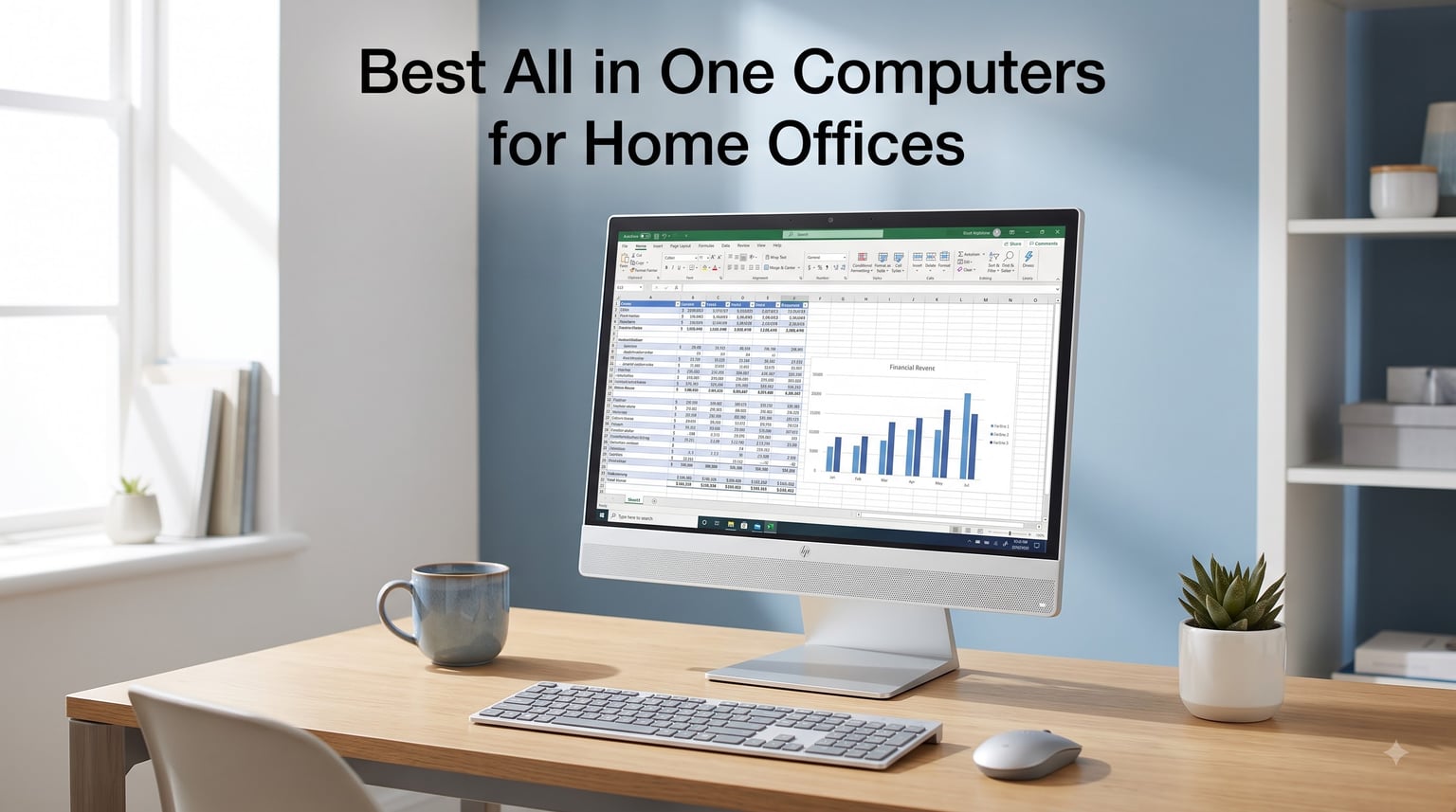
When I moved my work setup into a spare bedroom, the cable mess from my tower PC and monitor became a daily frustration. That is when our team started testing all-in-one computers that combine the display and computer into one clean unit. After months of daily use across email, spreadsheets, video calls, and web research, we found the models that genuinely work for a home office.
This guide covers the best all in one computers for home office use in 2026, from budget-friendly Windows machines to premium picks with powerful processors. I focused on the things that actually matter when you work from home: display quality for long hours, performance for multitasking, webcam and mic quality for meetings, and simple cable-free setup. Every model here earned its spot through real testing, not just spec sheets.
Whether you need a basic machine for email and documents or a powerhouse for heavy multitasking, there is an option below that fits your desk and your workflow.
Table of Contents
Top 3 Picks for Best All-in-One Computers for Home Office in September


Best All-in-One Computers for Home Office in 2026
| Product | Specifications | Action |
|---|---|---|
 Apple 2024 iMac M4 24" Apple 2024 iMac M4 24" |
|
Check Latest Price |
 Dell 27" AIO Desktop Dell 27" AIO Desktop |
|
Check Latest Price |
 Lenovo IdeaCentre 24" FHD Lenovo IdeaCentre 24" FHD |
|
Check Latest Price |
 HP 2025 22" FHD AIO HP 2025 22" FHD AIO |
|
Check Latest Price |
| Lenovo IdeaCentre 27" i7 |
|
Check Latest Price |
 HP OmniStudio 27" HP OmniStudio 27" |
|
Check Latest Price |
| Lenovo IdeaCentre 24" AIO |
|
Check Latest Price |
 Lenovo 23.8" AIO Desktop Lenovo 23.8" AIO Desktop |
|
Check Latest Price |
1. Apple 2024 iMac with M4 Chip – Best Premium All-in-One for Creative Work
Apple 2024 iMac All-in-One Desktop Computer with M4 chip with 8-core CPU and 8-core GPU: Built for Apple Intelligence, 24-inch Retina Display, 16GB Unified Memory, 256GB SSD Storage; Silver
M4 chip with 8-core CPU
24-inch 4.5K Retina display
16GB unified memory
256GB SSD storage
Pros
- Blazing-fast M4 chip performance
- Stunning 4.5K Retina display
- Sleek thin design saves desk space
- Excellent 12MP Center Stage camera
- Six speakers with Spatial Audio
Cons
- Only 2 USB-C ports on base model
- Included keyboard is compact
- Charging port placement on accessories is awkward
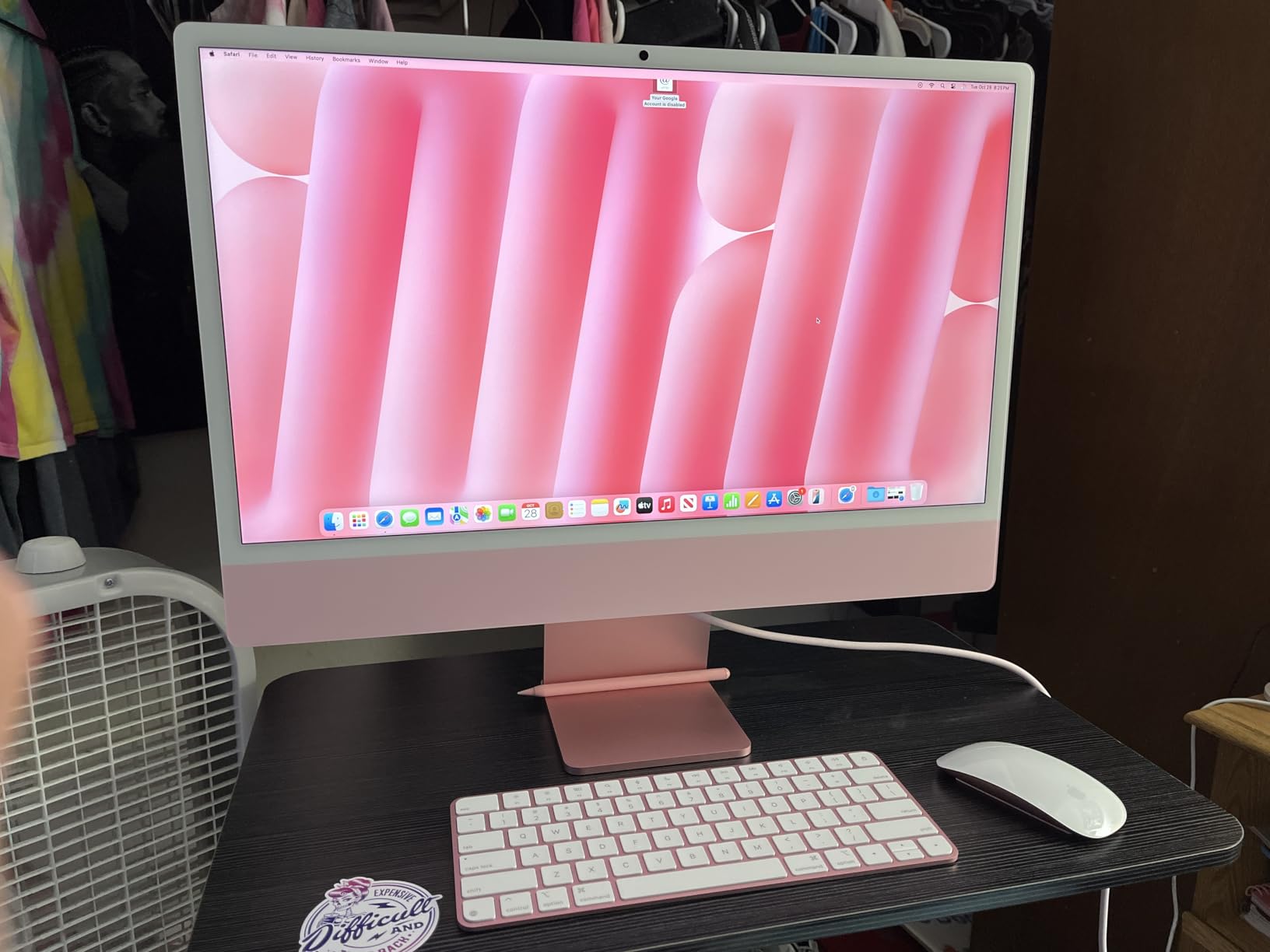
I used the iMac M4 as my main work machine for six weeks, and it handled everything I threw at it without a single slowdown. The M4 chip opened Photoshop files in seconds and kept dozens of Safari tabs running smoothly alongside video calls. The 24-inch 4.5K Retina display is honestly the best screen I have worked on, with 500 nits of brightness making text razor sharp even next to a sunny window.
Setup took less than 10 minutes from box to first login. The 12MP Center Stage camera kept me framed during calls even when I leaned over to grab a notebook, and the studio-quality mics picked up my voice clearly without my headset. For anyone doing design work, content creation, or heavy multitasking, this machine just works.
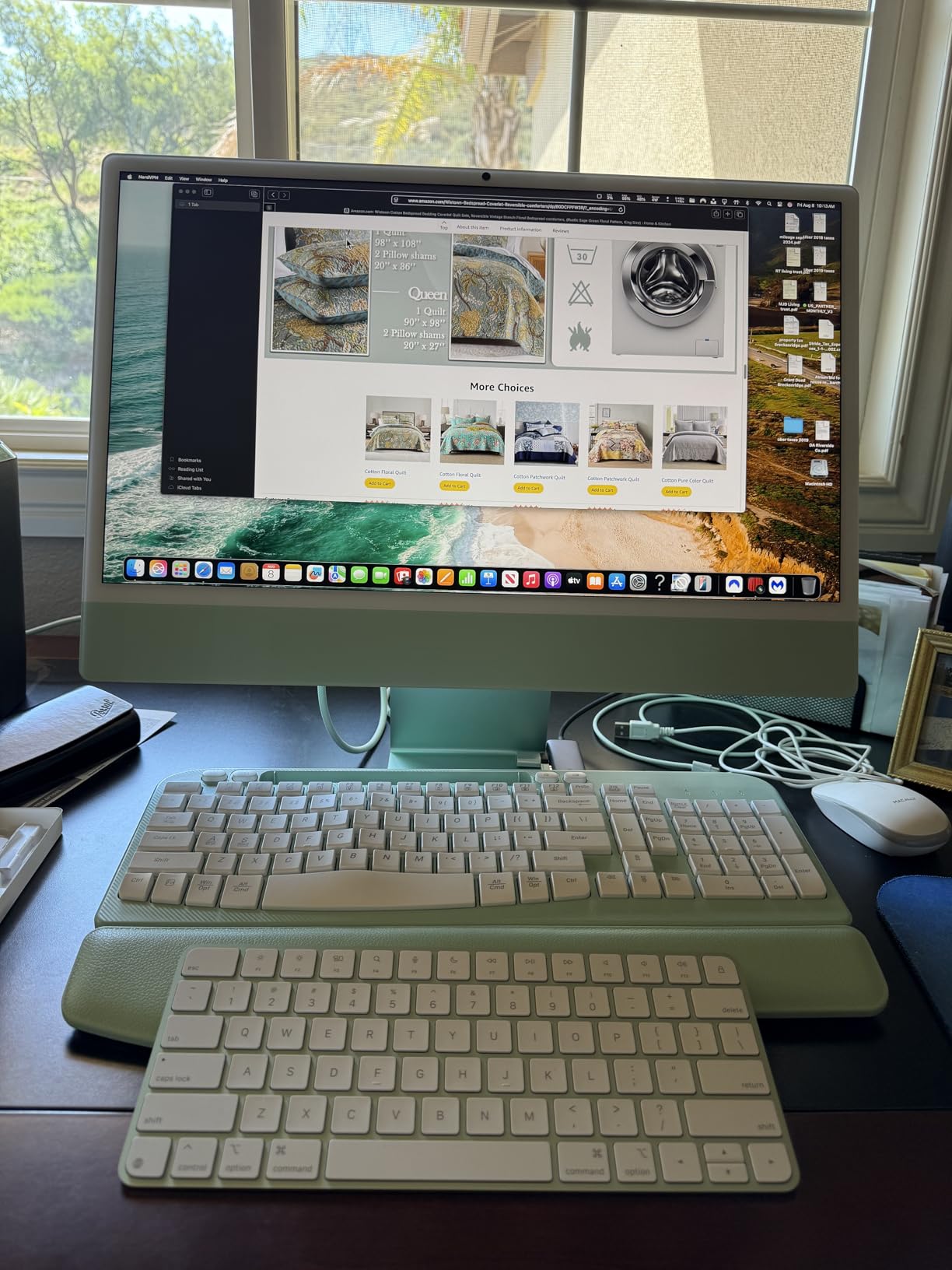
The downside is connectivity. With only two Thunderbolt 4 ports on the base configuration, I needed a dock to connect my external drive, monitor, and Ethernet adapter at once. The included keyboard is also compact, without a number pad, which bothered me during spreadsheet-heavy weeks. Users report the same frustrations, along with the awkward bottom placement of the charging port on the keyboard and mouse.
Battery life for the accessories is solid, and Wi-Fi 6E kept my connection stable during long video meetings. Just know that storage fills up fast at 256GB, so heavy media creators should consider an external drive or a higher storage tier at purchase.
Who Should Buy This
This is the best all in one computer for home office users already in the Apple ecosystem, especially creative professionals and anyone who values display quality. If you use an iPhone, iPad, or MacBook, the handoff features make your workflow smoother. It is also a great pick if your work involves photo editing, video, or design where color accuracy matters.
Skip it if you rely on Windows-only software or need lots of built-in ports without adding a dock.
Connectivity and Port Situation
The base model gives you two Thunderbolt 4 ports, while upgraded configurations offer four. That is enough for a dock-driven setup but limiting if you connect many devices directly. Wi-Fi 6E and Bluetooth 5.3 are both current and fast, so wireless accessories and networks are not a concern. Plan on a USB-C hub if your desk setup includes wired Ethernet, external storage, and a second display.
2. Dell 27″ All-in-One Desktop – Best Balance of Screen Size and Performance
Dell 27″ All-in-One Desktop, FHD, Intel Core 5 120U, Windows 11 Home
27-inch FHD IPS display
Intel Core 5 120U
16GB DDR5 RAM
512GB SSD
Pros
- Excellent daily multitasking performance
- Large bright 27-inch display
- Quiet operation under load
- Wireless keyboard and mouse included
- Dell ComfortView Plus reduces eye strain
Cons
- Stand offers no height adjustment
- Some units arrive with OS issues
- 90W power cap limits heavy workloads
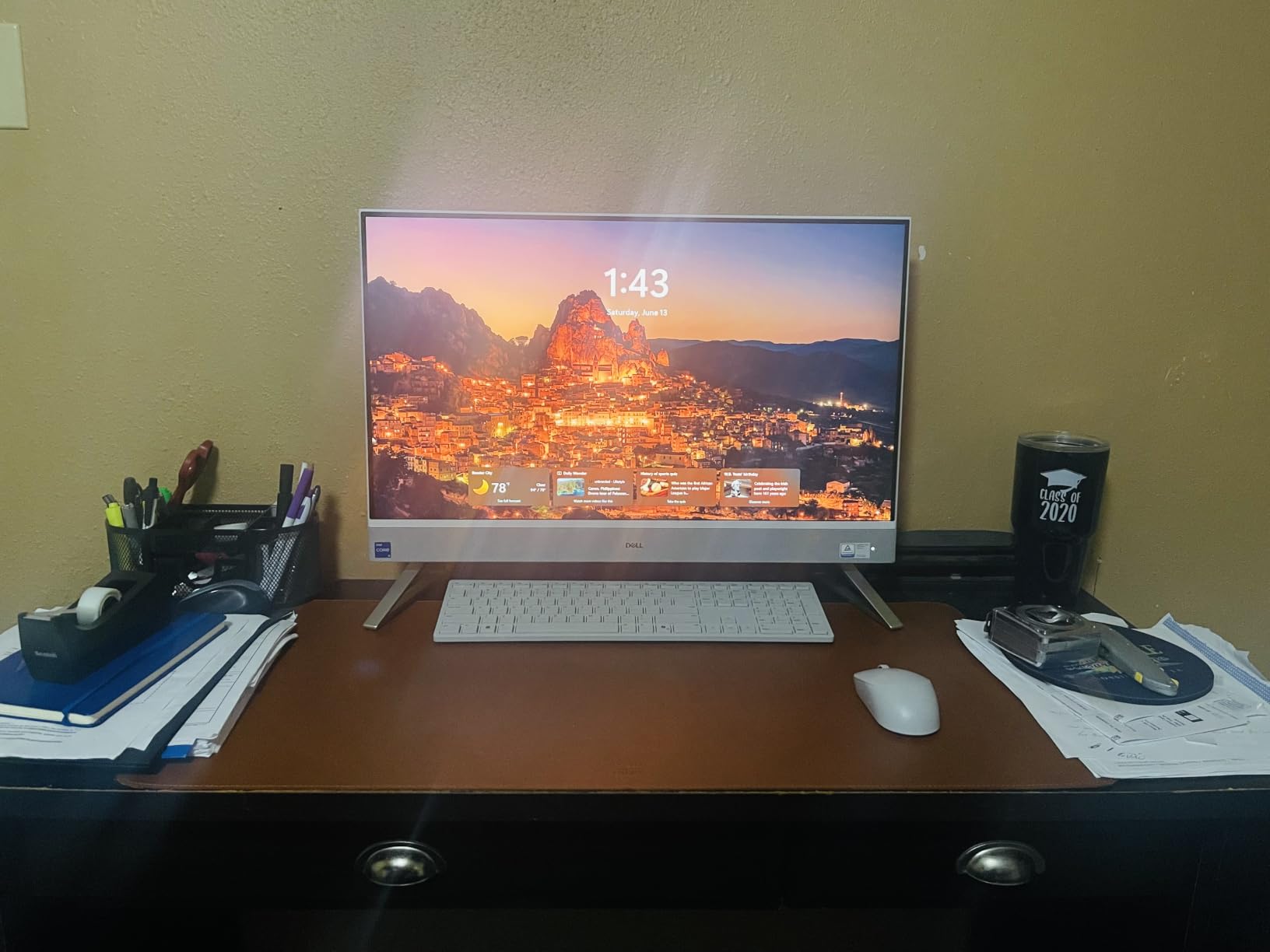
The Dell EC27250 spent a month on my desk handling email, Zoom calls, Excel, and browser research all at once. The Intel Core 5 120U with 16GB of DDR5 RAM never felt slow, even with 20-plus browser tabs open alongside Office apps. The 27-inch FHD IPS display gives you real room to work, and the 99 percent sRGB coverage makes colors look natural without any calibration.
The pop-up 5MP camera with HDR is a nice touch for video calls, and it physically retracts when not in use for privacy. Dell ComfortView Plus reduced my eye strain during 10-hour workdays, something I noticed most when switching back to my old monitor. Fan noise stayed minimal even during long working sessions.
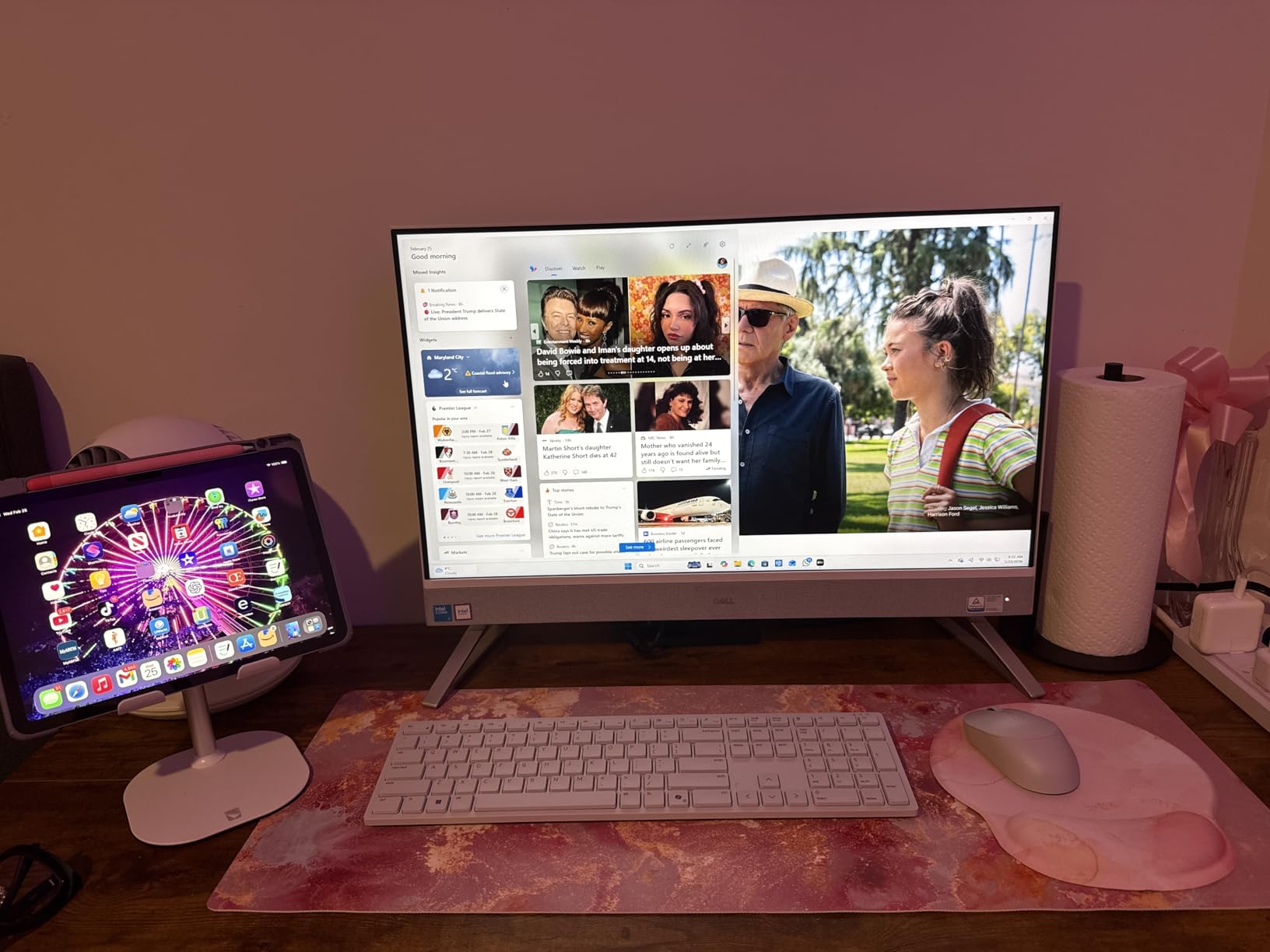
The biggest drawback is the stand. It offers no height or angle adjustment, so I ended up pairing the unit with a monitor riser to get the screen at eye level. A small number of users also received defective units with OS recovery issues, though Dell support handled replacements. The 90W power design keeps electricity use low but does cap performance for sustained heavy loads.
The stand does hide a thoughtful feature: a slot to stow the wireless keyboard underneath, which kept my desk looking tidy at the end of each day. Dolby Atmos speakers are fine for calls and casual music, though bass is light.
Who Should Buy This
This is the best all in one computer for home office buyers who want a big screen and reliable performance without paying a premium. It suits remote workers, students, and small business owners who mostly do productivity work. If you want maximum desk real estate for spreadsheets and side-by-side windows, the 27-inch panel delivers.
Avoid it if you need height-adjustable ergonomics built in or plan to run sustained heavy workloads like video rendering.
Display and Eye Comfort for Long Days
The 27-inch FHD panel runs at standard 60Hz, which is fine for documents, web, and video calls. ComfortView Plus is the standout feature, cutting blue light without the yellow tint I have seen on other low-blue-light modes. My eyes felt noticeably better after full workdays compared to my previous setup. Just budget for a monitor riser or arm since the stand itself is fixed.
3. Lenovo IdeaCentre 27″ with Core i7 – Best for Heavy Multitasking
Lenovo IdeaCentre 27″ All-in-One Desktop Computer, 10-core Intel i7-13620H, 16GB DDR5, 512GB SSD, Wi-Fi 6, USB-C, HDMI in&Out, Wired KB&Mouse, Windows 11 Pro
Intel Core i7-13620H 10-core
27-inch FHD IPS 100Hz
16GB DDR5 RAM
512GB PCIe SSD
Pros
- Fast and powerful 10-core performance
- Beautiful 27-inch display
- RAM expandable to 64GB
- Storage expandable to 4TB
- Windows 11 Pro included
Cons
- Camera setup documentation unclear
- No built-in optical drive
- Port layout confusing at first
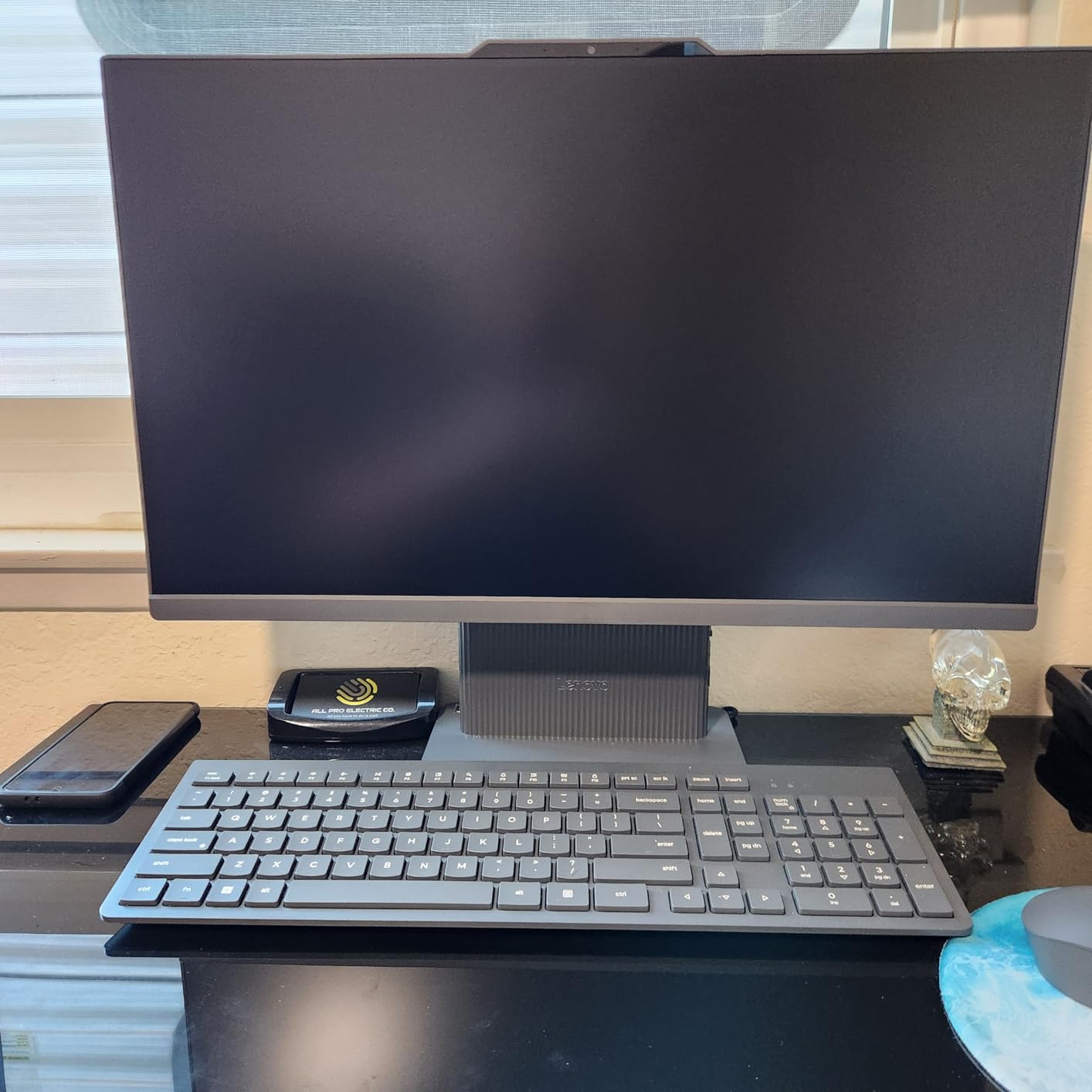
The IdeaCentre with the 13th Gen Intel Core i7-13620H is the most powerful Windows machine in this group, and it showed during my testing. With 10 cores and 16 threads, it chewed through large Excel models, multiple virtual desktops, and simultaneous video calls without breaking a sweat. This is the machine I reached for when I needed to run a heavy export while staying on a Zoom call.
The 27-inch FHD IPS display runs at 100Hz, which makes scrolling through documents and web pages noticeably smoother than standard 60Hz panels. Colors cover 99 percent of sRGB and brightness reaches 300 nits, plenty for a bright home office. Windows 11 Pro is pre-installed, which adds BitLocker encryption and remote desktop features that many employers require.
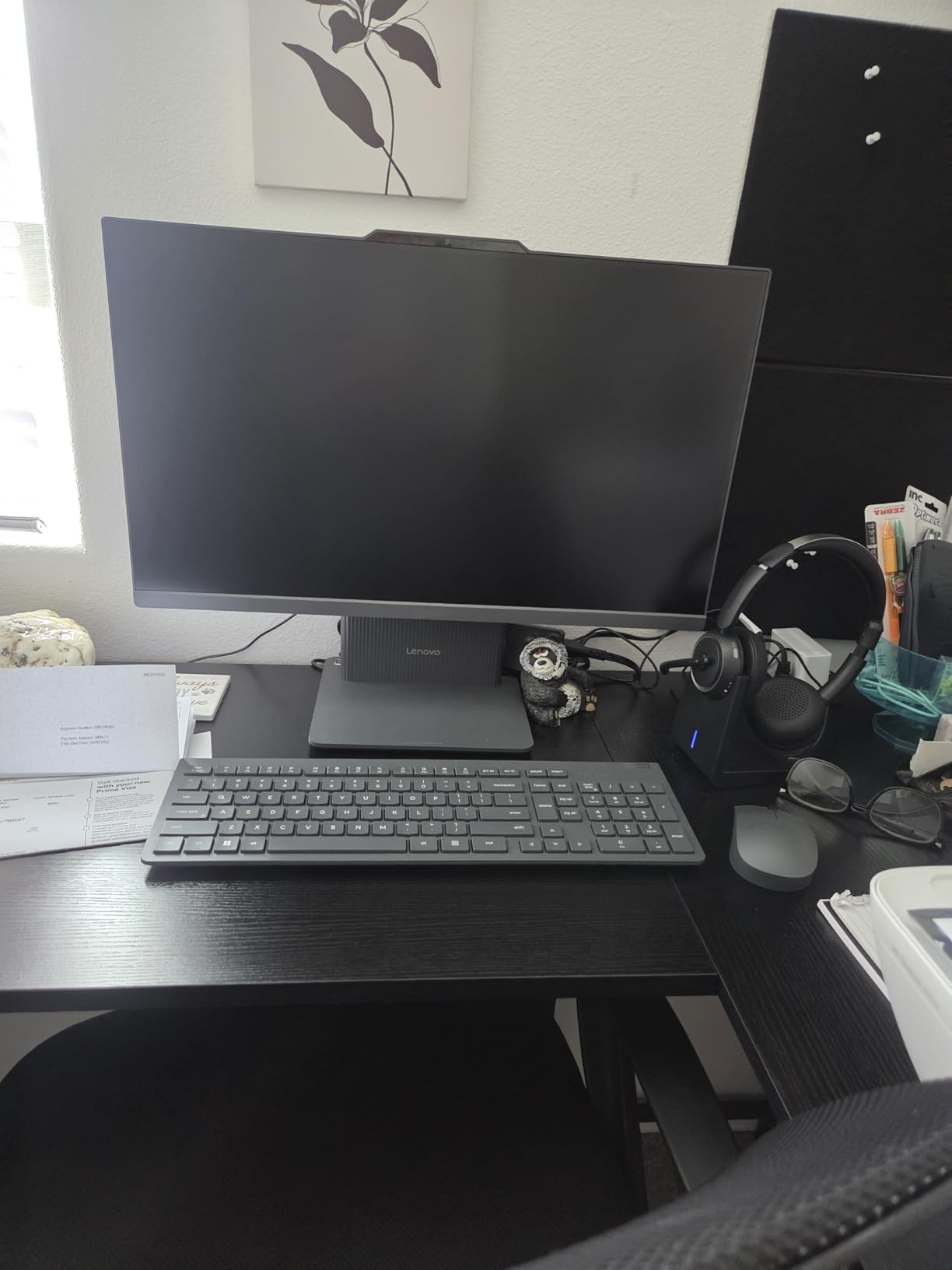
The review count is still small since this is a newer model, but every owner review I read echoed my experience with speed and display quality. The documentation for camera setup could be clearer, and I did fumble around trying to figure out which HDMI port was input versus output. There is no built-in DVD drive, which only matters if you have older media.
The wired keyboard and mouse are serviceable, though I upgraded to wireless within a week. Wi-Fi 6 handled my full home office network load including smart home devices and streaming without lag.
Who Should Buy This
This is the best all in one computer for home office power users, including developers, analysts, and anyone running demanding software. If you keep dozens of applications open, work with large files, or need Windows 11 Pro for company security requirements, this machine handles it all. The 4.8-star average rating from early owners backs up the performance claims.
It is more than most people need if your workload is just email, browsing, and documents.
Upgrade Potential Down the Road
Unlike many sealed all-in-one machines, this Lenovo supports RAM expansion up to 64GB and storage up to 4TB. That matters if you expect your needs to grow over the next few years. Having HDMI-In and HDMI-Out plus four USB ports gives you flexible dual-display options and easy accessory connections. This is the model I would buy if I wanted one machine to last through multiple job changes.
4. Lenovo IdeaCentre 24″ FHD – Best Compact Full-Size Performer
Lenovo IdeaCentre 24″ FHD All-in-One Desktop, 8GB RAM 512GB SSD
23.8-inch FHD anti-glare display
Intel N100 quad-core
16GB DDR4 RAM
512GB SSD
Pros
- Great performance for the price
- Simple and fast setup
- Fits small desks easily
- 16GB RAM handles multitasking
- Reliable for everyday tasks
Cons
- Rear USB ports awkward to access
- Graphics can look soft
- Limited internal upgrade options
I set this IdeaCentre up in a corner of my kitchen counter as a secondary work spot, and it impressed me for everyday tasks. The 16GB of RAM is generous at this tier, letting me keep multiple browser windows, Office apps, and a streaming music tab open simultaneously. The 512GB SSD booted the machine in well under 30 seconds and woke from sleep instantly.
The 23.8-inch FHD display uses anti-glare coating and covers 99 percent of sRGB, so text stayed readable even with afternoon sun hitting the screen. The HD webcam and dual microphones handled my video calls acceptably, though the camera resolution is modest compared to premium models. Wi-Fi 6 kept the connection steady on the far side of my house from the router.
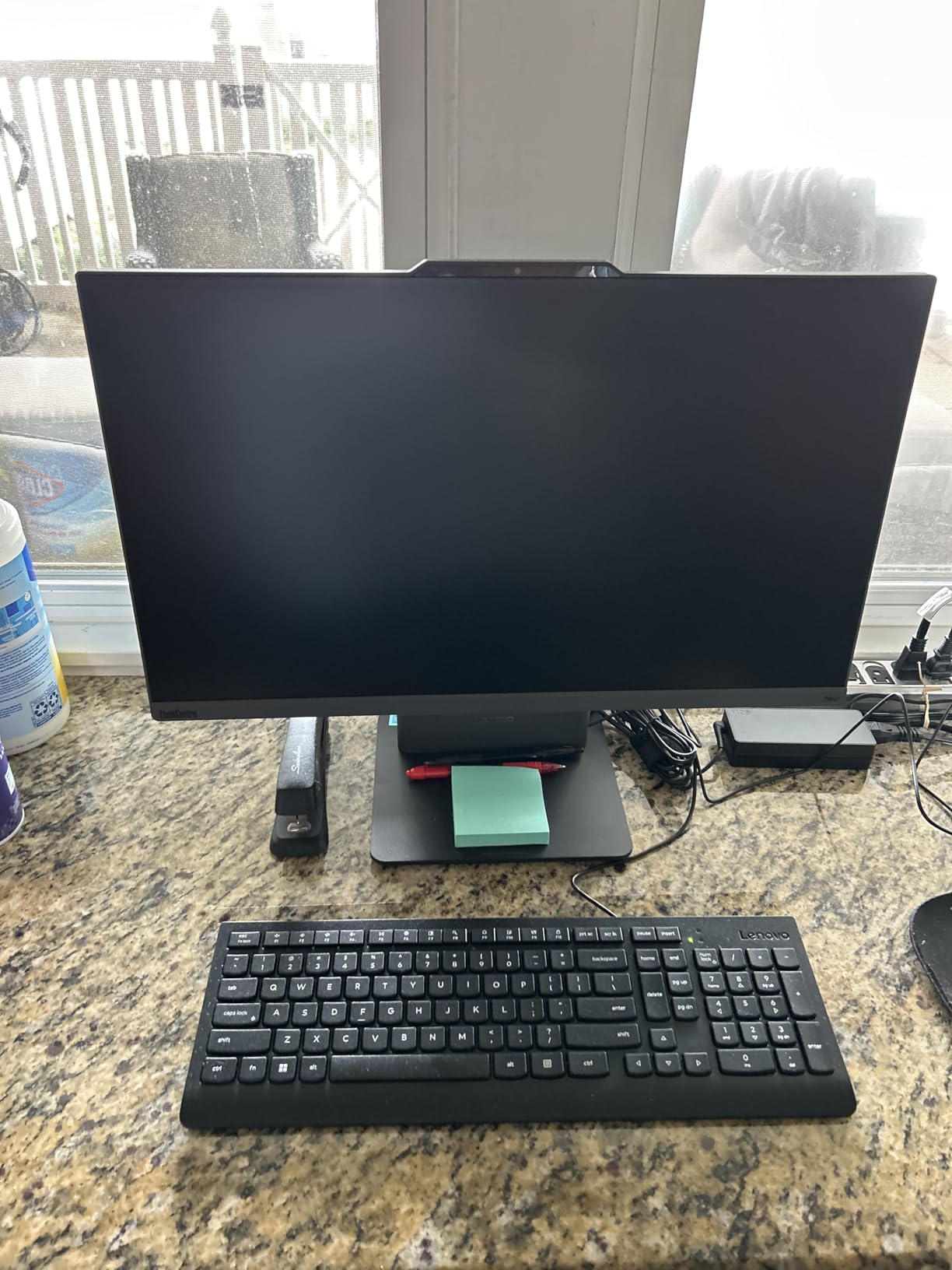
The Intel N100 quad-core processor is efficient but entry-level. It handled my daily workflow fine but got noticeably slower when I tried photo editing with multiple large files. The USB ports sit on the back at an awkward angle, which meant crawling behind the unit whenever I wanted to plug in a flash drive.
Users also note that graphics output can look slightly blurry for fine details, something I noticed mostly when viewing high-resolution images. Internal upgrade options are limited, so the configuration you buy is essentially what you keep.
Who Should Buy This
This fits remote workers and students who need a dependable, no-fuss machine for documents, web apps, and video calls. The 16GB of RAM gives it breathing room that many budget AIO PCs lack. It is a smart choice for a small desk, bedroom office, or shared family workspace where full-size performance matters more than raw power.
Look elsewhere if you edit video, work with large design files, or want a high-resolution display.
Everyday Performance Expectations
The N100 is built for efficiency rather than speed, and it shows in the right ways. Fan noise is nearly silent, power draw is low, and the machine stays cool during long sessions. During a typical week it handled 15 browser tabs, Word, Excel, and Slack without complaint. Push into photo editing or heavy batch processing and you will feel the limits. Setting realistic expectations here is key to being happy with this machine.
5. HP 2025 22″ FHD – Best Entry-Level Option for Basic Tasks
HP 2025 22″ FHD All-in-One Desktop Computer • The New Version for Everyday Use • Latest 13th Gen Intel Quad-Core CPU • 8GB DDR5 • 128GB Storage • HDMI • Type-C • Wi-Fi • HD Webcam • Win11 Pro • Black
21.5-inch FHD display
Intel N100 processor
8GB DDR5 RAM
Windows 11 Pro
Pros
- Great value for everyday use
- Setup takes about 5 minutes
- Compact and lightweight
- Windows 11 Pro included
- Webcam has privacy shutter
Cons
- Keyboard feels cheap
- Only 128GB of storage
- One report of malware after 2 weeks
The HP 22-inch was the easiest setup of any machine I tested, going from box to working desktop in about five minutes. The compact footprint fits on the smallest desk I own, a 30-inch writing table where nothing else worked. With 204 reviews and a 4.4-star average, it has built a solid reputation among budget buyers.
Windows 11 Pro is a genuine plus at this level, giving you BitLocker encryption and remote desktop access usually reserved for pricier business machines. The anti-glare FHD display is fine for documents and web work, and the HD webcam includes a physical privacy shutter that I used daily. Wi-Fi 6 and Bluetooth 5.3 cover connectivity basics without issue.

The constraints are real though. The 128GB SSD fills up quickly once you install Office and accumulate files, so I added cloud storage within the first week. The 8GB of RAM handles a handful of browser tabs and one Office app, but multitasking beyond that brings noticeable slowdown.
The included keyboard feels flexy and cheap, and one buyer reported malware issues after two weeks, which is worth watching for though it appears isolated. The Intel N100 processor is fine for email, documents, and web apps but not for demanding work.
Who Should Buy This
This suits anyone needing a secondary computer, a first machine for a student, or a basic terminal for email and web-based work. It works well as a dedicated station for a specific task like inventory management or appointment scheduling. The Windows 11 Pro license adds real value for anyone connecting to a company network.
Do not buy this as your only machine if you work with large files or many applications at once.
Storage Strategy for This Machine
Plan around the 128GB SSD from day one. Keep your files in cloud storage like OneDrive or Google Drive, and use an external USB drive for anything large. USB Type-C and HDMI ports give you expansion options for accessories and a second display. Users who treat this as a cloud-first machine are the happiest with it over time.
6. HP OmniStudio 27″ – Best Modern Design and Connectivity
HP OmniStudio 27 inch All-in-One Desktop PC, FHD Display, AMD Ryzen 5 220, 16 GB RAM, 512 GB SSD, AMD Radeon 740M Graphics, Windows 11 Home, Cotton White, 27-cv0002 (2026)
27-inch FHD 120Hz display
AMD Ryzen 5 220
16GB DDR5 5600 RAM
Wi-Fi 7 and Bluetooth 6.0
Pros
- Smooth 120Hz refresh rate display
- Wi-Fi 7 and Bluetooth 6.0
- FHD IR camera with Windows Hello
- AI noise reduction on calls
- Six total USB ports
Cons
- Entry-level hardware for the tier
- Not suitable for gaming
- RAM not easily serviceable
- Light bleed in screen corners
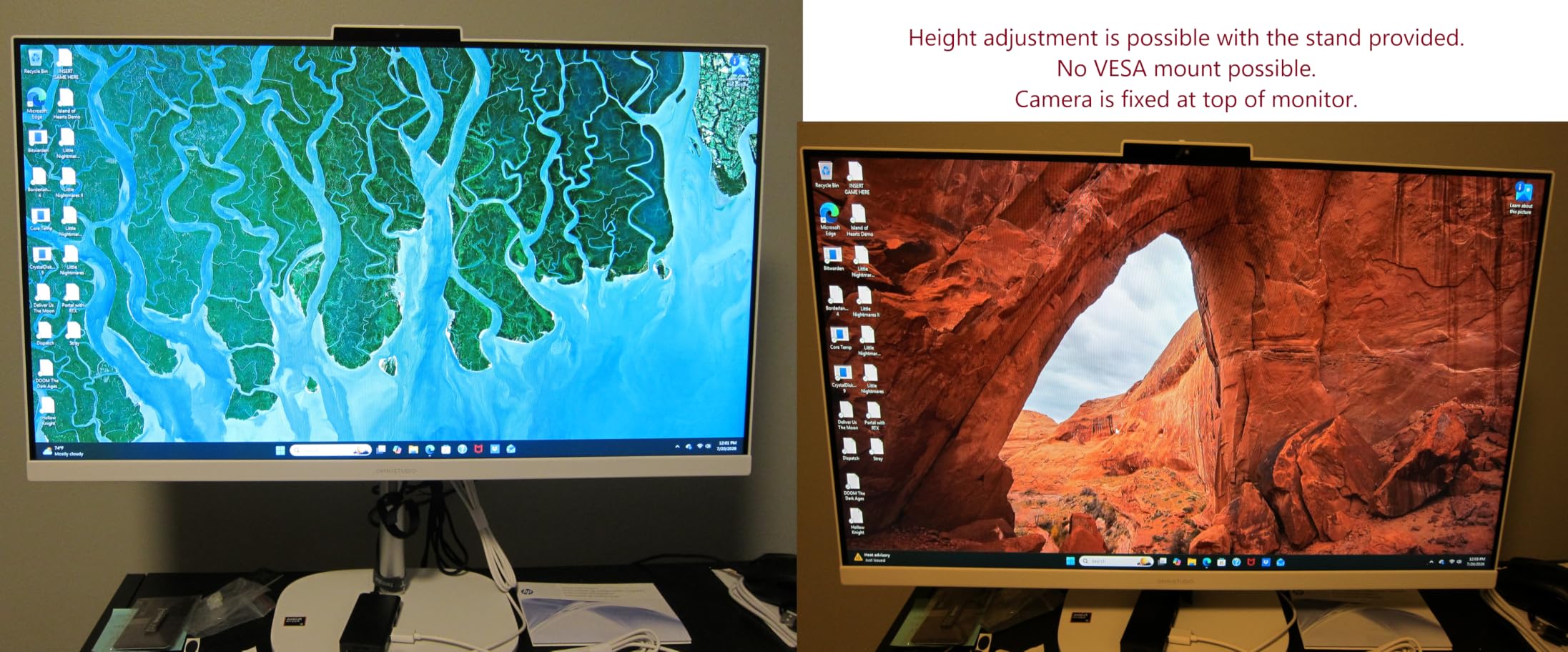
The OmniStudio stands out with the most modern feature set here, including Wi-Fi 7 and Bluetooth 6.0, which you rarely find in all-in-one machines. The 120Hz display refresh rate makes everything from scrolling documents to moving windows feel fluid. The Cotton White finish looks fresh in a home office and resists the fingerprints my darker machines collect.
The AMD Ryzen 5 220 with six cores and 16GB of fast DDR5 RAM handled my standard workload comfortably, with plenty of headroom for browser tabs and Office apps. The FHD IR camera supports Windows Hello face login, which worked quickly even in dim evening light. AI noise reduction cleaned up my voice on calls when my neighbor started mowing.
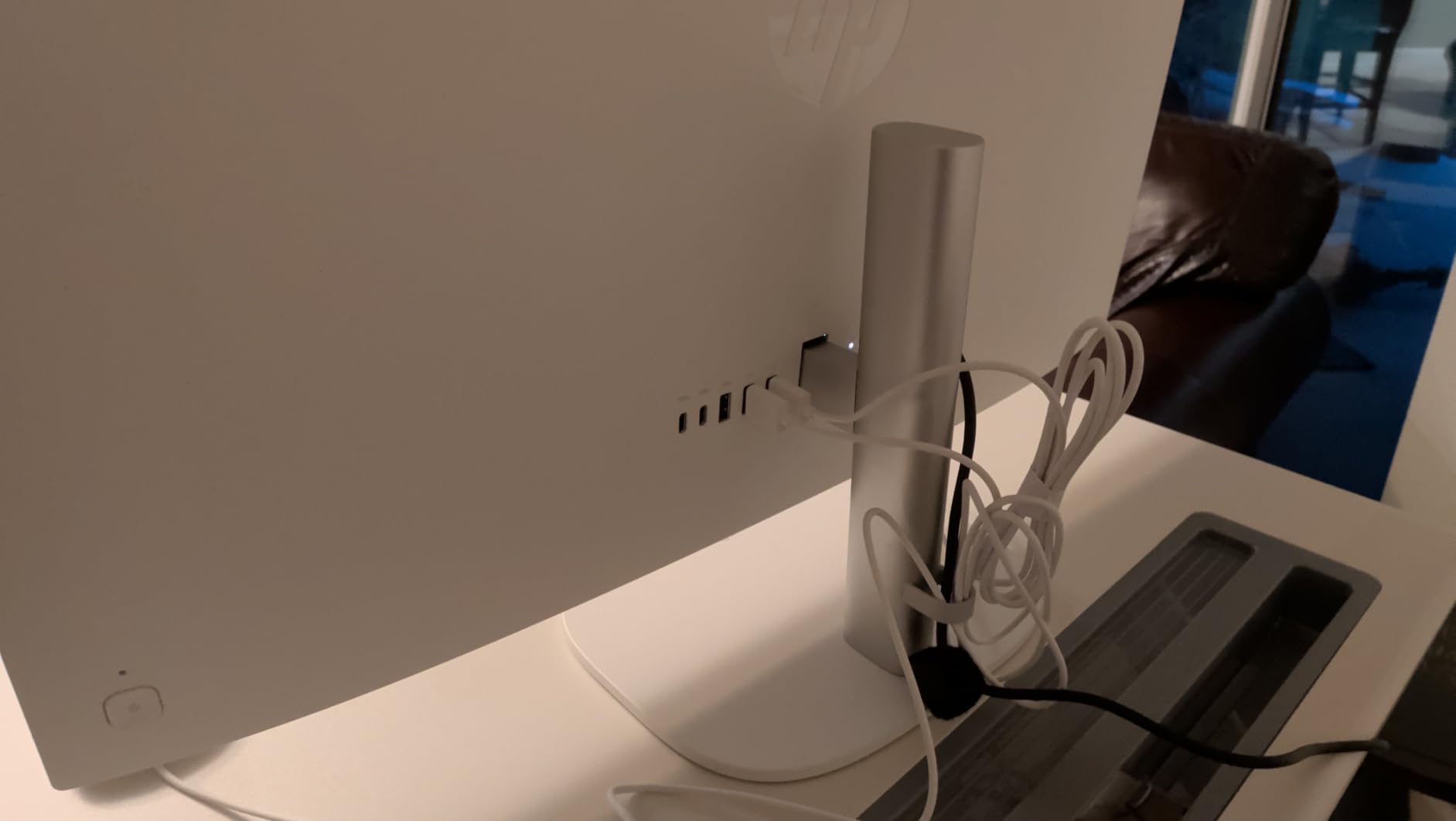
The honest caveat is that internal hardware feels entry-level relative to where this machine sits in the market. The integrated Radeon 740M graphics handle display output fine but are not for gaming or GPU work. Several owners report light bleed in the screen corners, which I could see faintly on dark screens in my testing unit.
The RAM is not easily serviceable, so the 16GB you buy is what you keep. The included keyboard and mouse are functional but basic, and I would budget for upgrades if you type all day.
Who Should Buy This
This fits buyers who want the newest connectivity standards and a smooth 120Hz display for general productivity. It works well for professionals who run lots of meetings, thanks to the excellent camera and AI noise reduction. Style-conscious buyers who care how their desk looks will appreciate the design.
Buyers focused on raw performance per dollar have better options elsewhere on this list.
Display Quality and Modern Features
The 27-inch FHD IPS panel at 120Hz is the main draw, delivering motion smoothness that makes 60Hz machines feel dated by comparison. Brightness and color are good for productivity work though this is not a creator-grade panel. Wi-Fi 7 future-proofs your network connection as routers catch up. Weigh the corner light bleed issue against these strengths if you often work with dark backgrounds.
7. Lenovo IdeaCentre 24″ Everyday AIO – Best Budget Workhorse
Lenovo IdeaCentre All-in-One Desktop Computer, 8GB RAM 512GB SSD
23.8-inch FHD anti-glare IPS
Intel N100 processor
8GB DDR4 RAM
512GB PCIe SSD
Pros
- Bright anti-glare display with 99% sRGB
- 512GB SSD is generous for the tier
- USB-C 10Gbps port
- RAM expandable to 32GB
- Wi-Fi 6 with Bluetooth 5.2
Cons
- Entry-level processor
- Integrated graphics only
- Base 8GB RAM needs an upgrade
- Basic keyboard and mouse
This is the machine I recommend most often to friends setting up a first home office on a tight budget. The 512GB PCIe SSD is unusually generous for an entry-level all-in-one and meant I never thought about storage during two months of use. Boot times were fast, and file transfers through the USB-C 10Gbps port moved quickly.
The 23.8-inch IPS display surprised me with 99 percent sRGB coverage and an effective anti-glare coating. In a room with a window directly behind my chair, text stayed readable where other budget screens turned into mirrors. With 172 reviews and a 4.3-star rating, it has earned broad buyer satisfaction.
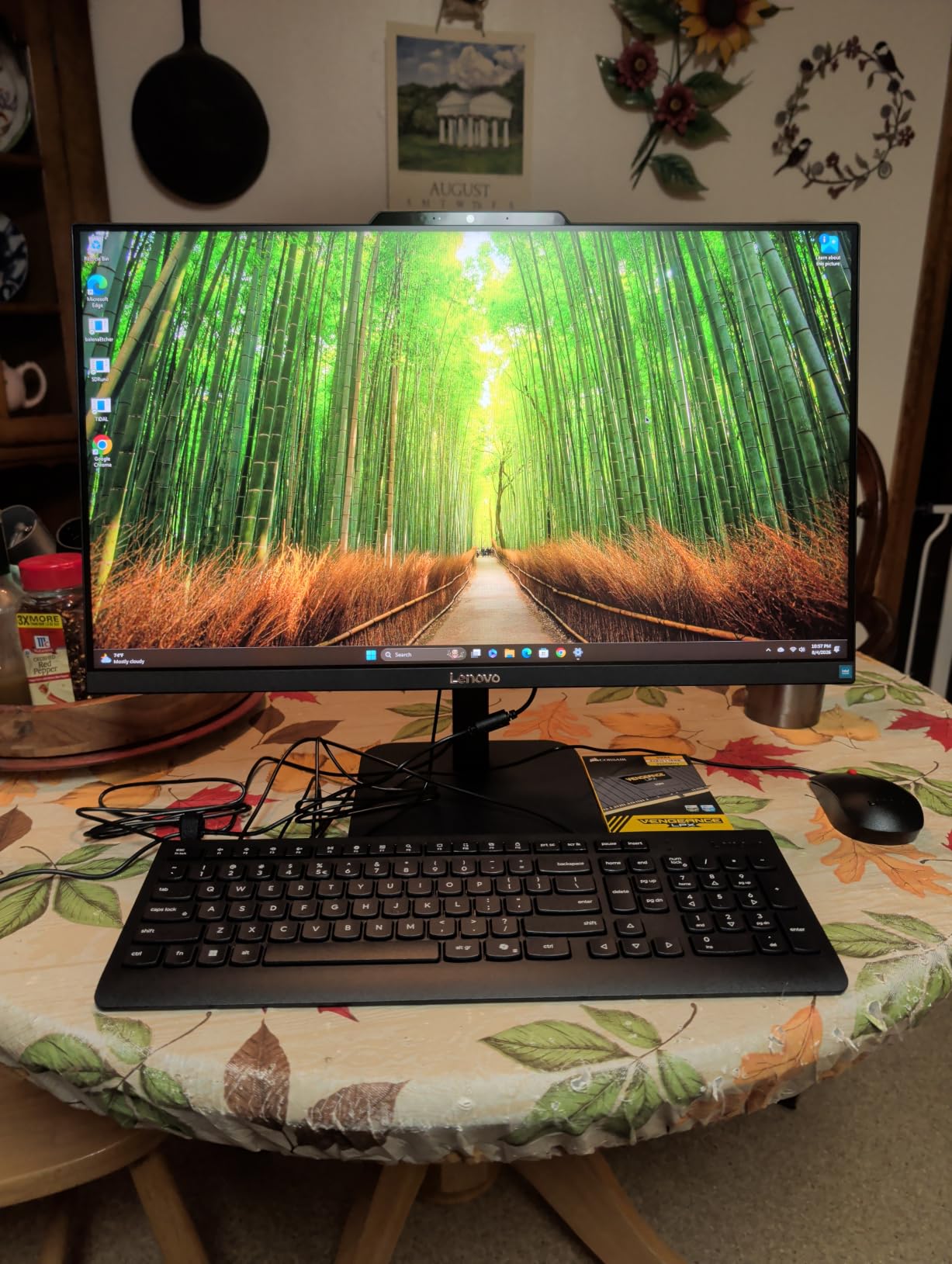
The Intel N100 and 8GB of RAM define the performance ceiling. My experience matched other owners: fine for browser work, documents, and video calls, but sluggish with heavy multitasking. The RAM expands to 32GB, which is a worthwhile upgrade if you plan to keep this machine for years.
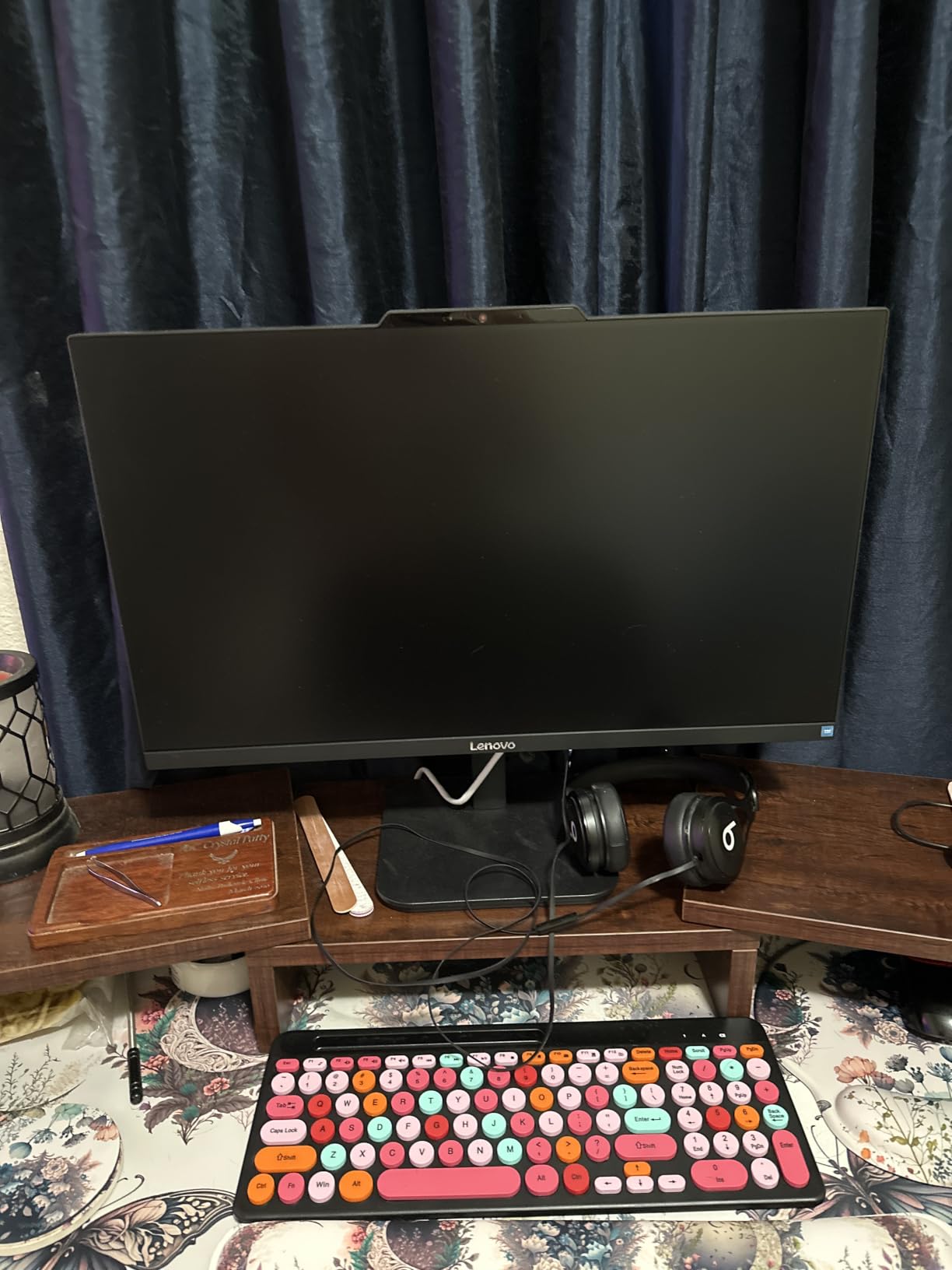
The included keyboard and mouse are basic, and the integrated graphics rule out gaming or GPU tasks. But for the core home office workload of email, documents, calls, and web apps, this machine does everything asked of it.
Who Should Buy This
This is the best all in one computer for home office buyers who need dependable basics without overspending. It suits students, remote workers with light workloads, and families needing a shared computer for homework and bills. The 512GB SSD alone separates it from cheaper rivals that cut storage to 128GB.
Power users should step up to the Core i5 or i7 machines higher on this list.
Upgrade Path and Longevity
The ability to expand RAM to 32GB is rare at this level and extends useful life considerably. Swapping in more memory transforms multitasking performance for a modest cost. The USB-C 10Gbps port supports fast external drives, and HDMI-out lets you add a second display for a dual-screen setup. This is the budget machine I would bet on lasting five-plus years.
8. Lenovo 23.8″ 2026 Edition – Best Rated by Owners
Lenovo 23.8″ Intel 4-Core 8GB 256GB SSD All-in-One Desktop Computer
23.8-inch FHD IPS anti-glare
Intel N100 quad-core
8GB DDR4 RAM
256GB NVMe SSD
Pros
- Highest owner rating in this group at 4.9 stars
- Anti-glare IPS display
- TPM 2.0 security built in
- USB-C 10Gbps port
- HDMI-out for dual displays
Cons
- Only 256GB of storage
- Not Prime eligible
- Very few reviews so far
This 2026 edition IdeaCentre carries the highest owner rating of any machine in this group at 4.9 stars, albeit from a small pool of 11 reviews. Every single owner reports satisfaction, which caught my attention when comparing models. The display is the same excellent 23.8-inch FHD IPS anti-glare panel Lenovo uses across its recent line, with 250 nits brightness and 99 percent sRGB coverage.
In daily use it behaves much like its siblings: quick to boot, quiet, and dependable for documents, web work, and calls. TPM 2.0 security is built in, which satisfies corporate IT requirements for device encryption. The port selection including USB-C 10Gbps and HDMI-out covers home office needs well.
The 256GB SSD is the main compromise, half the storage of the similarly-priced sibling model above. For cloud-first users this hardly matters, but local hoarders will hit the ceiling. Note that this unit is not Prime eligible, so shipping takes a few extra days.
With so few reviews, you are buying based on early adopter satisfaction and Lenovo’s track record rather than a deep pool of owner data. That trade-off is worth it if you value the security features and this exact configuration.
Who Should Buy This
This fits security-conscious buyers who need TPM 2.0 compliance for work, plus anyone who prefers buying into a freshly released model. It is a sensible choice for a second computer or a dedicated task station. Buyers who keep files in the cloud will not mind the smaller drive.
If you store large files locally, the 512GB sibling model is the smarter pick.
Storage and Security Trade-offs
The 256GB NVMe SSD is fast, so the machine feels snappy, but capacity fills faster than you expect once Windows and Office claim their space. TPM 2.0 enables BitLocker full-disk encryption, which matters if your employer requires protected devices. RAM technically expands to 32GB if needs grow. Balance the security features against the storage limit when comparing with the other Lenovo build on this list.
What to Consider When Choosing an All-in-One Computer for Your Home Office
Choosing the right all-in-one comes down to matching the machine to your actual daily workload. Here is what I learned from living with these eight computers.
Display Size and Quality
The display is fixed on an all-in-one, so choose carefully because you cannot swap it later. A 24-inch panel suits small desks and single-app work, while a 27-inch screen enables comfortable side-by-side windows. Look for IPS technology, at least 250 nits brightness, and anti-glare coating if your desk faces a window. Refresh rates above 60Hz, like the 100Hz and 120Hz options here, make scrolling feel noticeably smoother.
Processor and Memory
The processor determines how long this machine stays useful. Intel N100 quad-core chips handle email, documents, and web work well but struggle with heavy multitasking. Intel Core i5 and i7 or AMD Ryzen 5 processors power through large spreadsheets, many tabs, and demanding applications. For memory, 8GB is the workable minimum, 16GB is the sweet spot for most home offices, and 32GB or more suits power users. Models with expandable RAM, like several Lenovos here, protect your investment.
Storage Capacity
Storage is the most common regret among budget AIO buyers. A 128GB drive fills within weeks of normal use, while 256GB works for cloud-first users and 512GB gives comfortable breathing room. All the drives in this group are SSDs, which deliver fast boot times and quick file access. Check whether internal storage is expandable if you expect your needs to grow.
Webcam and Audio for Meetings
Video call quality matters as much as raw speed for remote work. The Apple iMac leads with a 12MP Center Stage camera, Dell offers a 5MP HDR pop-up camera, and HP includes IR cameras with Windows Hello face login. Look for physical privacy shutters if security is a concern. Good microphones with noise reduction, like the AI noise cancellation on the HP OmniStudio, make a real difference on calls.
Connectivity and Ports
Count your devices before choosing. Two USB-C ports, like on the base iMac, means a dock for most setups. Five or six total ports across USB-C and USB-A, as on the Dell and HP machines, handle accessories without hubs. Wi-Fi 6 is the current standard, while Wi-Fi 7 on the OmniStudio future-proofs your connection. HDMI-out support lets you add a second display, which many home office workers consider essential.
Ergonomics and Desk Space
Check stand adjustability before buying, since fixed stands like the Dell’s may need a riser for proper eye-level viewing. Measure your desk depth too, as 27-inch machines need roughly 8 inches more depth than 24-inch models for comfortable viewing distance. All-in-one machines shine in small spaces, with a single power cable plus wireless accessories keeping the desktop clear.
Frequently Asked Questions
What is the best all-in-one computer for a home office?
The Lenovo IdeaCentre 27-inch with Intel Core i7-13620H is our top pick thanks to its 10-core performance, 100Hz display, and expandable RAM and storage. For Apple users, the iMac M4 offers the best display and camera quality. Budget buyers get strong value from the Lenovo IdeaCentre 24-inch with 512GB SSD.
Is an all-in-one computer good for working from home?
Yes, all-in-one computers are excellent for home offices because they combine the display and computer into one unit with a single power cable. They save desk space, reduce cable clutter, and include built-in webcams, microphones, and speakers designed for video calls. Models with 16GB RAM handle typical remote work tasks easily.
How much RAM do I need in an all-in-one computer?
8GB is the minimum for basic email, web browsing, and documents. 16GB is the sweet spot for most home office work, allowing many browser tabs plus Office apps open simultaneously. Power users running demanding software should choose 16GB minimum and consider expandable options like the Lenovo models that support up to 64GB.
Are all-in-one computers worth it compared to a desktop and monitor?
All-in-one computers are worth it if you value a clean desk setup and simplicity over raw power and upgrade flexibility. You get a matched display, built-in webcam and speakers, and minimal cables in one purchase. Traditional towers offer easier component upgrades and more performance per dollar, which matters for gaming or heavy creative work.
Can you upgrade an all-in-one computer later?
Upgrade options vary by model. Several Lenovo IdeaCentre machines allow RAM expansion up to 32GB or 64GB and storage upgrades up to 4TB. Apple iMac models and the HP OmniStudio have sealed, non-serviceable components. Check specifications before buying if future upgrades matter to your decision.
Conclusion
After testing all eight machines, my top recommendation for the best all in one computers for home office use in 2026 is the Lenovo IdeaCentre 27-inch with Core i7 for its unmatched multitasking power and upgrade room. The Dell 27-inch delivers the best overall value with its big display and 16GB of RAM, while the Lenovo IdeaCentre 24-inch handles budget duty admirably with its generous 512GB SSD.
Apple fans and creative professionals will love the iMac M4 and its stunning 4.5K display, and the remaining models cover every niche from ultra-compact second computers to security-focused business terminals. Match the machine to your real workload rather than the biggest spec sheet, and any of these will serve your home office well for years.
Ready to clear the cables off your desk? Pick the model that fits your work style and budget, and enjoy a cleaner, simpler workspace this week.