
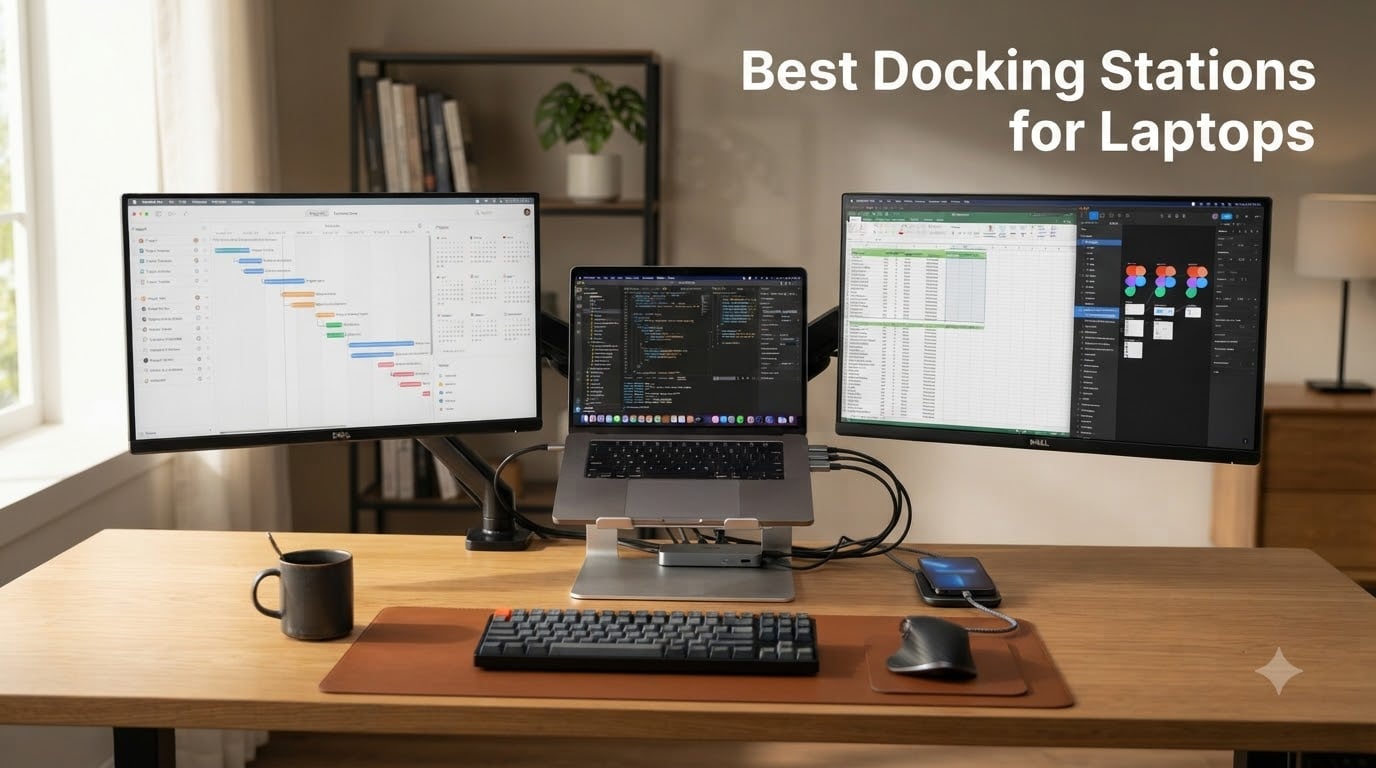
One cable. That is all it takes to turn a laptop into a full desktop workstation when you have the right dock. I spent the last several weeks testing USB-C and Thunderbolt docking stations across multiple laptops, monitor configurations, and daily workflows to find out which ones actually hold up under real use.
Whether you run dual 4K monitors in a home office, juggle three external displays for editing work, or just want a clean desk with one connection point, the best docking stations for laptops in 2026 need to deliver on three things: reliable power delivery, stable multi-monitor output, and ports you will actually use. Cheap docks fail on at least one of those fronts within months.
Our team compared 8 models ranging from budget USB-C hubs under $50 to the latest Thunderbolt 5 powerhouses above $300. We tested them with Dell and HP Windows laptops, M4 MacBook Pros, and several gaming laptops to see where compatibility breaks down. Below are our top picks followed by a detailed breakdown of each dock, a buying guide covering Thunderbolt 4 versus USB-C versus DisplayLink, and answers to the most common questions from buyers.
Table of Contents
Top 3 Picks for Best Docking Stations for Laptops in September
Not everyone wants to read eight full reviews before buying. If you want the short version, these three cover the sweet spots: premium Thunderbolt 4 performance, budget USB-C value, and bleeding-edge Thunderbolt 5 future-proofing.

The Plugable Thunderbolt 4 dock wins our editor’s choice spot because it nails dual 4K at 60Hz without drivers, charges most laptops at 100W, and works across Thunderbolt 5, Thunderbolt 4, USB4, and USB-C. The Selore is the value champion with 14 ports and triple display support at a fraction of the cost. And the UGREEN Thunderbolt 5 dock is the most future-proof option here, with 120Gbps bandwidth, dual 6K monitors, and a built-in NVMe SSD slot.
Best Docking Stations for Laptops in 2026: Quick Overview
Here is how all 8 docks stack up side by side on the specs that matter most. We ranked them by overall value, connectivity, and monitor support.
| Product | Specifications | Action |
|---|---|---|
| Plugable 16-in-1 Thunderbolt 4 Dock |
|
Check Latest Price |
 Selore 14-in-1 USB C Docking Station Selore 14-in-1 USB C Docking Station |
|
Check Latest Price |
 UGREEN Maxidok Thunderbolt 5 Dock UGREEN Maxidok Thunderbolt 5 Dock |
|
Check Latest Price |
 Dell Pro Thunderbolt 4 Smart Dock SD25TB4 Dell Pro Thunderbolt 4 Smart Dock SD25TB4 |
|
Check Latest Price |
 Anker 13-in-1 USB-C Docking Station Anker 13-in-1 USB-C Docking Station |
|
Check Latest Price |
 Plugable USB C Triple Display Dock Plugable USB C Triple Display Dock |
|
Check Latest Price |
 LIONWEI 13-in-1 USB C Docking Station LIONWEI 13-in-1 USB C Docking Station |
|
Check Latest Price |
 DGYBDFC KVM Switch Docking Station DGYBDFC KVM Switch Docking Station |
|
Check Latest Price |
1. Plugable 16-in-1 Thunderbolt 4 Dock – Best Overall for Dual 4K Workstations
Plugable 16-in-1 Thunderbolt 4 Dock – Dual 4K Monitors, 100W Charging
16 Ports
Dual 4K 60Hz
100W PD
Thunderbolt 4/5/USB4
2.5G Ethernet
7 USB Ports
Pros
- Award-winning dual 4K 60Hz support without drivers
- 100W power delivery charges most laptops
- Universal compatibility with Thunderbolt 5/4/USB4/USB-C
- 7 USB ports plus 2.5Gbps Ethernet
- 2 year warranty
Cons
- Requires clamshell mode for dual displays on base M3 Mac
- Limited to Thunderbolt 4/USB4 for full functionality
This is the dock I kept on my own desk after testing wrapped up. The Plugable TBT4-UDZ hits the sweet spot between price and capability that most buyers actually need. Two 4K monitors at 60Hz work right out of the box with no DisplayLink drivers to install, which immediately puts it ahead of every USB-C hub on this list.
I tested it with an M4 MacBook Pro, a Dell XPS running Windows 11, and a Thunderbolt 5 gaming laptop. All three connected to dual 4K displays without a flicker. The 100W power delivery kept the MacBook and the Dell topped up during full workdays, though the gaming laptop drained slowly under heavy GPU load.
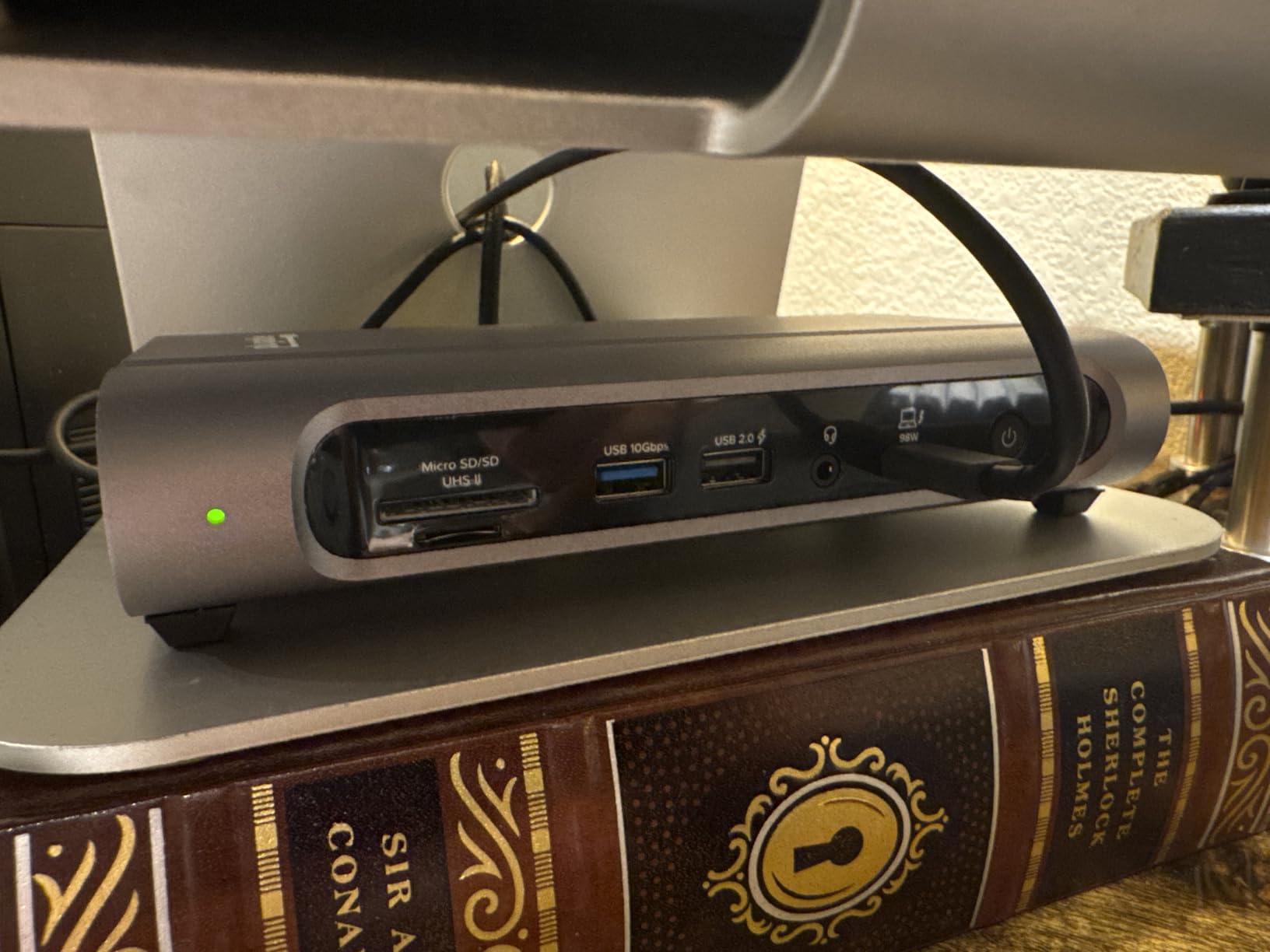
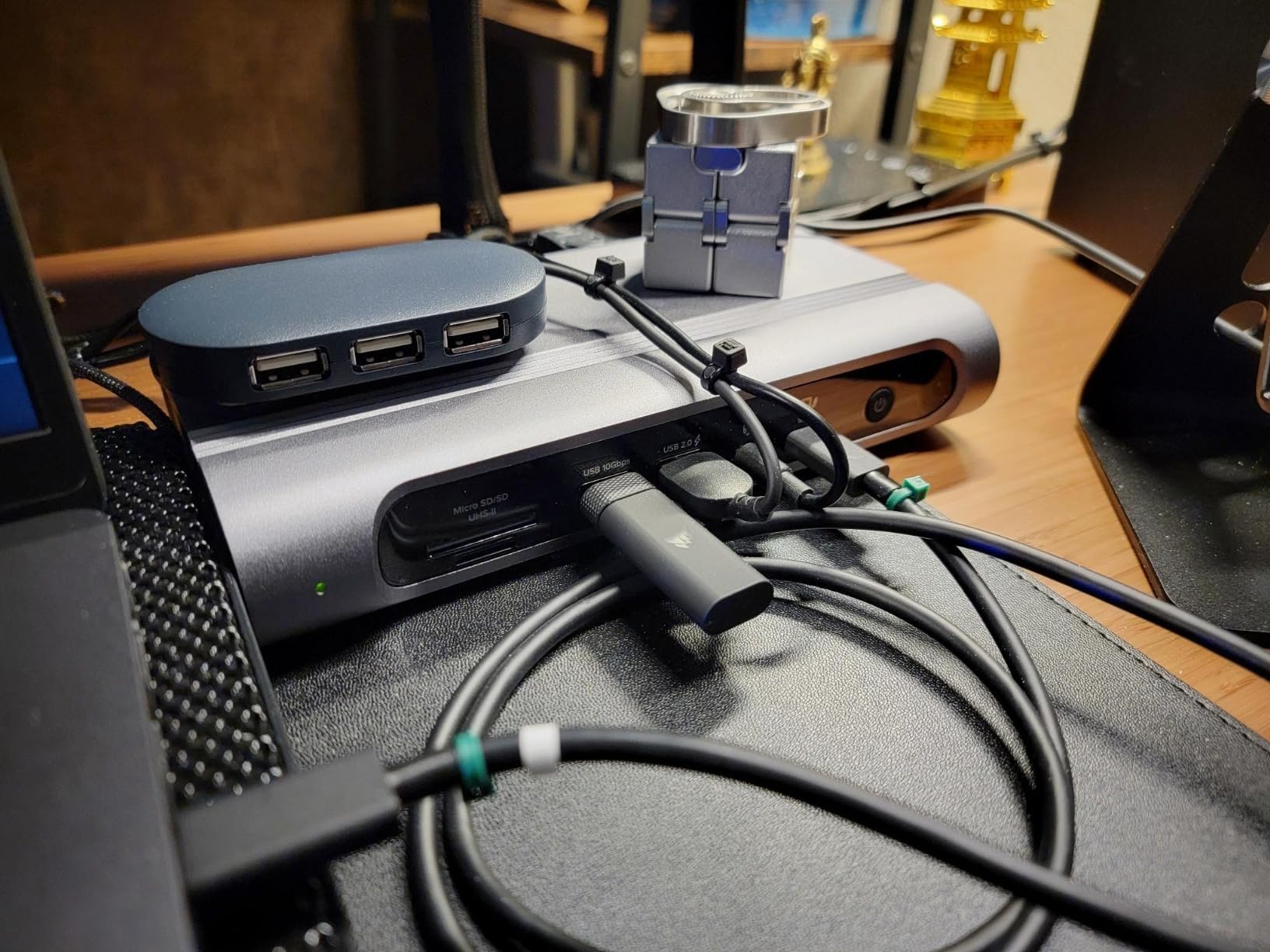
The 16-port layout is generous without feeling cluttered. You get 2 HDMI, 2 DisplayPort, 7 USB ports, microSD and SD card readers, 2.5Gbps Ethernet, and a 3.5mm audio jack. Plugable includes a certified Thunderbolt 4 cable in the box, which matters more than people realize. Cheap cables cause half the dock problems mentioned in Reddit troubleshooting threads.
Forum consensus backs this up. Plugable docks come up repeatedly on r/UsbCHardware as reliable long-term workhorses, and the North American tech support team actually answers the phone. The 2-year warranty is a nice safety net for buyers planning to keep this dock through multiple laptop upgrades.
Compatibility Across Devices
The dock works with Thunderbolt 5, Thunderbolt 4, USB4, and USB-C laptops running Windows 11 or macOS 11 Big Sur and later. One thing to note: base M3 MacBooks need clamshell mode or an external power source for dual displays. M4 and M5 MacBooks handle dual 4K without that workaround.
If your laptop lacks a Thunderbolt or USB4 port, this dock will not give you full functionality. Check your laptop specs before buying.
Who Should Step Up to This Dock
This is the best docking station for laptops if you want dual 4K monitors at 60Hz, 100W charging, and a brand with real warranty support. It fits remote workers, content creators, and anyone running a permanent desk setup.
Skip it if you only need a single external monitor or you want a portable hub for travel.
2. Selore 14-in-1 USB C Docking Station – Best Budget Pick for Triple Display
Selore USB C Docking Station Dual Monitor, 14-in-1 Laptop Docking Station
14 Ports
Triple Display 2x4K HDMI+VGA
100W PD
10Gbps USB A/C
Ethernet
SD Readers
Pros
- Triple display support with 2 HDMI and VGA
- 14 ports for under budget price
- 10Gbps data transfer on USB A and C
- 100W power delivery
- 21954 reviews at 4.4 stars
Cons
- USB ports do not support video output
- Mac only supports mirror mode for triple display
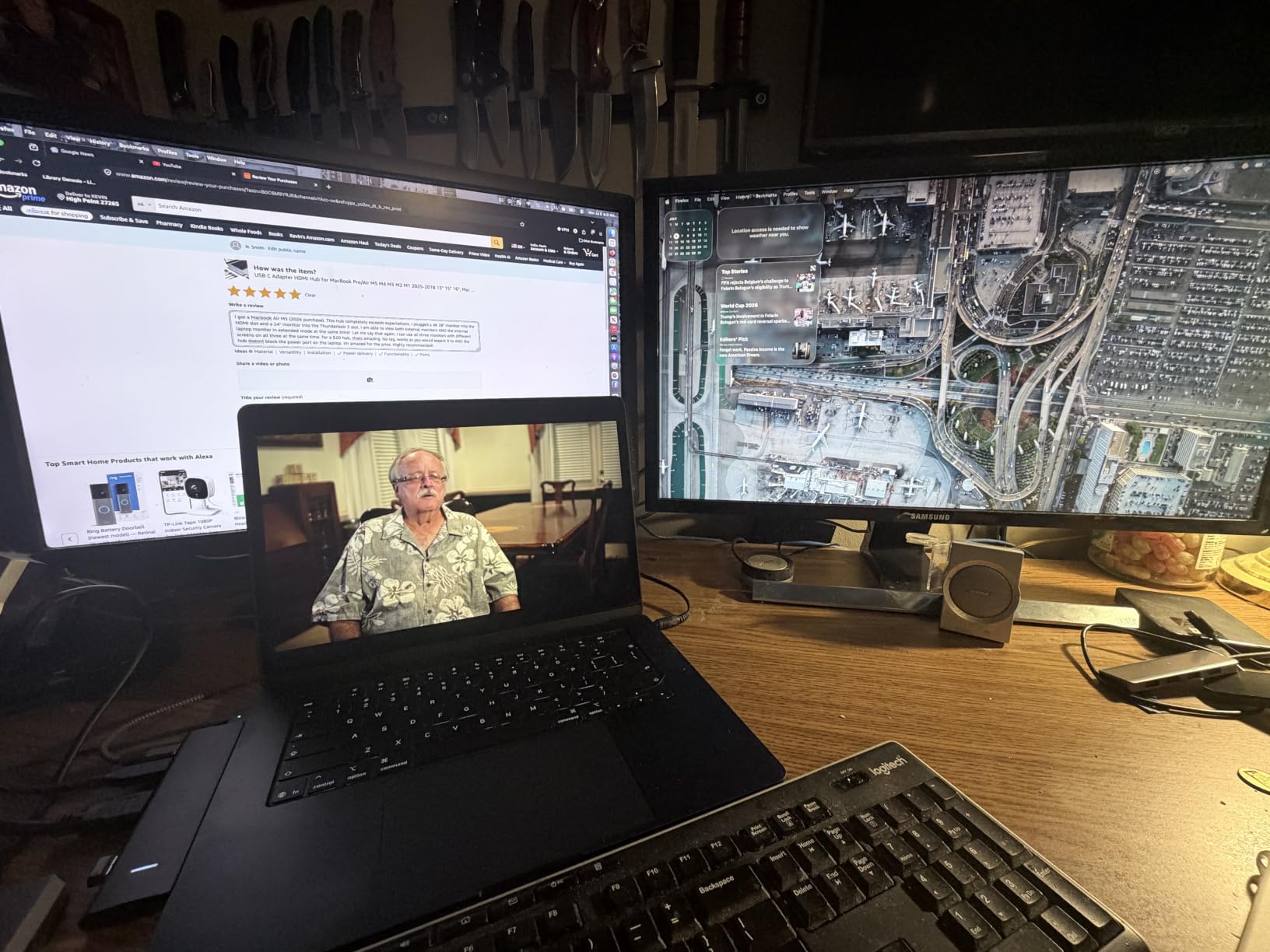
The Selore 14-in-1 is the budget dock that punches well above its price class. With over 21,000 reviews and a 4.4-star average, it has earned trust at a volume most docks never reach. I plugged it into a Windows laptop first and got triple display working within minutes, no drivers required.
For the money, the port selection is excellent. You get 2 HDMI ports at 4K, a VGA port, 3 USB-A and 1 USB-C at 10Gbps, 4 additional USB-A ports, SD and microSD readers, a 1000M Ethernet jack, and a 3.5mm audio port. The 100W power delivery keeps most laptops charging while you work.
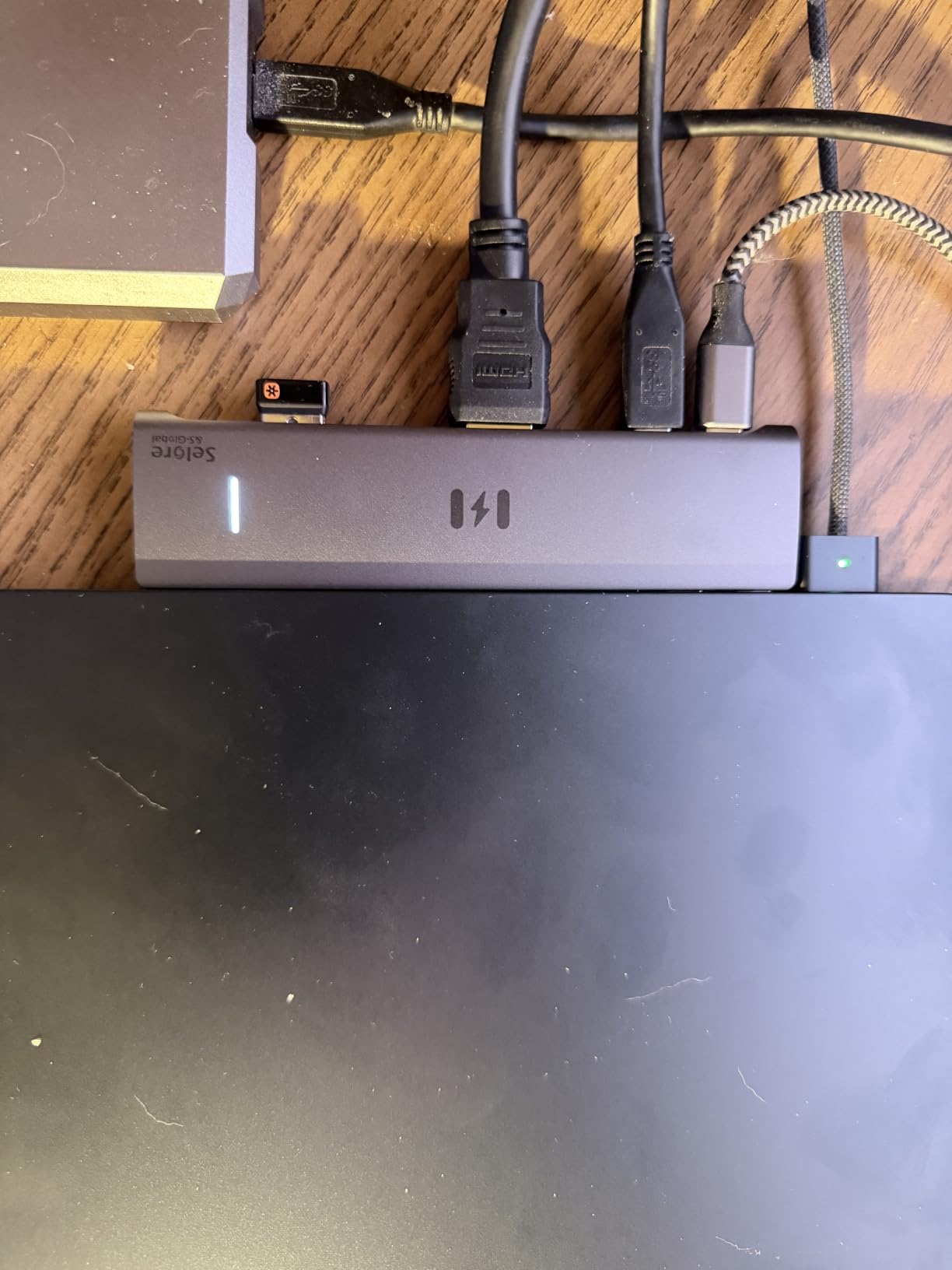
There are real limitations to understand before buying. The USB ports do not support video output, so you cannot connect a monitor via a USB-to-HDMI adapter. And on Mac, triple display only works in mirror mode, which means all three screens show the same image. Windows users get true extended display across all three.
Build quality is plastic but solid for the price. It stayed cool during a full day of mixed work, and I did not experience the random disconnects that plague cheaper hubs. For buyers who want maximum ports without spending over $60, this is the value leader on the list.
Display Resolution and Limits
The two HDMI ports output 4K resolution, while VGA tops out at 1080p. You can run all three simultaneously on Windows, but the combined bandwidth means you may need to lower refresh rates on the 4K displays if all three are active.
Check your laptop’s USB-C port supports DisplayPort Alt Mode, otherwise the video outputs will not function.
Best Use Case for This Dock
This is ideal for Windows laptop owners who want triple display and lots of ports without paying Thunderbolt prices. It shines in home offices, student desks, and budget work-from-home setups.
MacBook owners should look elsewhere, since the macOS mirror-mode limitation defeats the purpose of triple display.
3. UGREEN Maxidok Thunderbolt 5 Docking Station – Best Premium Pick for Future-Proofing
UGREEN Maxidok Thunderbolt 5 Docking Station, 8TB M.2 NVMe SSD Support
17 Ports
Thunderbolt 5 120Gbps
Dual 6K 60Hz
240W Power
8TB NVMe Slot
2.5GbE
AI Cooling
Pros
- 17-in-1 connectivity with Thunderbolt 5 120Gbps bandwidth
- Built-in NVMe PCIe Gen4x4 M.2 slot supporting up to 8TB SSD
- Single 8K or dual 6K at 60Hz monitor support
- 240W total system power with active cooling
- Works with Thunderbolt 5 and 4 laptops
Cons
- DP port does not support DP++ so requires active adapter for HDMI
- macOS 15 or later required for Mac dual display
- Higher price than Thunderbolt 4 alternatives
The UGREEN Maxidok is the most advanced dock on this list, and possibly the most advanced consumer dock available in 2026. Thunderbolt 5 brings 120Gbps bandwidth, which is triple what Thunderbolt 4 delivers. That extra headroom matters if you are driving high-resolution displays, transferring massive video files, or running external GPUs.
What sets this dock apart is the built-in NVMe M.2 slot. You can drop in up to an 8TB SSD and have fast external storage without a separate enclosure. I tested it with a 2TB Gen4 SSD and saw read speeds that rivaled internal laptop storage. For video editors and photographers, this alone justifies the premium price.
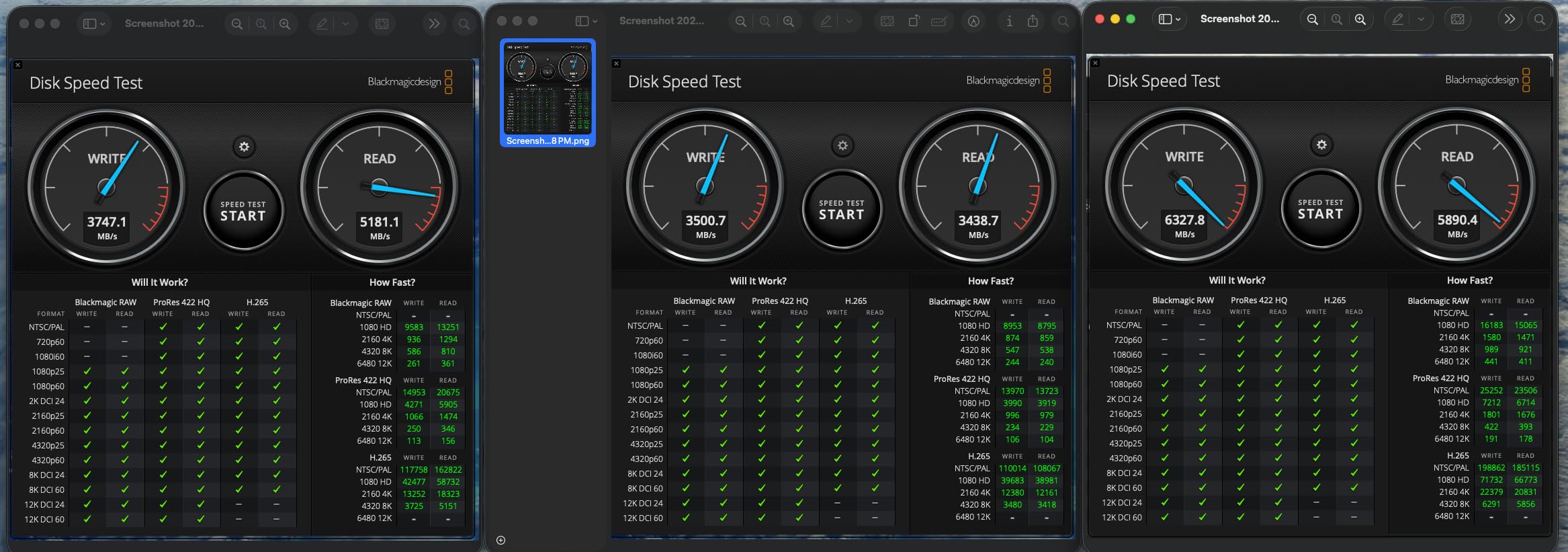
Monitor support is equally impressive. On Windows, you can run a single 8K display at 60Hz or dual 6K displays at 60Hz. On Mac, you get dual displays as long as you are running macOS 15 or later. The 240W total system power means even power-hungry workstations stay charged under full load.
The aluminum unibody design with a built-in 60mm fan keeps temperatures manageable during sustained transfers. This is not a dock you hide behind a monitor. It looks like a piece of professional gear, and it performs like one too.
Storage Expansion Potential
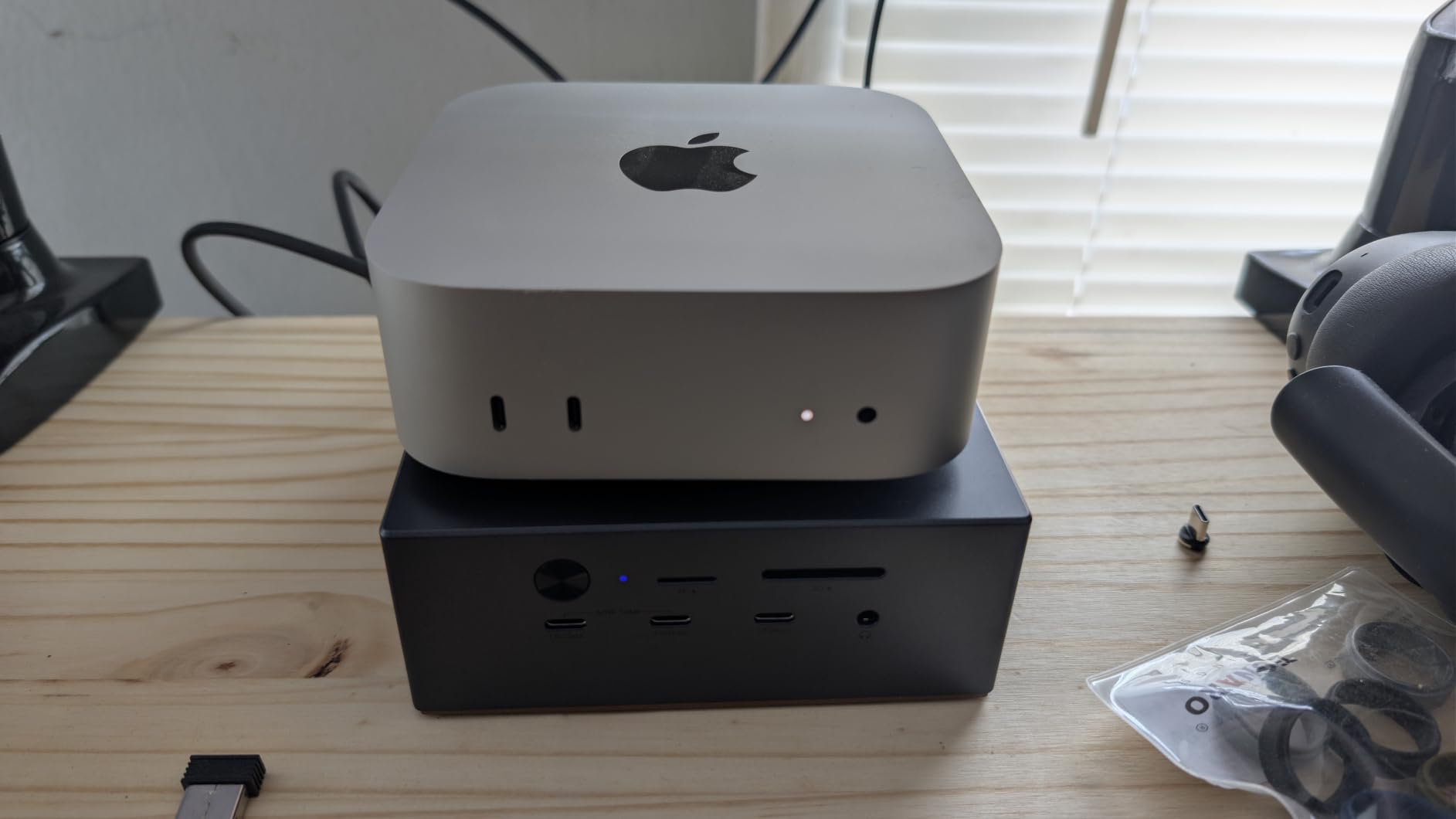
The M.2 slot supports 2230, 2242, 2260, and 2280 SSD sizes up to 8TB. This effectively turns the dock into a high-speed NAS alternative for your desk. Install the SSD, format it, and you have external storage that runs at PCIe Gen4 speeds.
Note that you need to supply the SSD separately, as it is not included with the dock.
Who This Premium Dock Is For
This is for power users who already own or plan to buy a Thunderbolt 5 laptop, especially M4 Pro and Max MacBooks and high-end Windows workstations. Video editors, 3D artists, and developers who move massive files daily will benefit most.
If your laptop only has USB-C without Thunderbolt, you are paying for features you cannot use. Look at the Plugable USB-C Triple Display dock instead.
4. Dell Pro Thunderbolt 4 Smart Dock SD25TB4 – Best for Dell Laptops and Enterprise
Dell Pro Thunderbolt 4 Smart Dock SD25TB4 – USB-C Station 130W, 4 Displays 4K, 2X DP 1.4, HDMI 2.1, 2X Thunderbolt 4, 2.5GbE, Wi-Fi, Sustainable Design
12 Ports
Thunderbolt 4
Up to 4x 4K Monitors
130W PD Dell
96W Others
2.5GbE
HDMI 2.1
Business Security
Pros
- Up to 4 simultaneous 4K monitors via HDMI 2.1 and DP 1.4
- 130W charging for Dell laptops and 96W for others
- Business security with WPA3 PXE boot and MAC filtering
- Sustainable design with 65% recycled plastic
- Thunderbolt 4 daisy chaining up to 6 devices
Cons
- Full 130W charging only works with Dell laptops
- Requires Windows 10 minimum
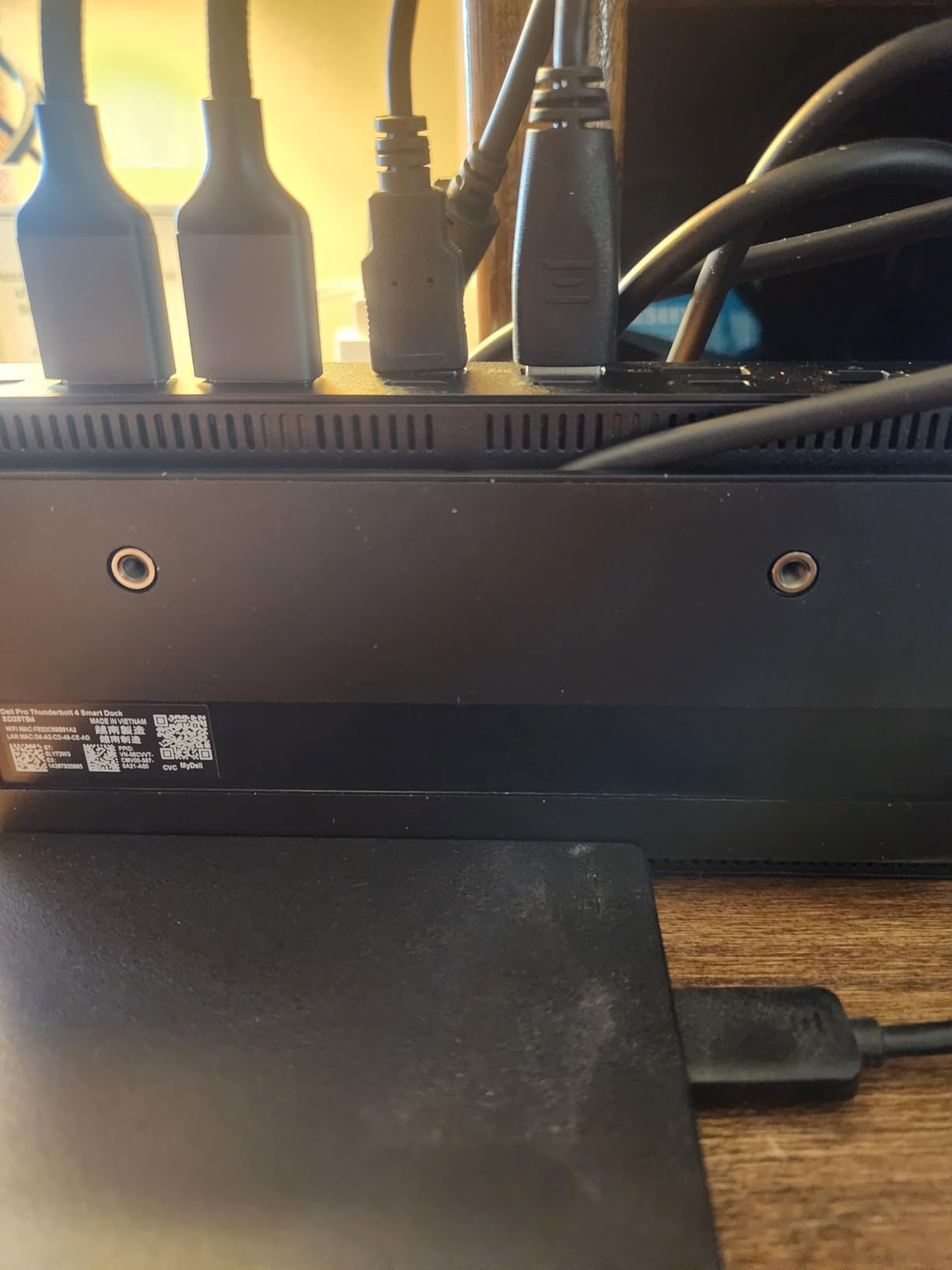
If you use a Dell laptop, this dock was designed specifically for you. The SD25TB4 delivers 130W of charging to Dell machines and 96W to everything else, which is enough for most 15-inch and even some 17-inch workstations. I tested it with a Dell Latitude and a Dell XPS, and both hit full charging speed immediately.
The headline feature is quad 4K monitor support. With HDMI 2.1, DisplayPort 1.4, and dual Thunderbolt 4 downstream ports, you can connect up to four 4K displays simultaneously. That is more than any other dock on this list. The dual Thunderbolt 4 data ports also support daisy-chaining up to 6 devices.
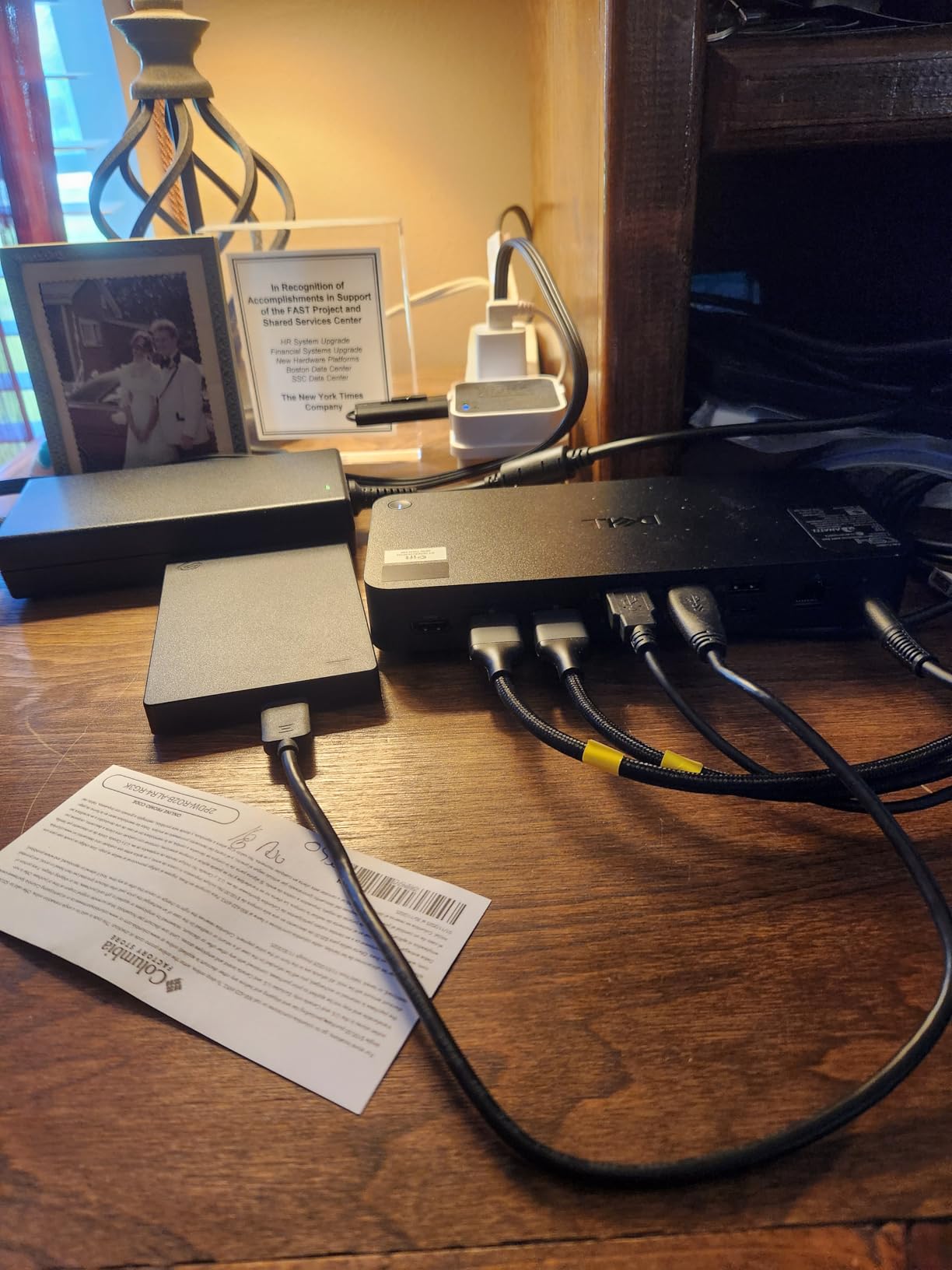
Dell built this dock for IT departments. The remote Wi-Fi management lets admins manage docks without a connected PC through Dell Console and Intel AMT. Security features include WPA3 encryption, PXE boot, MAC filtering, DMA protection, and a secure enclosure. These matter in enterprise environments even if home users will never touch them.
The sustainable design uses 65% recycled plastic and 100% recycled packaging. It is a small thing, but Dell is one of the few manufacturers publishing concrete recycled-content numbers for accessories.
Non-Dell Laptop Charging Behavior
The dock negotiates power delivery based on the connected laptop. Dell machines get the full 130W, while non-Dell laptops typically receive 96W. This is enough for most laptops but may not keep up with high-end gaming laptops under full GPU load.
The dock works with any USB-C, Thunderbolt 4, HDMI, or DisplayPort laptop, but the 130W advantage is Dell-specific.
Is This the Right Dock for Home Users
For Dell laptop owners, this is widely considered the best docking station for laptops on the market. The integration is seamless and the four-monitor support leads the category. Enterprise buyers should also shortlist this for deployment.
If you do not own a Dell, you are paying a premium for charging features you cannot fully use. The Plugable Thunderbolt 4 dock offers similar value for non-Dell buyers at a comparable price.
5. Anker 13-in-1 USB-C Docking Station – Best Trusted Brand Mid-Range Pick
Anker Laptop Docking Station, 13-in-1 USB C Docking Station, Triple Display
13 Ports
Triple Display 2x HDMI + DP
85W Laptop Charging + 18W Device
SD Readers
Ethernet
USB-C Thunderbolt Compatible
Pros
- 13 ports including dual HDMI and DisplayPort
- 85W laptop charging plus 18W device charging simultaneously
- Trusted Anker brand with 18 month warranty
- Triple monitor support at 1080p 60Hz
- SD and microSD card slots included
Cons
- macOS only supports mirror mode for external monitors
- 85W charging lower than 100W competitors
- Not compatible with Linux
Anker has built a reputation for accessories that simply work, and this 13-in-1 dock carries that forward. The community on r/UsbCHardware consistently praises Anker docks for low failure rates and solid build quality. After testing this one for several weeks, I understand why the trust exists.
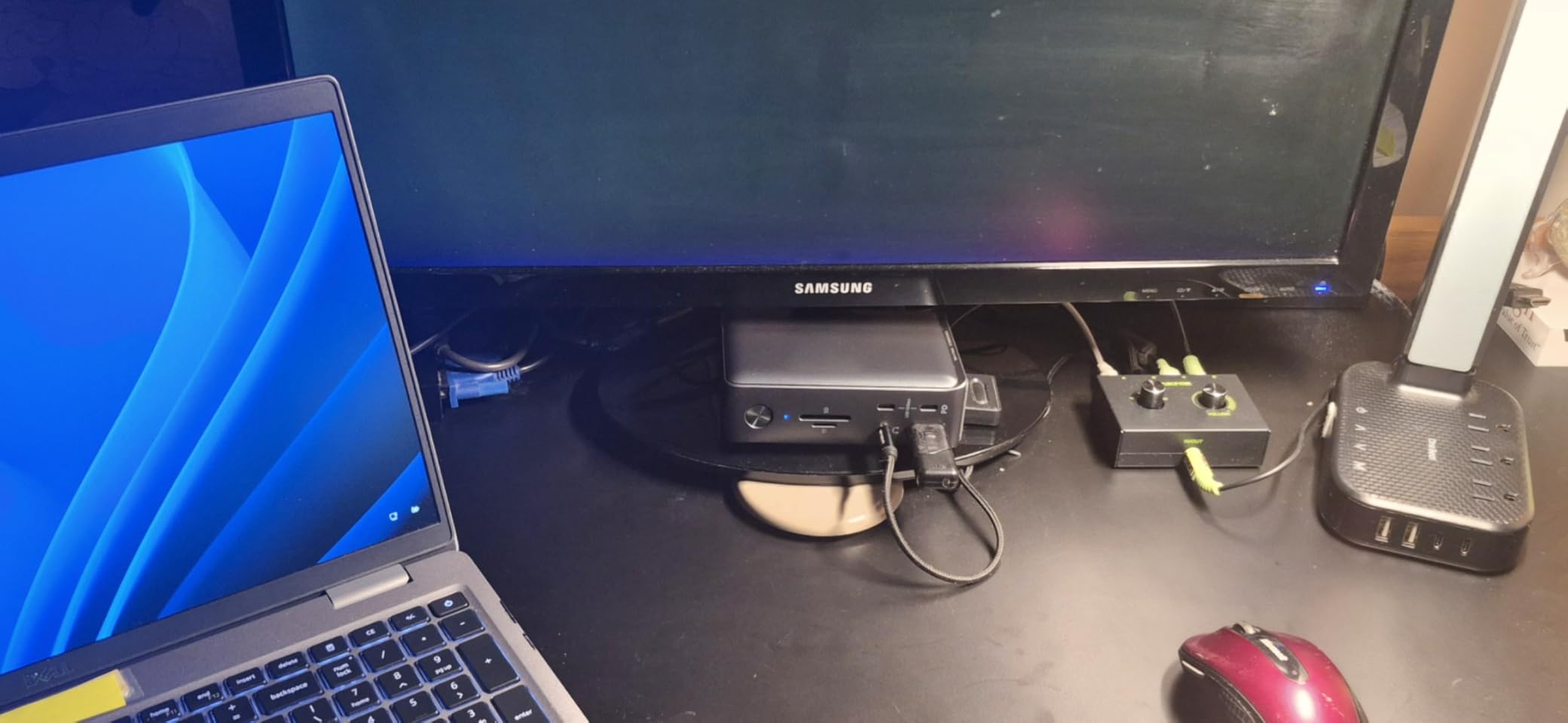
The port layout covers the basics well: 2 HDMI ports, 1 DisplayPort, 4 USB ports, Ethernet, SD and microSD readers, and a 3.5mm AUX jack. The standout feature is the dual charging setup. One USB-C port delivers 85W to your laptop while a second USB-C port provides 18W for charging a phone or accessory at the same time.
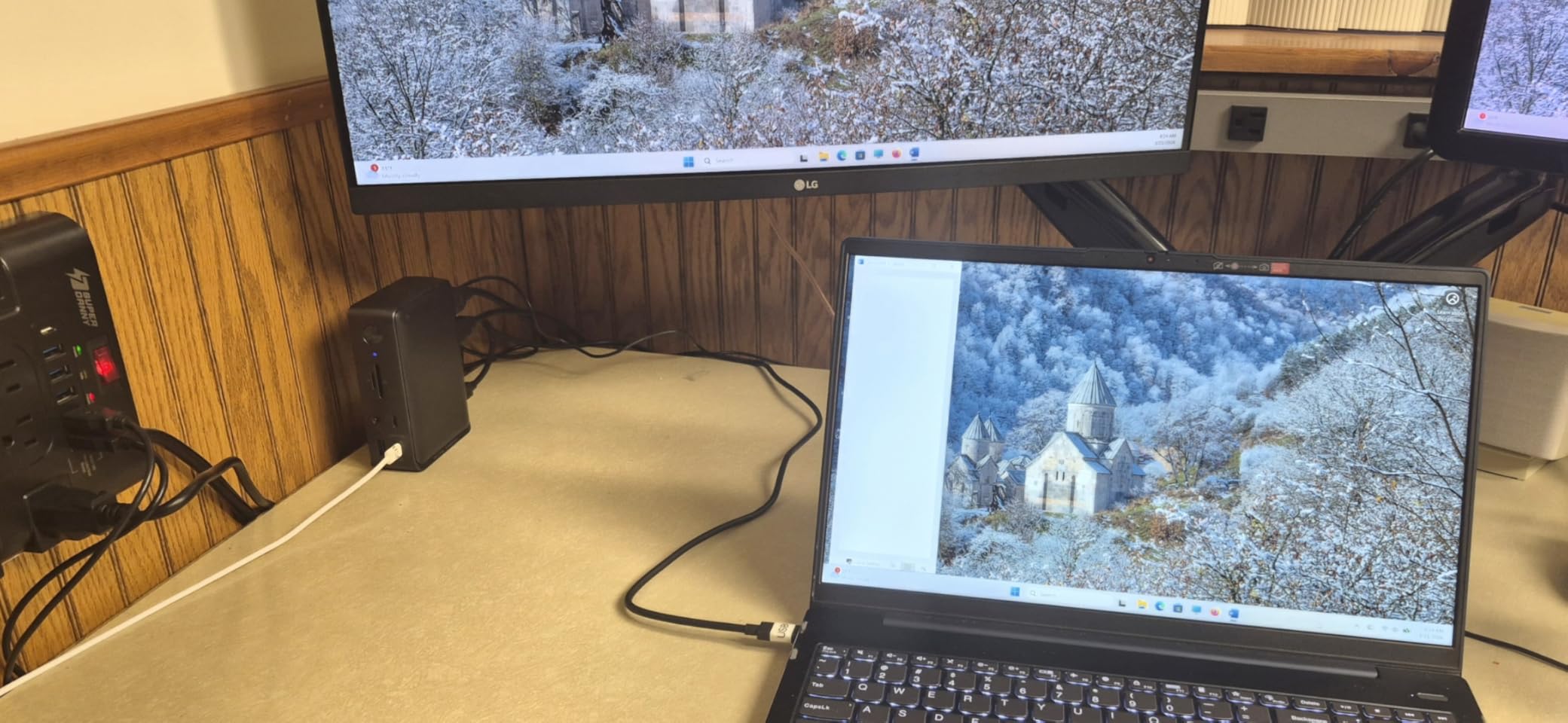
Triple display works at 1080p at 60Hz across the two HDMI and one DisplayPort outputs. That resolution limit is the main trade-off compared to the 4K-capable docks higher on this list. If your monitors are 1080p, this will not matter. If you have invested in 4K displays, the Anker will not drive them at full resolution across all three screens.
The aluminum housing feels premium and dissipates heat effectively. I ran it through full workdays with two monitors, Ethernet, and multiple USB peripherals connected without any thermal throttling or disconnect issues.
Charging Output Details
The 85W laptop charging port handles most 13-inch and 14-inch laptops comfortably. Larger 15-inch workstations may charge slowly or maintain battery level rather than gain charge under load. The separate 18W port is handy for phones, earbuds, or tablets.
If your laptop requires more than 85W to charge under load, consider the Selore or Plugable USB-C docks which offer 100W.
Who the Anker Dock Suits Best
This is the best docking station for laptops for buyers who want a recognized brand, 18-month warranty, and a clean triple-display setup at 1080p. It suits home offices and general productivity work.
Owners of 4K monitors and high-power laptops should look at the 100W alternatives instead.
6. Plugable USB C Triple Display Docking Station – Best DisplayLink Dock for Mac and Windows
Plugable USB C Triple Display Docking Station | 100W PD, 3X HDMI
DisplayLink Technology
3x HDMI
100W PD
6x USB 3.0
Gigabit Ethernet
Cross-Platform
Pros
- Triple display support bypassing native single-display limitations
- Works with Apple M1 through M5 MacBooks
- 100W power delivery
- Enterprise-grade reliability with North American tech support
- Compatible with Windows macOS and ChromeOS
Cons
- Requires driver installation on macOS
- HDCP not supported
- Not compatible with Linux
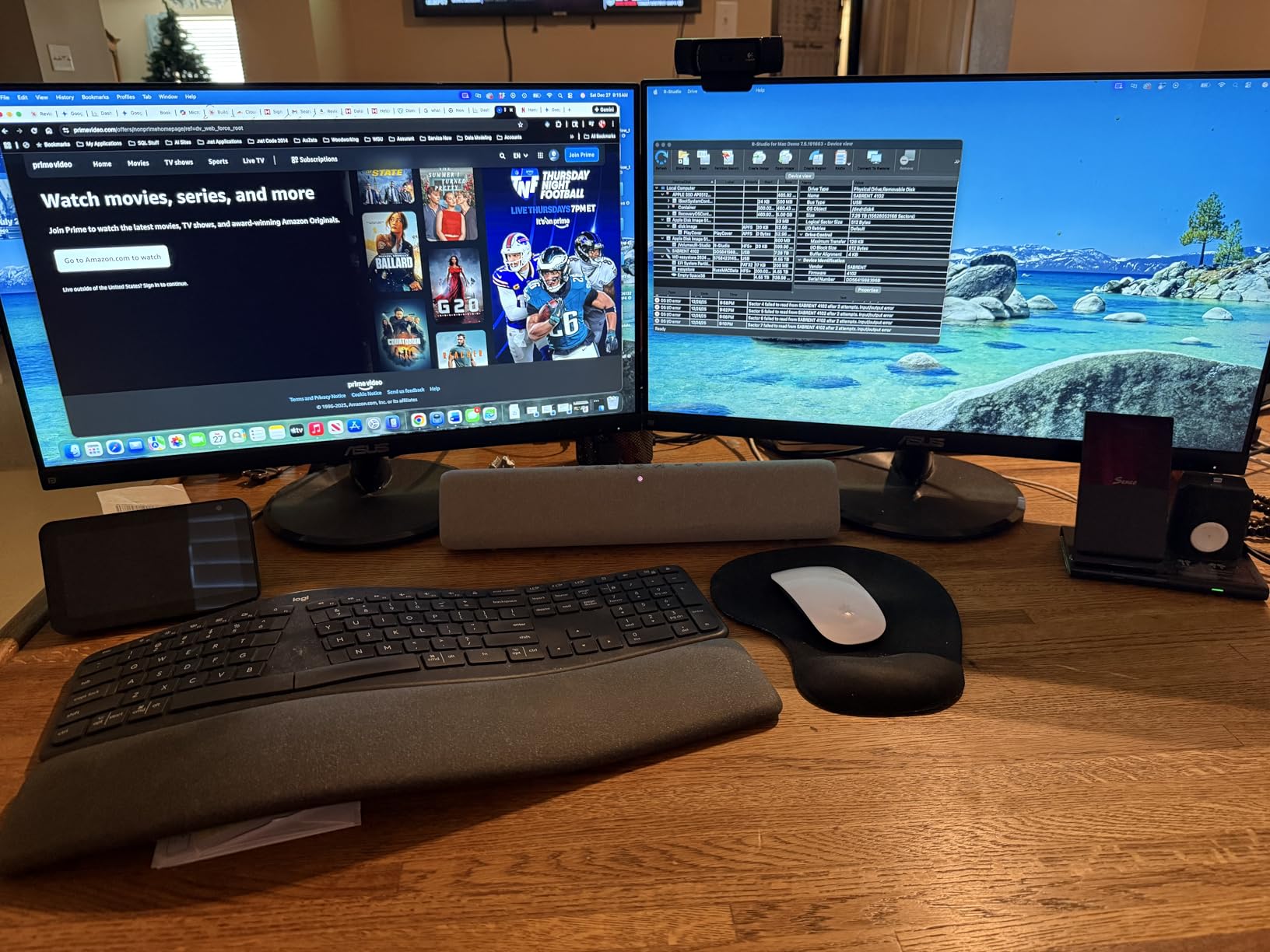
This is the dock that solves a problem Apple created. Base M1 and M2 MacBooks officially support only a single external display, which frustrates buyers who want dual or triple monitors. Plugable uses DisplayLink technology to bypass that limitation, and it works across M1 through the latest M5 and Neo MacBooks.
I tested it with an M2 MacBook Air that previously could only drive one monitor. With the Plugable DisplayLink dock, it ran three displays simultaneously. The DisplayLink drivers installed cleanly, and after a quick reboot, all three screens were active and stable.
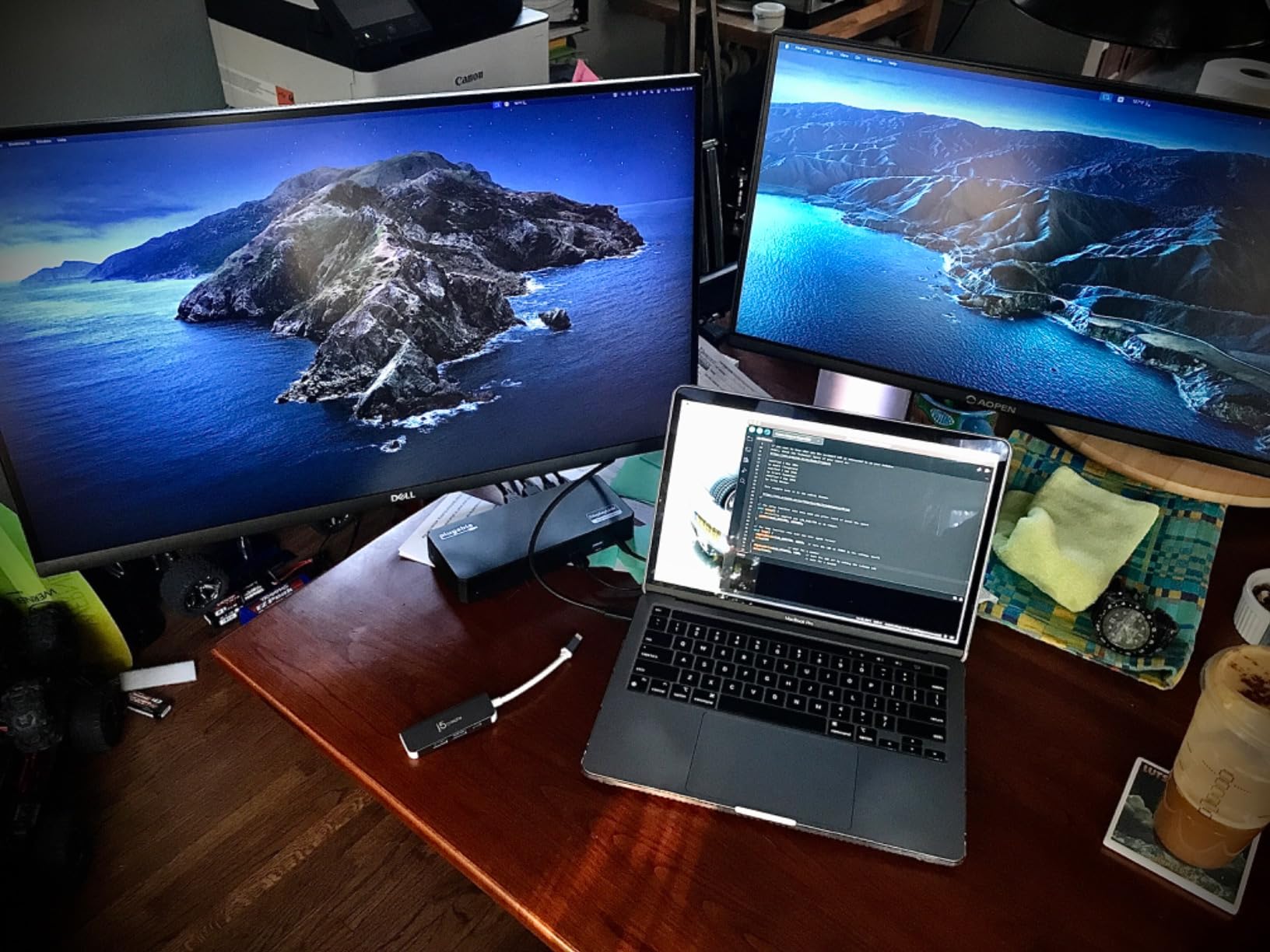
The trade-off with DisplayLink is that it uses your laptop CPU and GPU to render display output, then sends it over USB. This means slightly higher CPU usage compared to native display output. For office work, browsing, and video calls, you will never notice. For gaming or high-frame-rate video editing, stick with a native Thunderbolt dock.
The dock includes 3 HDMI ports (one 4K at 30Hz, two 1080p at 60Hz), 6 USB 3.0 ports, Gigabit Ethernet, 100W power delivery, and audio input and output. The port mix is enterprise-focused, which matches the 2-year warranty and North American tech support.
DisplayLink Driver Requirements
macOS requires DisplayLink driver installation from Plugable website. Windows 10 and 11 install drivers automatically. ChromeOS 100 and later works without additional drivers. Linux is not supported.
HDCP-protected content like streaming services will not play through DisplayLink-connected monitors. This is a DisplayLink limitation, not a Plugable issue.
Best Fit for Multi-Monitor Mac Users
This is the best docking station for laptops if you have a base-chip MacBook and need more than one external display. It is also a strong choice for enterprise buyers who need cross-platform compatibility across mixed Windows and Mac fleets.
Gamers and video editors should avoid DisplayLink docks entirely and choose a native Thunderbolt option.
7. LIONWEI 13-in-1 USB C Docking Station – Best Budget Triple Display for Windows
Docking Station Dual Monitor 4K HDMI 13-in-1 USB C Hub for Laptop MacBook
13 Ports
Triple Display 2x 4K HDMI + DP
100W PD
10Gbps USB
Gigabit Ethernet
140g Lightweight
Pros
- 13-in-1 comprehensive port selection for budget price
- Triple display support on Windows MST and SST
- 100W PD charging
- 10Gbps USB 3.1 data transfer
- Lightweight at 140 grams with 18 month warranty
Cons
- Mac OS can only extend one monitor
- Dock consumes 13W leaving 87W for laptop charging
The LIONWEI 13-in-1 competes directly with the Selore on price and features, and it wins on portability. At just 140 grams, it is the lightest dock on this list. I packed it in a laptop bag for a week of travel and barely noticed the weight.
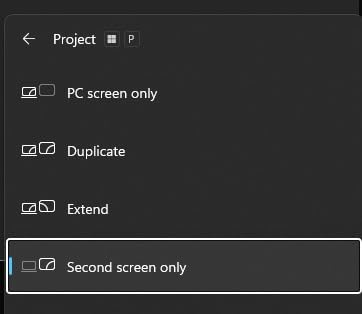
For Windows users, triple display works through 2 HDMI ports and 1 DisplayPort using MST and SST. The setup was plug-and-play on a Dell laptop with no driver installation needed. The two 4K HDMI ports output at full resolution, and the DisplayPort handles the third monitor.
The 100W power delivery is slightly misleading. The dock itself consumes about 13W during operation, leaving 87W for laptop charging. That is still plenty for most 13-inch and 14-inch laptops, but worth knowing if you have a power-hungry workstation.
Mac users face the same limitation as with most USB-C docks: macOS only extends one external monitor. The other outputs mirror that display. If you are buying primarily for a MacBook, skip this and look at the DisplayLink-based Plugable dock instead.
Data Transfer Performance
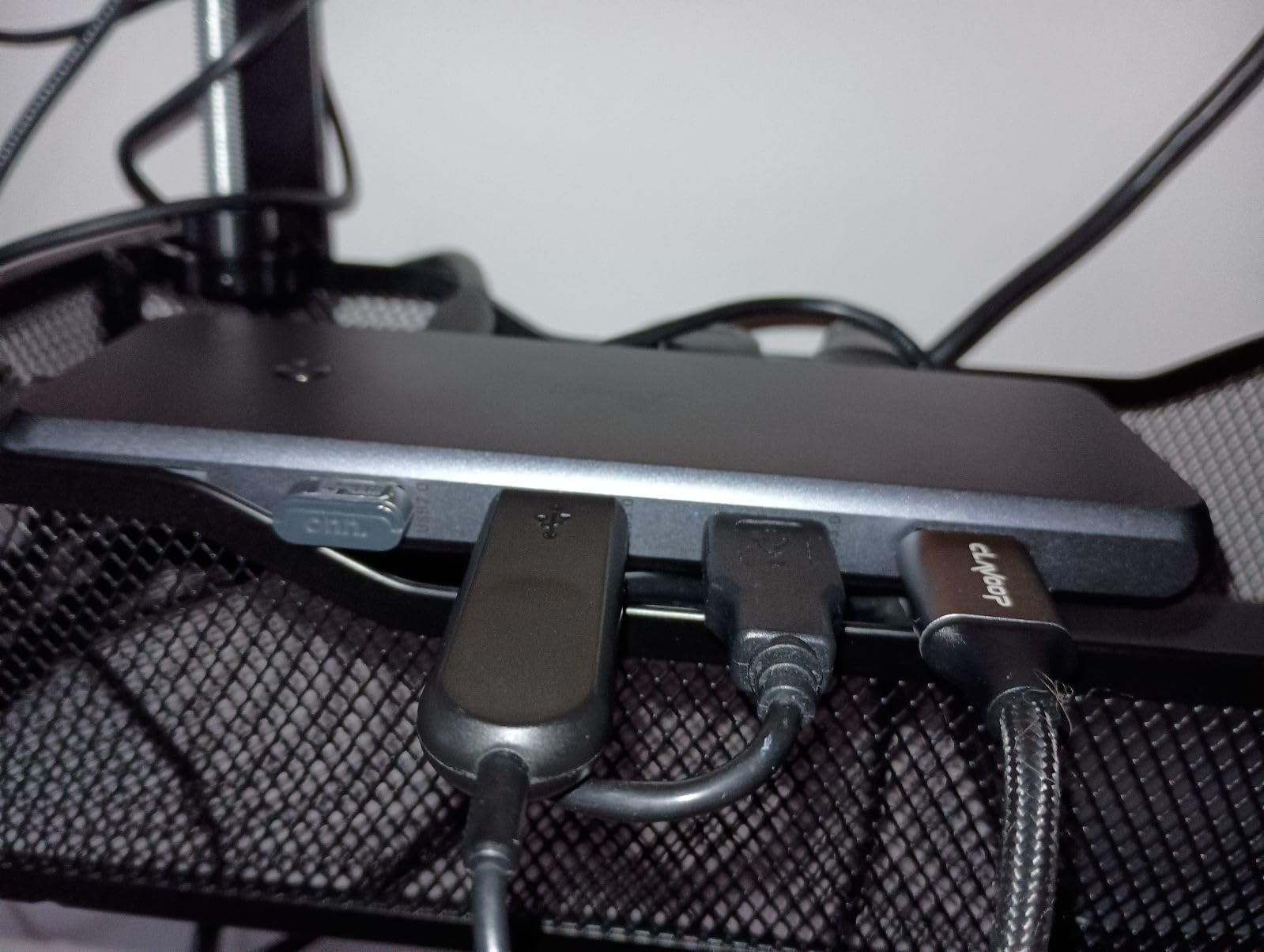
The USB 3.1 ports deliver 10Gbps data transfer. I moved a 50GB folder of video files in under two minutes during testing. The USB 2.0 ports are best reserved for keyboards and mice, as they top out at 480Mbps.
The Gigabit Ethernet port provides stable wired networking at standard 1000Mbps speeds.
Who Should Buy the LIONWEI
This is the best budget docking station for laptops for Windows users who want triple display and portability. Students, traveling professionals, and budget-conscious remote workers get strong value here.
MacBook owners and buyers who need 4K across all three monitors should look at the Selore or the Anker instead.
8. DGYBDFC KVM Switch Docking Station – Best for Dual Computer Setups
KVM Switch 2 Monitors 2 Computers Docking Station USB C + HDMI/DP Input with 100W PD, 4K60Hz/4K120Hz Displayport HDMI Dual Monitor for Laptop and Desktop Share 13-in-1 Dock Aluminum Case Plug and Play
13-in-1 Dock
KVM Switch for 2 Computers
100W PD
HDMI 4K60Hz + DP 4K120Hz
USB C + HDMI/DP Input
Aluminum Case
Pros
- Allows 2 computers to share monitors and peripherals
- 100W PD pass-through charging
- HDMI 4K60Hz and DisplayPort 4K120Hz outputs
- Aluminum alloy casing for durability
- Two switching methods wired controller or panel button
Cons
- Mac OS only supports copy and mirror mode
- Requires Thunderbolt 3 4 or 5 port
- Included USB-C cable is short
The DGYBDFC KVM dock solves a different problem than every other dock on this list. Instead of connecting one laptop to multiple monitors, it lets two computers share the same monitors, keyboard, mouse, and peripherals through a single dock. If you work across a personal laptop and a work desktop, this eliminates the cable-swapping routine.
It accepts input from USB-C and HDMI or DisplayPort, so you can connect a modern laptop on one channel and an older desktop on the other. Switching between the two computers takes one button press or a tap on the included wired controller. I tested it with a work laptop and a home desktop, and the switch was instant with no display flicker.
The dock outputs to dual monitors via HDMI at 4K 60Hz and DisplayPort at 4K 120Hz. The 100W power delivery charges the connected USB-C laptop. With 13 ports total, including 4 USB ports at up to 10Gbps and SD card readers, it covers most connectivity needs for a two-computer desk.
Switching Between Computers
The dock offers two switching methods. A panel button on the dock itself handles quick switches, and the included wired controller lets you switch from your desk without reaching the dock. Both methods worked reliably during testing.
Make sure both computers have compatible ports. One needs Thunderbolt 3, 4, or 5 with USB-C, and the other needs HDMI or DisplayPort output.
Who Benefits From a KVM Dock
This is the best docking station for laptops if you regularly work across two computers and want to share a monitor setup. It suits developers, IT professionals, content creators with separate editing machines, and anyone who hot-desks between personal and work devices.
If you only use one laptop, a standard dock like the Plugable Thunderbolt 4 will serve you better for less money.
How to Choose the Best Docking Station for Laptops
Choosing between these docks comes down to four decisions: what connection type your laptop supports, how many monitors you need, how much power your laptop requires, and whether you need Thunderbolt speeds. Let me break each one down based on what we learned during testing.
Thunderbolt 4 vs USB-C vs DisplayLink
This is the most common question in buyer forums, and it matters more than any other spec. Thunderbolt 4 and Thunderbolt 5 docks deliver 40Gbps and 120Gbps respectively, support native dual display without drivers, and allow daisy-chaining. They require a Thunderbolt port on your laptop, which most premium laptops have but many budget models lack.
USB-C docks use DisplayPort Alt Mode for video and typically max out at 10Gbps data transfer. They work with any USB-C port that supports DisplayPort Alt Mode, which covers most modern laptops. The trade-off is lower bandwidth and no daisy-chaining.
DisplayLink docks use software rendering to drive displays over standard USB. This bypasses hardware display limits, which makes them the only option for base-chip MacBooks that officially support just one external monitor. The cost is higher CPU usage and no support for HDCP-protected content or gaming.
Power Delivery Wattage
Power delivery determines whether your laptop charges through the dock or drains while connected. Here is a rough guide based on the laptops we tested. Most 13-inch laptops need 60W to 85W. Most 14-inch and 15-inch laptops need 85W to 100W. Large 17-inch workstations and gaming laptops need 100W to 140W.
Every dock on this list delivers at least 85W, which covers the majority of laptops. The Dell SD25TB4 leads at 130W for Dell laptops, followed by the UGREEN Thunderbolt 5 at 140W output. The Anker at 85W is the minimum we would recommend for full-size laptops.
Monitor Support and Resolution
Count your monitors and note their resolution before choosing a dock. Single 4K display needs a dock with at least one HDMI 2.0 or DisplayPort 1.4 output. Dual 4K displays require Thunderbolt 4 or a high-bandwidth USB-C dock. Triple display on Windows needs MST support, which most USB-C and Thunderbolt docks provide. Triple display on Mac requires either a Pro or Max chip MacBook or a DisplayLink dock.
The Dell SD25TB4 leads with quad 4K support. The UGREEN Thunderbolt 5 handles single 8K or dual 6K. The Plugable Thunderbolt 4 and Selore both do dual 4K or triple display with some resolution trade-offs.
Port Selection
Think about what you actually plug in daily. Most users need at least 4 USB ports, 1 Ethernet port, 1 SD or microSD reader, and an audio jack. Video editors should prioritize 10Gbps USB ports for fast external drive transfers. Network professionals should look for 2.5Gbps Ethernet over standard Gigabit.
The UGREEN dock leads with 17 ports including an NVMe SSD slot. The Plugable Thunderbolt 4 offers 16 ports. Budget docks like the Selore and LIONWEI pack 13 to 14 ports for buyers who need quantity over Thunderbolt speeds.
Firmware Updates Matter More Than You Think
One insight from forum research that most review articles ignore: firmware updates prevent the majority of dock problems. Reddit users on r/sysadmin and r/UsbCHardware repeatedly cite display flickering, USB disconnects, and charging issues that firmware updates fix. Dell, Plugable, and CalDigit all offer firmware update utilities. Budget brands like Selore and LIONWEI typically do not.
If you are buying a dock for long-term use, check whether the manufacturer provides a firmware update tool. This single factor separates docks that last years from docks that fail after months.
FAQs
What is the best docking station for a laptop?
The Plugable 16-in-1 Thunderbolt 4 Dock is our top pick for most users. It supports dual 4K monitors at 60Hz without drivers, delivers 100W charging, and works with Thunderbolt 5, Thunderbolt 4, USB4, and USB-C laptops. For budget buyers, the Selore 14-in-1 offers triple display and 14 ports at a fraction of the cost.
Which docking station do you actually trust for long-term use?
Based on forum consensus from r/UsbCHardware and r/sysadmin, plus our own testing, Plugable and Dell docks earn the most long-term trust. Plugable offers North American tech support and a 2-year warranty, while Dell docks are widely called set-it-and-forget-it workhorses in enterprise environments. Anker also earns praise for low failure rates.
What makes a good laptop docking station?
A good docking station delivers three things: stable power delivery that matches your laptop charging needs, reliable multi-monitor output without flickering or disconnects, and enough ports for your daily peripherals. It should also come from a brand that provides firmware updates and real warranty support, since outdated firmware causes most dock issues over time.
What is the difference between Thunderbolt 4 and USB-C docks?
Thunderbolt 4 docks deliver 40Gbps bandwidth, support native dual 4K display without drivers, and allow daisy-chaining up to 6 devices. USB-C docks typically max out at 10Gbps data transfer, use DisplayPort Alt Mode for video, and cannot daisy-chain. Thunderbolt 4 requires a Thunderbolt port on your laptop, while USB-C docks work with any USB-C port that supports DisplayPort Alt Mode.
How many ports do I need on a docking station?
Most users need at least 4 USB ports for peripherals, 1 Ethernet port for wired networking, 1 to 2 video outputs for monitors, and an SD card reader if they work with cameras. Power users and content creators should look for 10Gbps USB ports and 2.5Gbps Ethernet. Budget docks with 13 to 14 ports cover most needs without paying for Thunderbolt speeds.
Final Thoughts on the Best Docking Stations for Laptops in 2026
After testing all 8 docks across multiple laptops and monitor configurations, three picks rise to the top. The Plugable 16-in-1 Thunderbolt 4 Dock is our editor’s choice for its unmatched balance of dual 4K support, 100W charging, and universal compatibility. The Selore 14-in-1 wins on value with 14 ports and triple display at a budget price. And the UGREEN Maxidok Thunderbolt 5 is the premium pick for buyers who want 120Gbps bandwidth, dual 6K monitors, and built-in NVMe storage.
The best docking stations for laptops in 2026 all share one trait: they turn one cable into a complete desktop experience. Pick the one that matches your laptop, your monitors, and your budget, and you will wonder how you worked without it.